Send a PO to a vendor
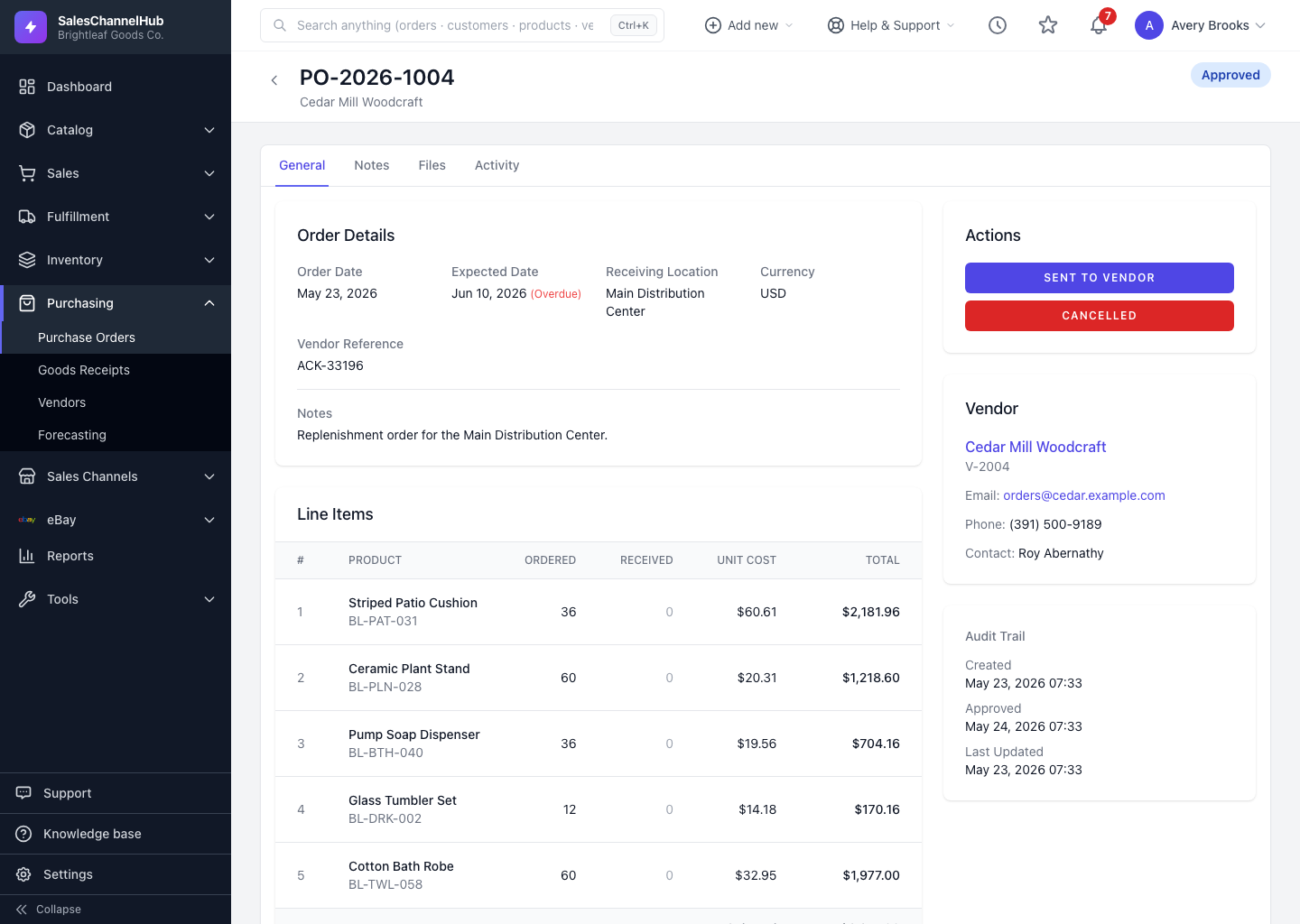
Click Sent to Vendor on an approved PO to record that it went out and unlock receiving. The sent date is stamped on the order.
Marking a PO as sent records that the order went out to the supplier and unlocks receiving. To do it, open an approved PO and use the Actions sidebar.
How do I send a PO?
- Open an Approved purchase order.
- In the Actions sidebar, click Sent to Vendor.
- The status becomes Sent to Vendor and the Sent Date appears in Order Details.
What happens after it's sent?
- A Receive Goods section appears on the PO so you can record arrivals.
- You can move it to Acknowledged once the vendor confirms.
- As stock lands, the order moves to Partially Received and then Fully Received.
Tip. Sending also locks the PO from editing, so double-check quantities and costs before you send.
Was this article helpful?