Customise the order list columns
Use the column selector to show or hide columns like Lines and Date, and your choice sticks to your account.
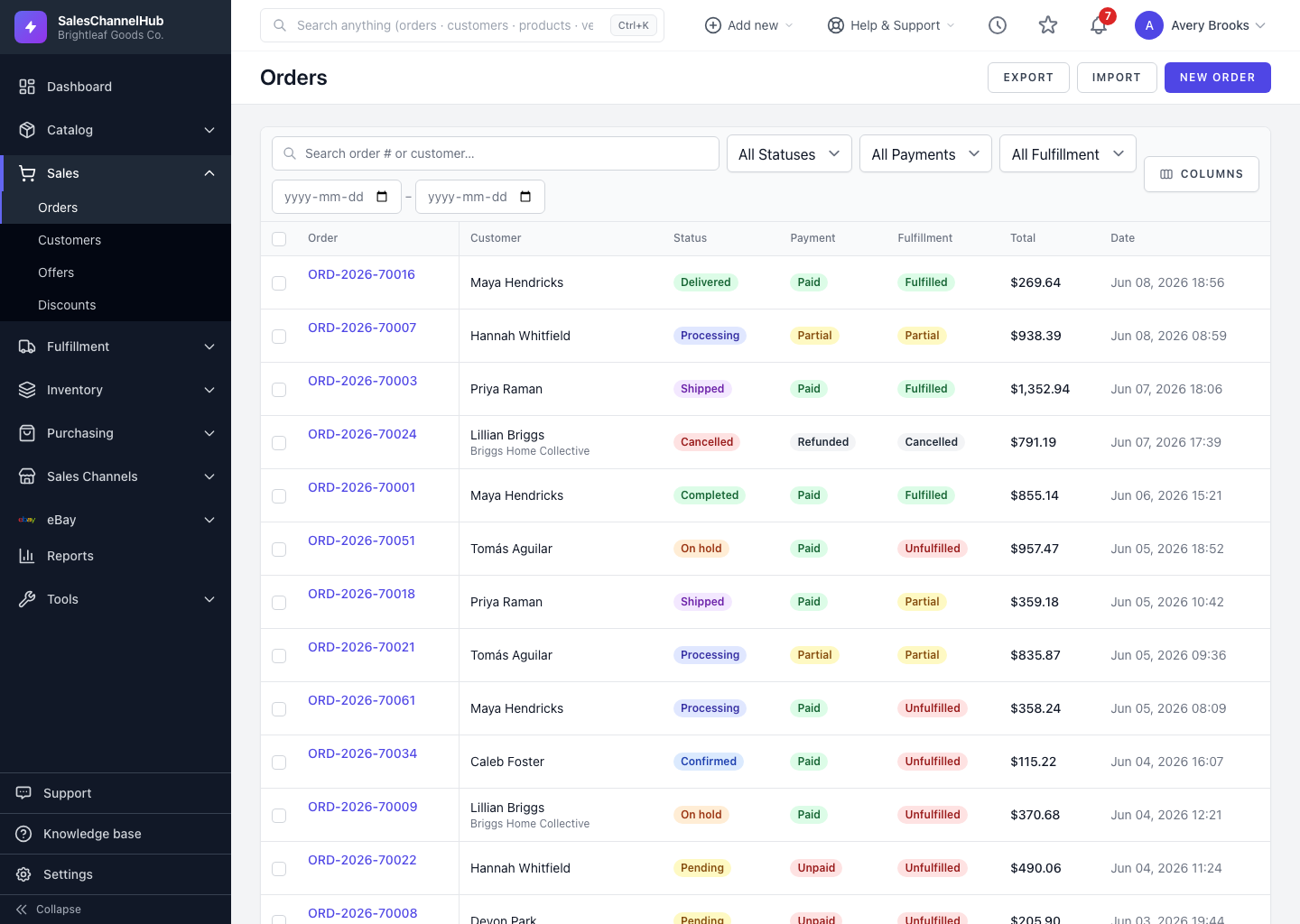
To change which details appear in the orders table, open the column selector to the right of the filter bar. Your choice is remembered for next time.
How do I show or hide columns?
- Find the column selector control to the right of the filter bar.
- Open it to see every available column: Order, Customer, Status, Payment, Fulfillment, Total, Lines and Date.
- Tick the columns you want and untick the ones you don't.
- Your selection applies straight away and sticks to your account.
Tip. The Lines column is hidden by default. Turn it on while you pick and pack to spot multi-line orders at a glance.
Was this article helpful?