Delete a brand
Hover a brand and click Delete. If products are still assigned to it, the delete is blocked until you reassign them.
To remove a brand, hover its row on the Brands list and click Delete, then confirm. The app blocks deletes that would orphan products.
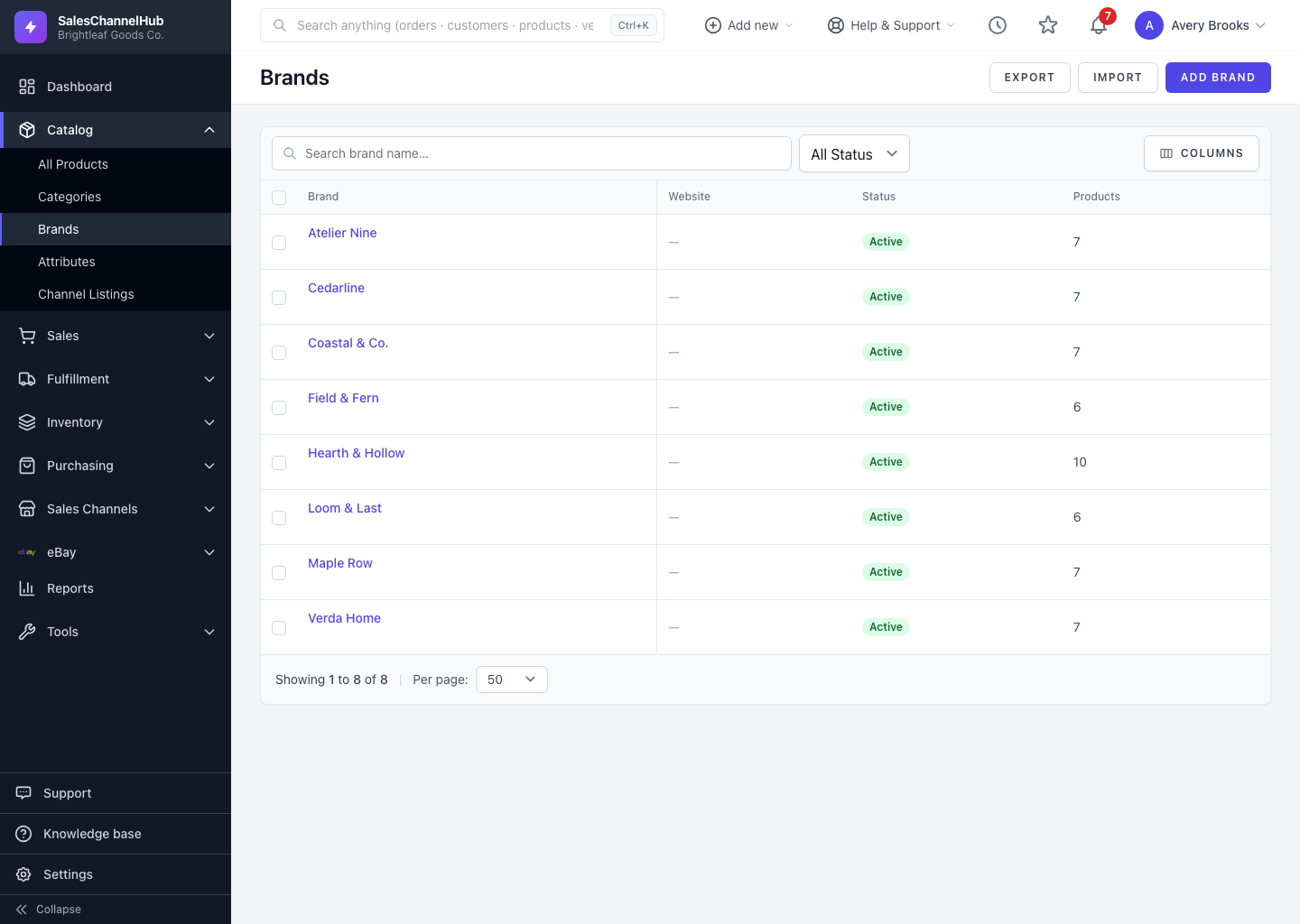
How do I delete a brand?
- Hover the brand row and click Delete.
- Confirm in the prompt.
What if products are still assigned?
- If the brand still has products, the delete is blocked. Reassign or clear those products first.
- Once a brand has no products, it deletes cleanly.
Tip. Not ready to delete but want it out of the way? Untick Active on the brand to hide it while keeping its history intact.
Common questions
Why can't I delete a brand?
Products are still assigned to it. The brand's Products count on the list shows how many. Reassign or clear those products, then try again.
What happens to products if I delete their brand?
You can't delete a brand while products use it, so this doesn't arise. Clear the brand from those products first, after which the delete is allowed.
Was this article helpful?