Choose which events notify you
From Settings → Notification Preferences, set per event type whether you get an email, an in-app alert, or both.
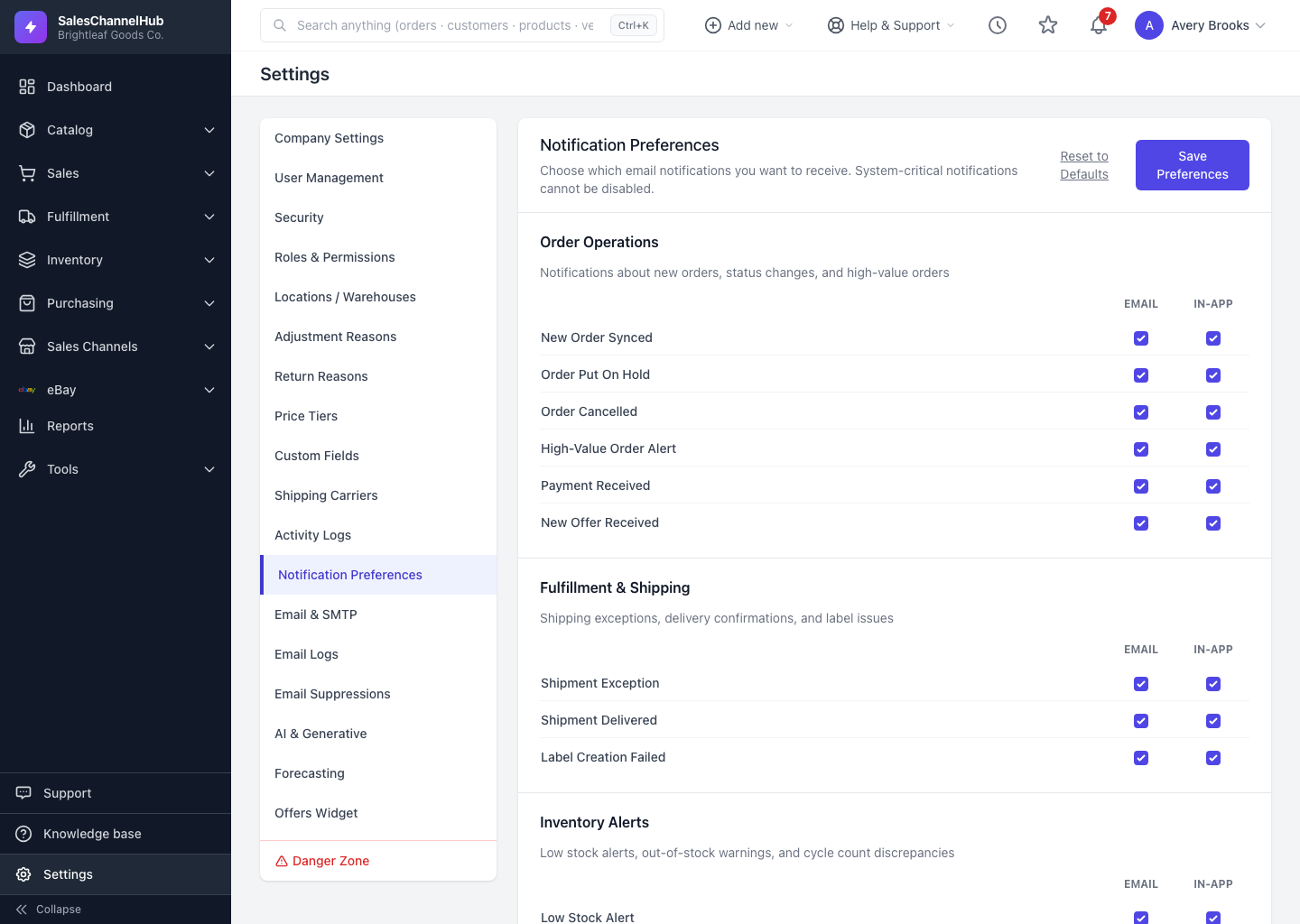
You decide which events reach you and how. Notification Preferences lets you switch email and in-app alerts on or off for each event type, so you only hear about what matters to your role. Open it from Settings > Notification Preferences.
How do I set my preferences?
- Scroll the event types, grouped into sections like Order Operations, Fulfillment & Shipping and Inventory Alerts, each with a short description.
- For every event, tick or untick the Email and In-app boxes independently. You might want an email for a high-value order but only an in-app nudge for low stock.
- Click Save Preferences to apply your choices.
- Changed your mind? Reset to Defaults restores the original settings for every type.
Why can't I turn some alerts off?
Events marked Always On are system-critical and can't be switched off. That's deliberate, so essential warnings always reach you.
Tip. Your preferences are yours alone. Each user sets their own, so a warehouse picker and an owner can receive entirely different alerts.
Common questions
Do my preferences affect anyone else?
No. Notification Preferences are per user. Everyone on your team sets their own email and in-app choices independently.
Why is an alert showing Always On with no checkboxes?
It's system-critical and can't be disabled. The app keeps essential warnings switched on so they always reach you.
I unticked Email for an event but still got one. Why?
Check that the event isn't marked Always On, which ignores the toggle. Otherwise confirm you clicked Save Preferences after unticking.