Review and post variances
On a Pending Review count, check the variance summary and per-line variances, click Approve, then Post Adjustments to apply the changes.
Once a count is submitted, the detail page reveals each line's variance, the difference between counted and system quantity, plus a summary of total variance quantity and value. Reviewing this before posting is your safety check.
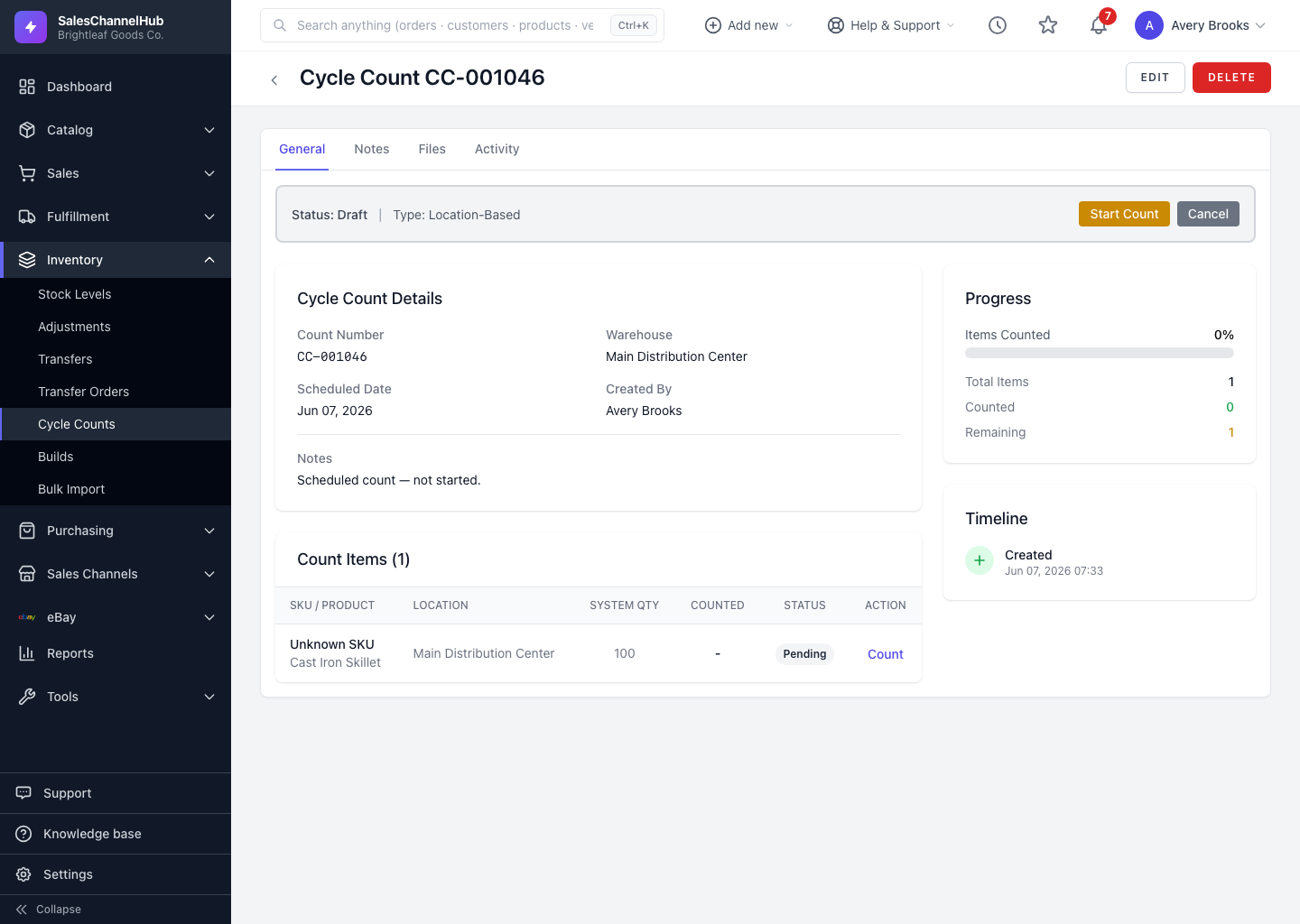
How do I review and post?
- Open a count in Pending Review.
- Check the Variance Summary and the per-line variances. Lines with a difference are highlighted.
- If it looks right, click Approve. If not, send it back to recount.
- On the approved count, click Post Adjustments and confirm.
What's in the variance summary?
Total Variance (Qty), Total Variance Value and the number of items with a variance. A large swing usually points to a miscount worth a recount.
Tip. Posting is the only step that touches your stock, and once posted the count is final. Read the variance value carefully before you confirm.
Common questions
Why isn't the Post Adjustments button showing?
A count must be Approved first. Submit it for review and approve it, then the Post Adjustments button appears.
Can I undo a posted count?
No. Posting writes the adjustments to stock and the count is final. To correct an error, run a new count and post the offsetting adjustment.
What does a positive versus negative variance mean?
A positive variance means you counted more than the system held (stock goes up when posted); negative means you counted less (stock goes down).