Create a transfer order
Click New Transfer, set the From and To locations, then add a line per SKU with its quantity. It saves as a draft you can keep editing.
A transfer order starts as a draft you can keep editing until you submit it. You choose where stock is moving from and to, then add the items and quantities.
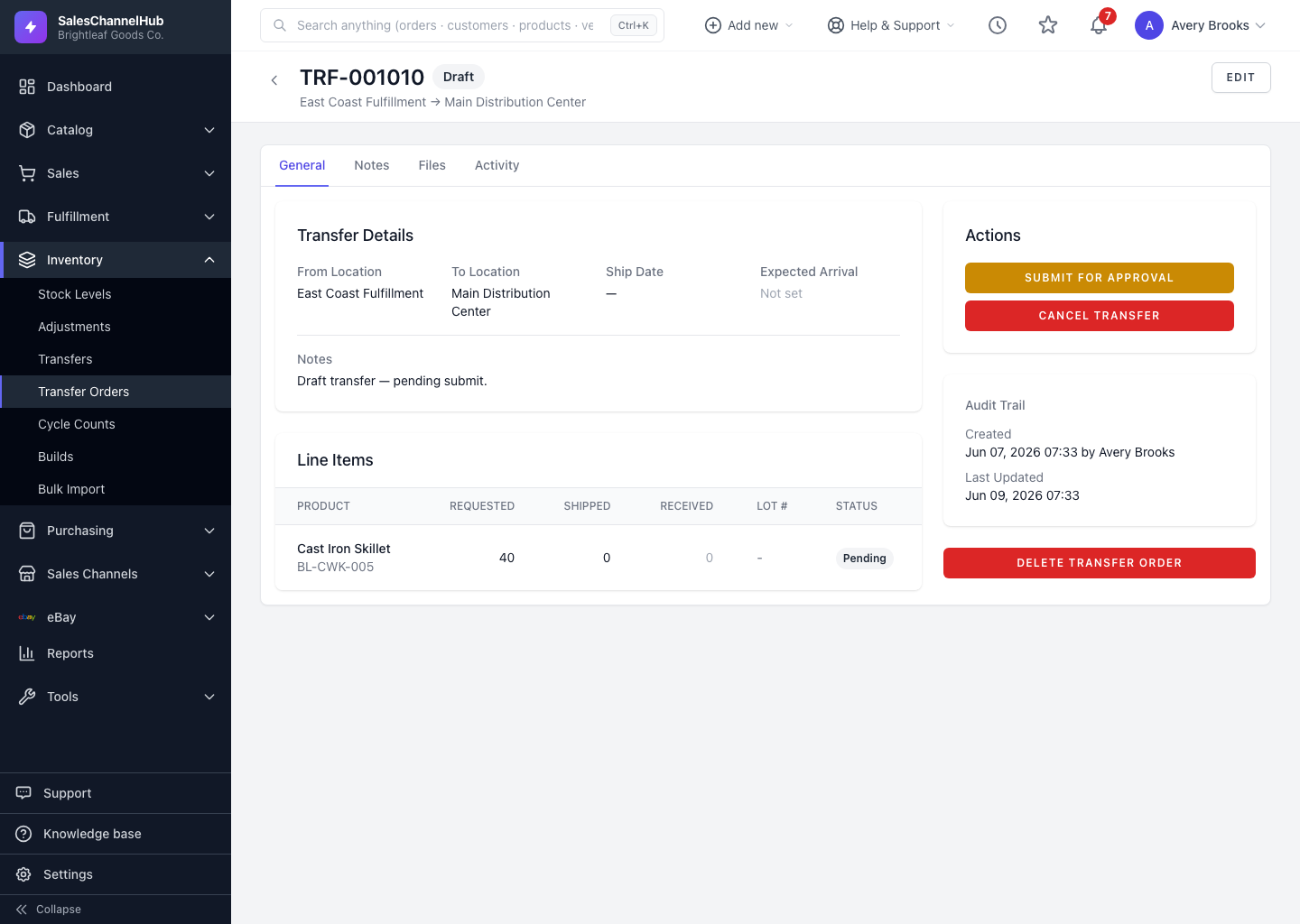
How do I create one?
- On the Transfer Orders screen, click New Transfer.
- Choose the From Location and To Location.
- Optionally set an Expected Arrival date and add Notes.
- Click Add Line for each item: search by SKU or product name, set the Qty, and add a lot number if needed.
- Click Create Transfer Order to save it in Draft.
Tip. Only draft transfers can be edited. To change the source, destination or lines after submitting, cancel and start again.
Common questions
Can I edit a transfer after I submit it?
No. Only drafts are editable. Once submitted, shipped or received, cancel the transfer and recreate it, or reverse it if it's already in transit.
Can the source and destination be in the same building?
You can, but a quick inventory transfer is usually better for same-building moves. Use a transfer order when stock spends time in transit between sites.
Was this article helpful?