Run a rule manually
Open a rule and click Run now to fire it on demand instead of waiting for its next scheduled time.
To fire a rule straight away rather than wait for its schedule, open it and click Run now. It's handy for testing a new rule or catching up after a busy day.
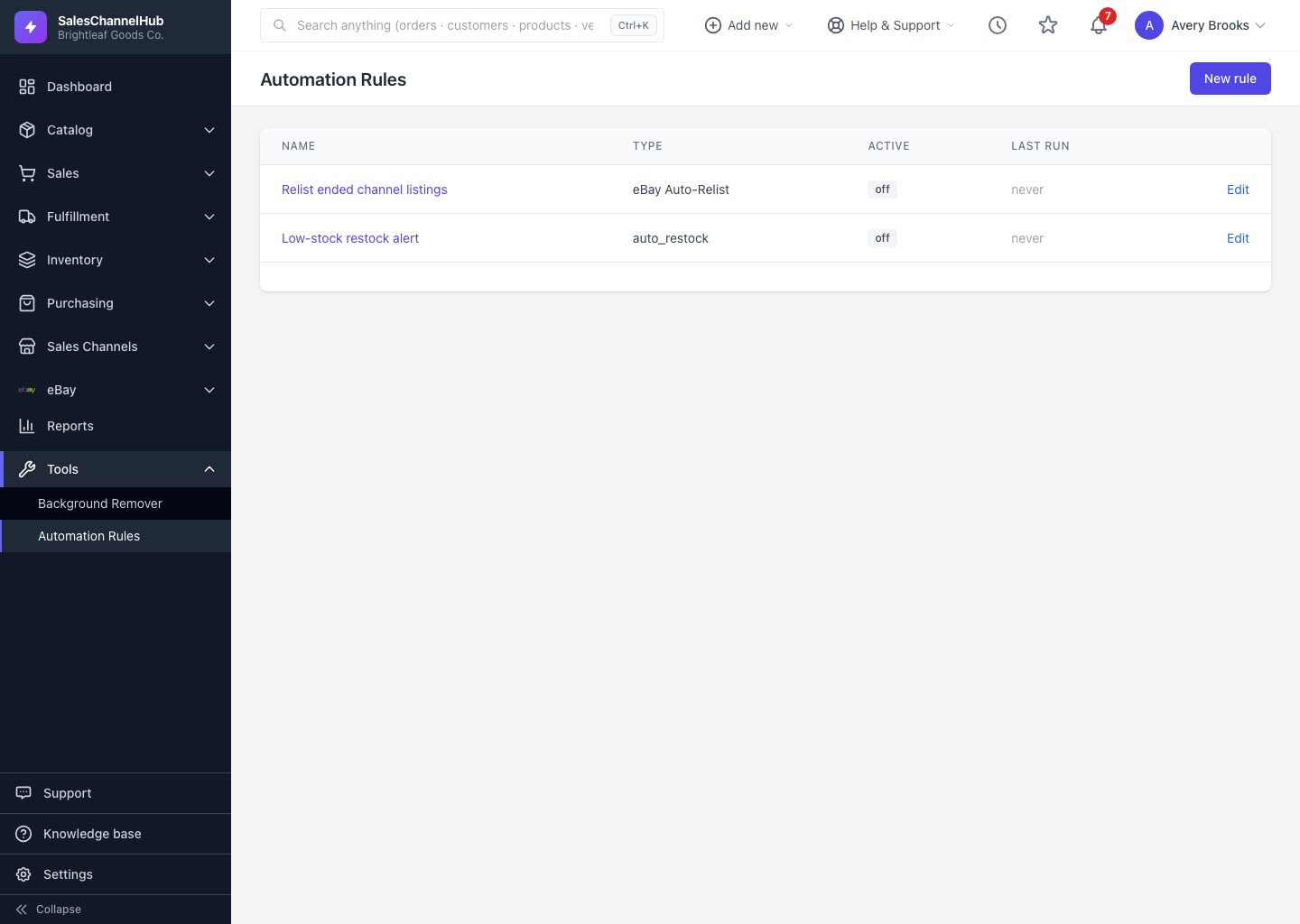
How do I run a rule now?
- From Automation Rules, click a rule's Name to open its detail page.
- Click Run now at the top right.
- The rule is queued to evaluate. A short confirmation appears, and the page reloads after a moment.
- Check the Run history below for the new run, with its status and candidate count.
Will a manual run take real actions?
Yes. A manual run behaves exactly like a scheduled one, including any actions the rule takes. To count matches without acting, use the Preview on the create form instead.
Tip. A rule that's switched off won't run even from Run now: the run is queued but skipped because the rule is inactive. Turn it on first.
Common questions
Nothing happened after I clicked Run now. Why?
The run is queued, so give the page a moment to reload. If still nothing appears, check the Active state, an off rule is skipped, and confirm your role has the edit permission.
Does Run now skip the schedule from then on?
No. A manual run is a one-off. The rule keeps running on its normal schedule afterwards.