Browse all your listings
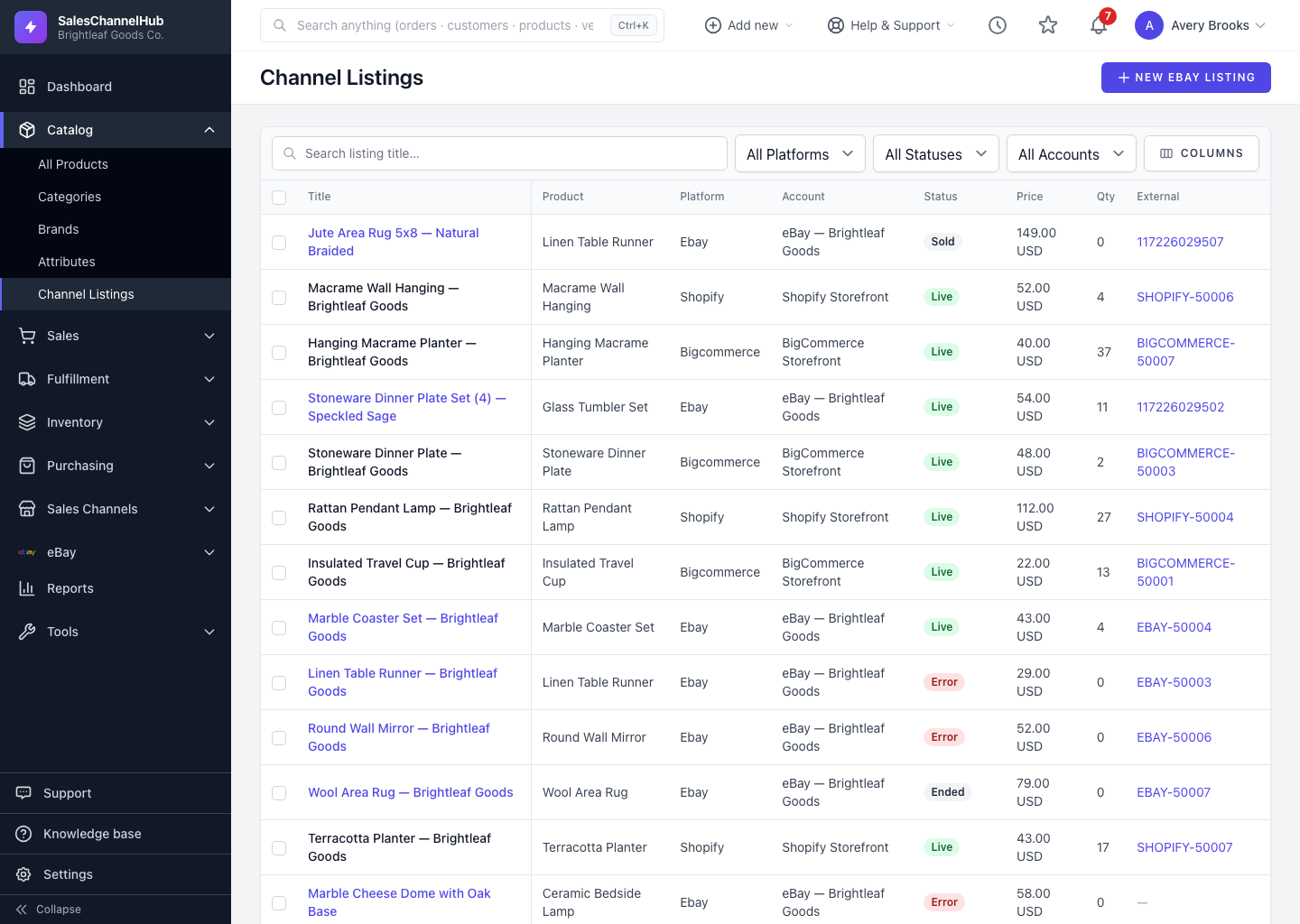
Search by title, sort the key columns, set the page size and show or hide columns to scan listings from every channel at once.
The Channel Listings page is built for scanning a lot of listings fast. Search by title, sort the columns that matter, and choose how many rows show per page.
How do I scan the list?
- Type into Search listing title… to find a listing by name, then submit to filter.
- Click a sortable column header to sort. You can sort by Title, Status, Price and Updated.
- Use the page-size control to show 25, 50, 100 or 200 listings per page.
- Open Columns in the filter bar to show or hide columns. The Updated column is hidden by default.
What happens when I click a listing?
Click a listing's Title to open it. Only eBay listings open a full record here, where you can revise, end or relist; titles from other platforms are plain text. Click the Product name to jump to the matching product, or the External ID to open the listing on the platform in a new tab.
Tip. If the list looks empty, check your filters first. "No listings match these filters" means a filter is hiding rows, not that you have none.
Common questions
Which columns can I sort by?
Title, Status, Price and Updated. Other columns, like Platform, Account and Qty, aren't sortable.
Why won't a listing's title open anything?
Only eBay listing titles are links to a full record. Listings from other platforms show as plain text for reference. Manage those from the product's Platforms tab or from Integrations.