Create a purchase order
Click New PO, choose the vendor, receiving location and currency, add line items with costs, then click Create Purchase Order.
A purchase order is the order you place with a supplier. To raise one, go to Purchasing → Purchase Orders and click New PO. It starts as a draft so you can build it up before sending.
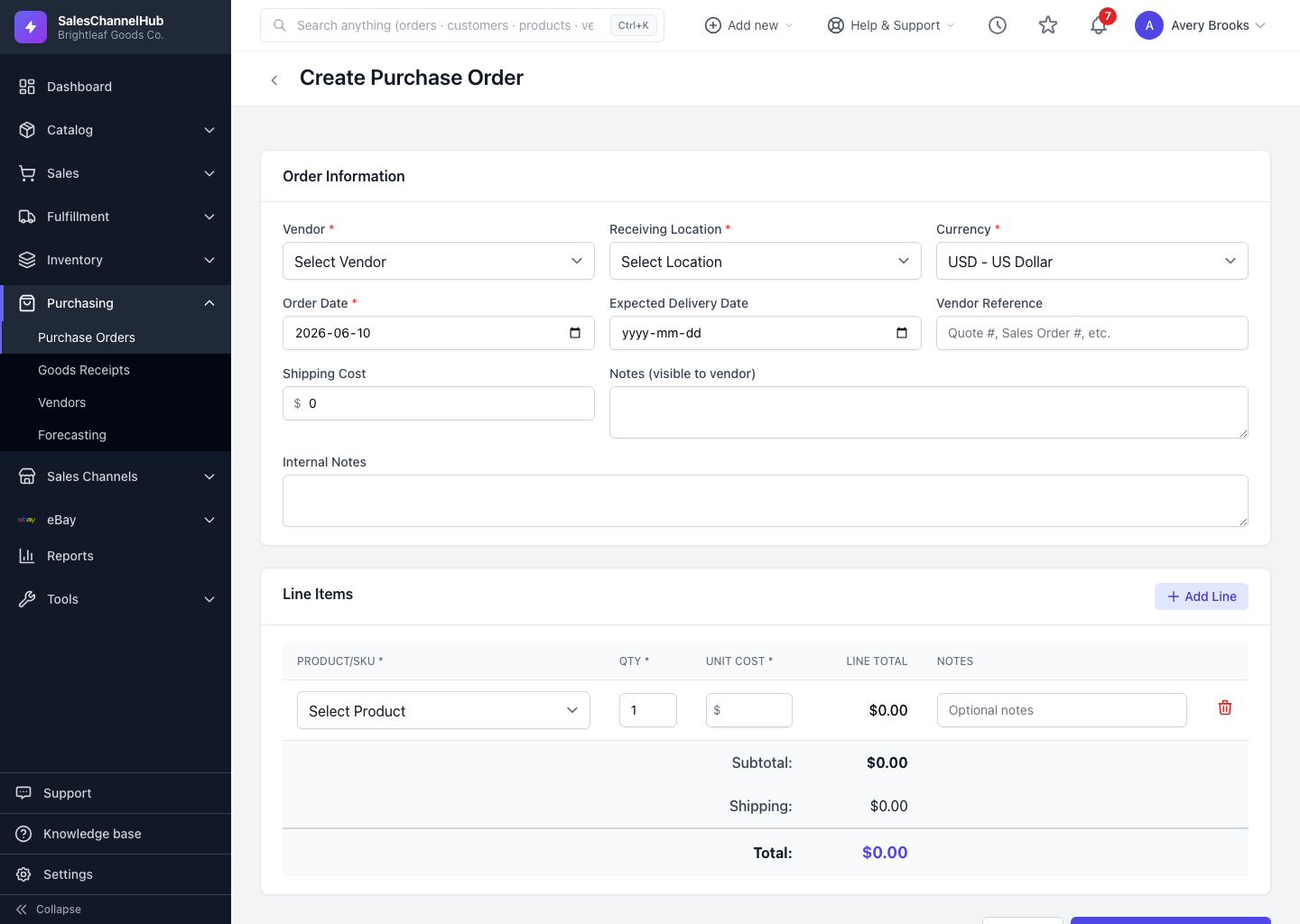
How do I create a PO?
- Click New PO on the Purchase Orders list.
- Under Order Information, choose the Vendor, Receiving Location and Currency (all required).
- Set the Order Date and an optional Expected Delivery Date, and add a Vendor Reference such as a quote number.
- Click Add Line, pick a Product/SKU, then enter Qty and Unit Cost. The unit cost pre-fills from the SKU's cost price.
- Add a Shipping Cost if any. The subtotal and total update live.
- Click Create Purchase Order.
What's the difference between the two notes fields?
Notes are visible to the vendor; Internal Notes stay private to your team.
Tip. Each line's product picker has a search box, so you can filter long catalogs by SKU or product name instead of scrolling.
Common questions
Which fields are required on a purchase order?
Vendor, Receiving Location, Currency and Order Date, plus at least one line item with a product, quantity and unit cost.
Where does the unit cost come from?
It pre-fills from the SKU's stored cost price when you pick the product. Override it to match what this vendor is charging for this order.
Can I save a PO before I finish it?
Yes. A new PO is created as a Draft, which stays fully editable. Build it up, then approve and send when it's ready.