Edit an attribute and add options
Open an attribute and click Edit to rename it, change its code, or add and remove option values.
To change an attribute, open it and click Edit (or hover its row on the list and click Edit). You can rename it, adjust its sort order, and manage its options.
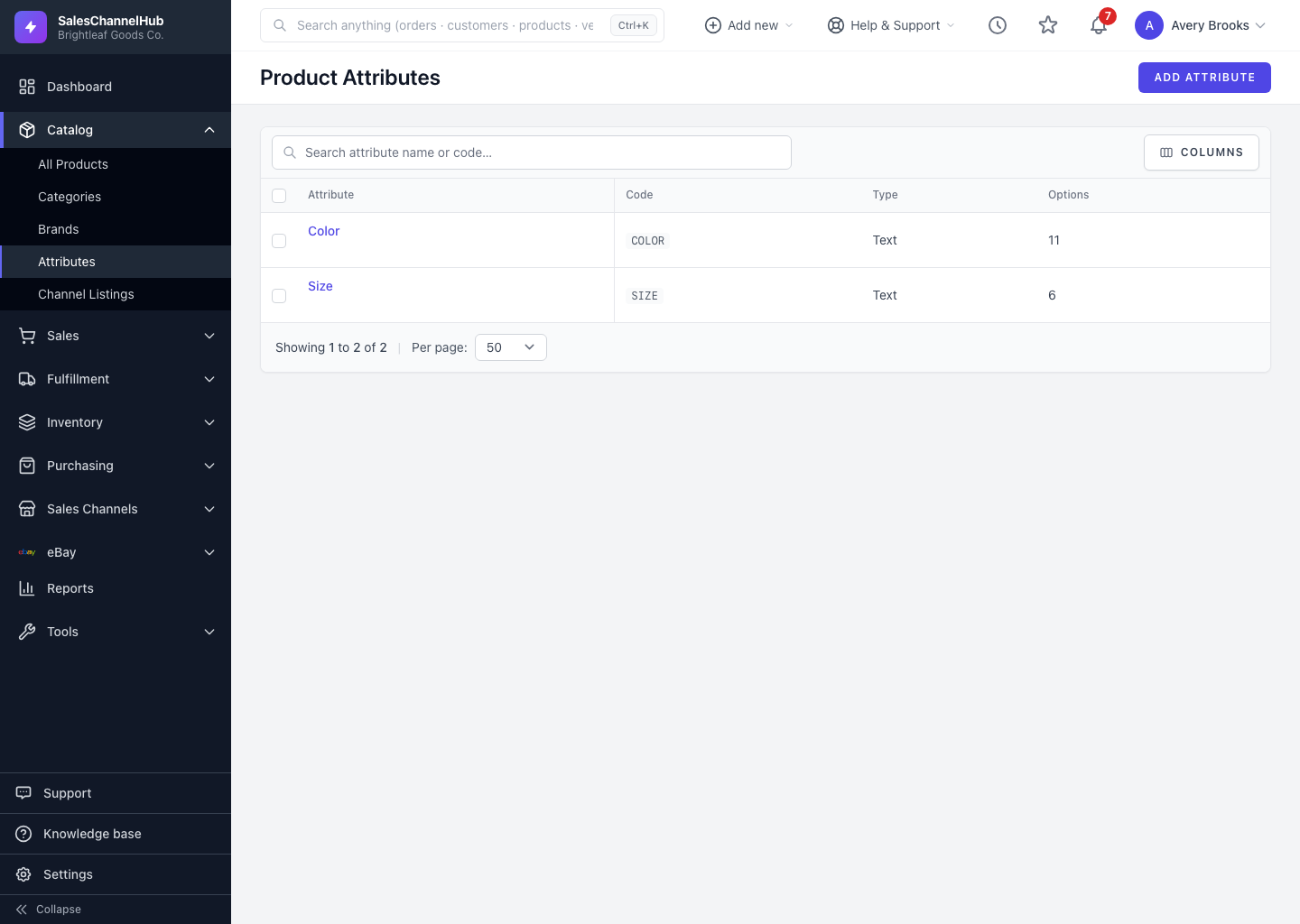
How do I edit an attribute?
- Update the Name, Code or Sort Order.
- Under Options, click + Add Option to add a value, or use the trash icon to remove one.
- Click Update Attribute.
Why won't an option delete?
An option that's already assigned to a product variant can't be removed. The app keeps it and shows a warning listing the values it held onto. To remove such a value, first detach it from the variants that use it.
Tip. Changing an option's spelling updates it everywhere it's used, which is the quick way to fix a typo without rebuilding variants.
Common questions
I removed an option but it's still there. Why?
That option is assigned to one or more product variants, so the app refuses to delete it and warns you which values it kept. Detach it from those variants first, then remove it.
Does renaming an option change it on existing products?
Yes. An option is shared, so editing its spelling updates it on every variant that uses it. That's the intended way to fix a typo.