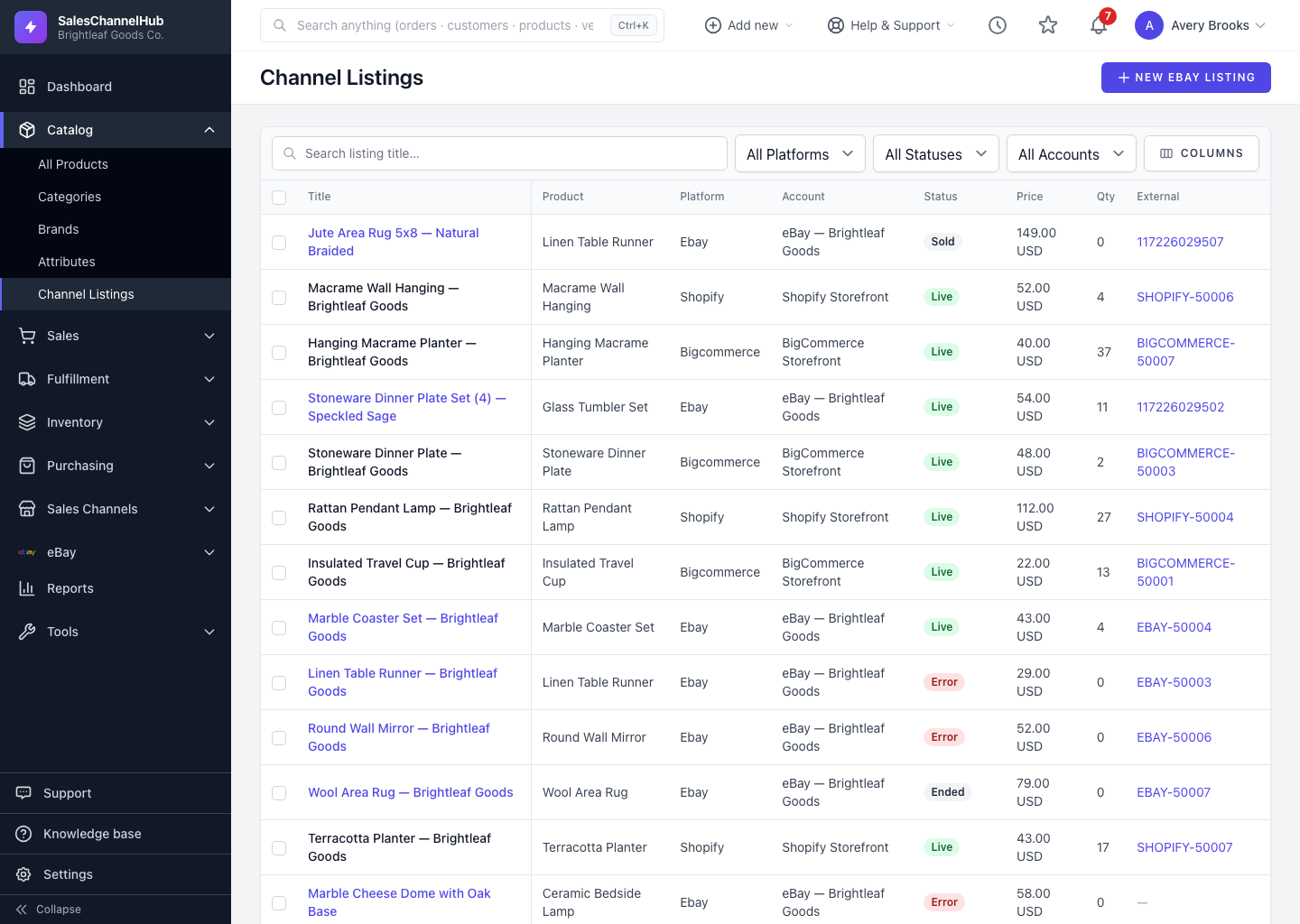
Filter listings by platform, status or account
Use the Platform, Status and Account dropdowns in the filter bar to narrow the list to one channel, one state or one connected account.
When you sell across several channels the full list gets long. The filter bar narrows it to exactly what you want: one platform, one status, one connected account, or any mix of the three.
How do I filter the list?
- Use the Platform dropdown to pick a single channel, such as eBay or Shopify. Leave it on All Platforms to see everything.
- Use the Status dropdown to show one state only, such as Live, Sold or Error. Leave it on All Statuses for the lot.
- Use the Account dropdown to show one connected account. Each option reads as the platform and account name (for example eBay · Brightleaf Goods), so you can tell two eBay or two store connections apart.
- Combine filters, say eBay plus Error, and add a title search to drill in further.
Is there a shortcut to eBay-only listings?
Yes. The sidebar's eBay → All eBay Listings link opens this same page already filtered to the eBay platform, so you skip setting the Platform dropdown yourself.
Tip. Filters live in the page address. Bookmark a view like "all live eBay listings" from the star menu and come straight back to it.
Common questions
Can I filter by more than one thing at once?
Yes. Platform, Status, Account and the title search stack together, so you can ask for, say, error listings on one eBay account.
Which platforms can I filter by?
eBay, Shopify, Amazon, WooCommerce, BigCommerce and Etsy. The Account dropdown then narrows to a single connection on that platform.