Send a counter-offer
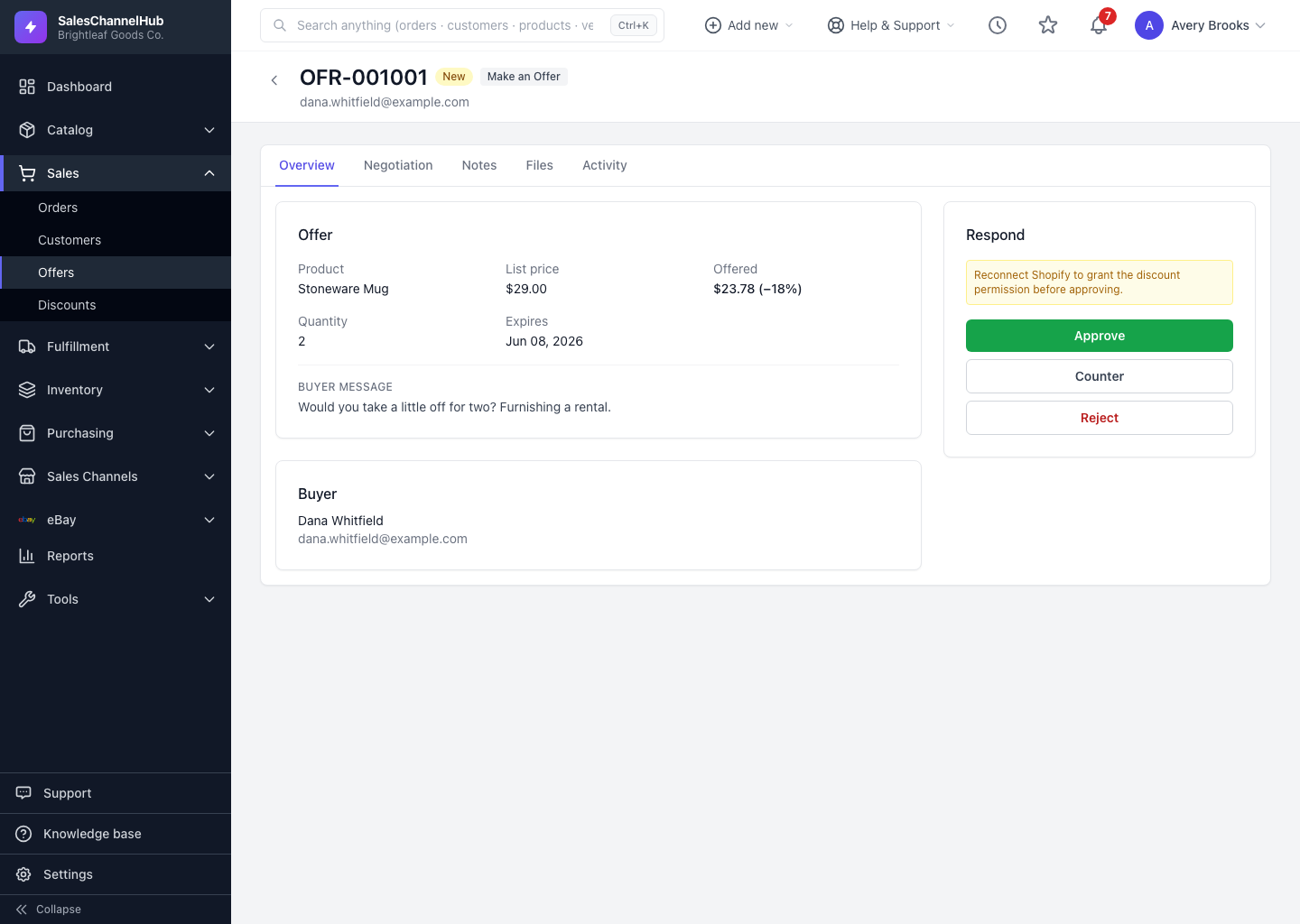
Open an offer, click Counter in the Respond panel, enter your price and an optional message, then Send counter.
When a buyer's price is close but not quite there, send a counter. It moves the offer to Countered and notifies the buyer with your price and an optional message.
How do I send a counter-offer?
- Open the offer and, in the Respond panel, click Counter.
- Enter your Counter price.
- Add an optional message to the buyer, or click Draft with AI to generate a polite one you can edit.
- Click Send counter.
The negotiation timeline records every counter, so you can see the full back-and-forth. You can only counter while the offer is still open (New or Countered).
Tip. A short reason for your counter ("this is our best on a single unit, better pricing at 6+") often closes the gap faster than a number alone.
Common questions
Can I keep countering back and forth?
Yes, as long as the offer stays open. Each counter moves it to Countered and the buyer can reply with a new price. The Negotiation tab logs every round.
What does Draft with AI do on the counter form?
It writes a short, polite message to the buyer based on the offer, dropped into the message box. Read and edit it before you send the counter.