Turn on two-factor authentication
On Settings → Security, enable 2FA: scan the QR code with an authenticator app, confirm the 6-digit code, and save your recovery codes.
Two-factor authentication (2FA) adds a second step at sign-in. After your password you enter a 6-digit code from an authenticator app like Google Authenticator, 1Password, Authy or Bitwarden.
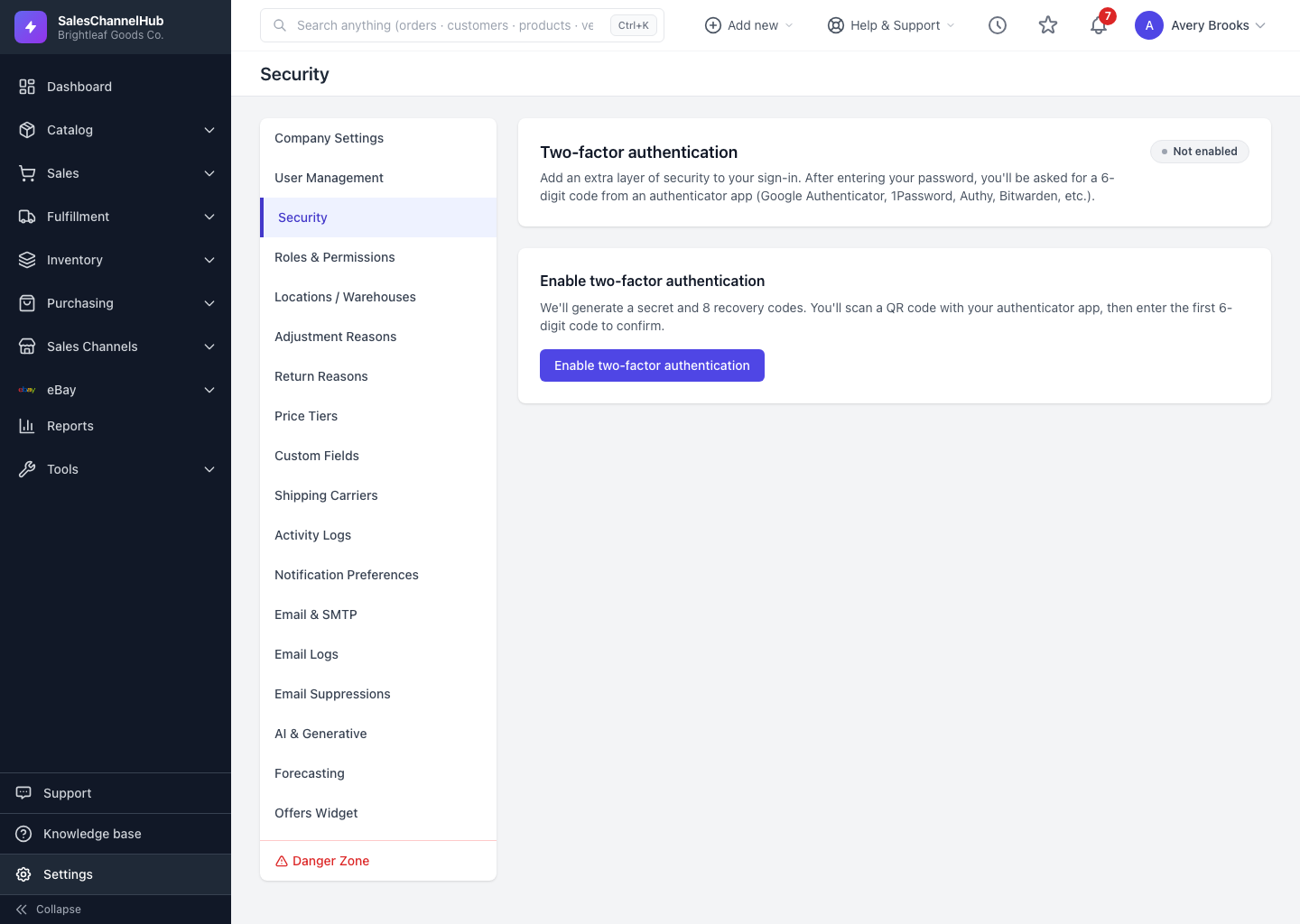
How do I turn on 2FA?
- Go to Settings → Security and click Enable two-factor authentication.
- Scan the QR code with your authenticator app, or expand Can't scan? to type the secret manually.
- Enter the current 6-digit code and confirm.
- Save the 8 recovery codes shown. Each works once and they're your only way back in if you lose your phone.
Tip. Store recovery codes in your password manager or print them. They're shown in full only during setup.
Common questions
What if I lose my phone?
Sign in with one of your 8 one-time recovery codes, then open Security and regenerate a fresh set so you have spares again.
Which authenticator apps work?
Any standard TOTP app: Google Authenticator, 1Password, Authy, Bitwarden, and similar. Scan the QR code or enter the secret manually.
Was this article helpful?