Bulk-import stock adjustments from CSV
Bulk Adjust applies a whole spreadsheet of stock changes at once, in Set or Adjust mode, with each row recorded for audit.
Bulk Adjust applies a whole spreadsheet of stock changes in one go. Each row is recorded like a manual adjustment, so you keep a full trail even for large updates.
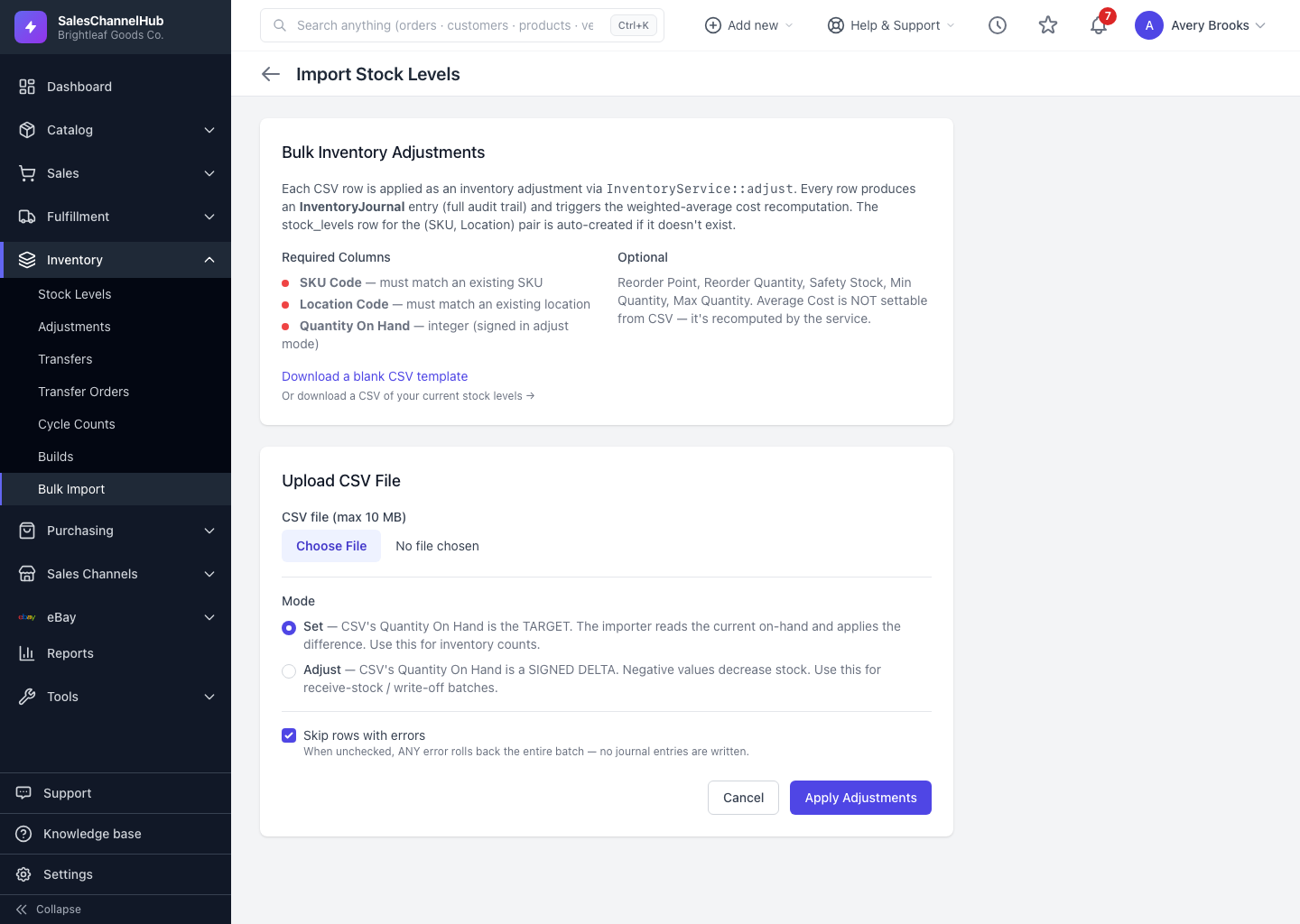
How do I run a bulk adjustment?
- From the Inventory group, open Bulk Import (the Bulk Adjust button on Stock Levels).
- Click Download a blank CSV template, or export your current stock to use as a starting file.
- Fill in SKU Code, Location Code and Quantity On Hand for each row.
- Choose a Mode, upload the file, and click Apply Adjustments.
Which mode should I pick?
- Set — Quantity On Hand is the target total; the importer reads the current on-hand and applies the difference. Use this for counts.
- Adjust — Quantity On Hand is a signed change, and negatives reduce stock. Use this for receiving or write-off batches.
Tip. Leave Skip rows with errors ticked to import the good rows and report the rest. Untick it only when you want any single error to roll back the whole batch.
Common questions
What happens to rows with errors?
With Skip rows with errors ticked (the default), good rows import and the rest are listed back to you. Unticked, any single error rolls back the entire batch and no journal entries are written.
Does a bulk import keep an audit trail?
Yes. Each row is applied like a manual adjustment and produces its own journal entry, so large updates are just as traceable as one-off changes.
What if a SKU and location combination has no stock row yet?
The importer creates it. Rows are matched by SKU Code plus Location Code, and a missing pair is added rather than skipped.