Push a discount to your channels
Tick the connected stores under Push to channels and save; SalesChannelHub creates and maintains the coupon in each one.
A discount only reaches a store once you tick that store under Push to channels. SalesChannelHub then creates and maintains the coupon in each selected store.
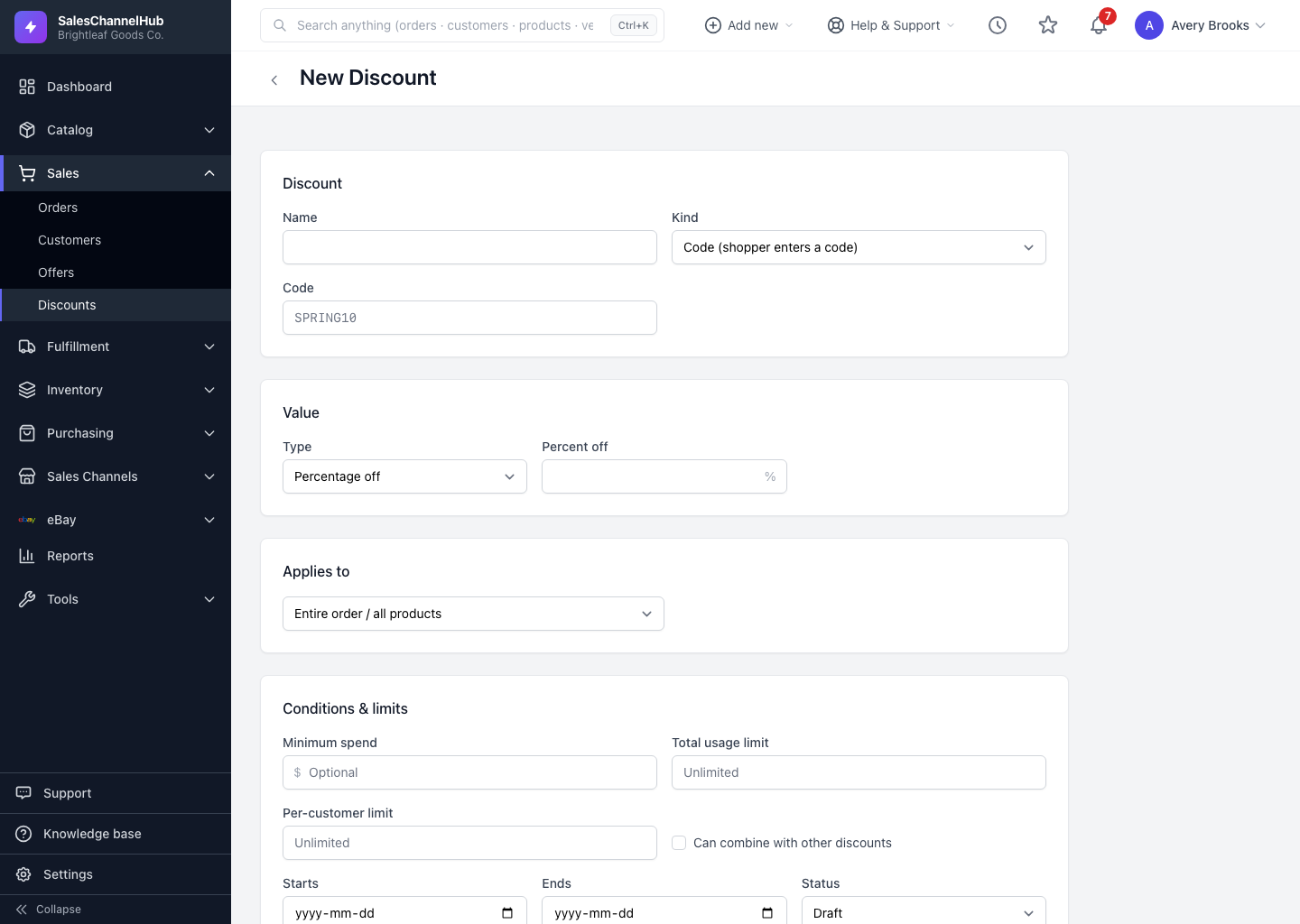
How do I push a discount to a store?
- Scroll to Push to channels on the create or edit form.
- Tick each store you want the discount on. Only discount-capable, connected channels appear: Shopify, BigCommerce and WooCommerce.
- If a channel is greyed out, the note beside it explains why, for example it needs reconnecting or lacks permission.
- Save. The push is queued and runs in the background.
Open the discount and check the Channels tab: each link shows Pending, Synced, Error or Unsupported, plus the external ID once the store accepts it.
Tip. Un-ticking a channel and saving removes the discount from that store. It's how you pull a coupon from one place while keeping it on others.
Common questions
Which stores can I push a discount to?
Connected, discount-capable channels: Shopify, BigCommerce and WooCommerce. Only those appear in Push to channels. eBay and other channels aren't listed there.
Why is a channel greyed out and untickable?
The note beside it gives the reason, usually that the store needs reconnecting from Integrations or lacks the discount permission. Fix that, then the channel becomes tickable.
How do I remove a discount from one store but keep it on others?
Edit the discount, un-tick that store under Push to channels, and save. Its coupon is removed from that store while the others stay in place.