Delete a category
Hover a category and click Delete, or tick several and use Delete selected. Products in a deleted category are unassigned, not deleted.
To remove a category, hover its row on the Categories list and click Delete, then confirm. The app stops deletes that would break your tree.
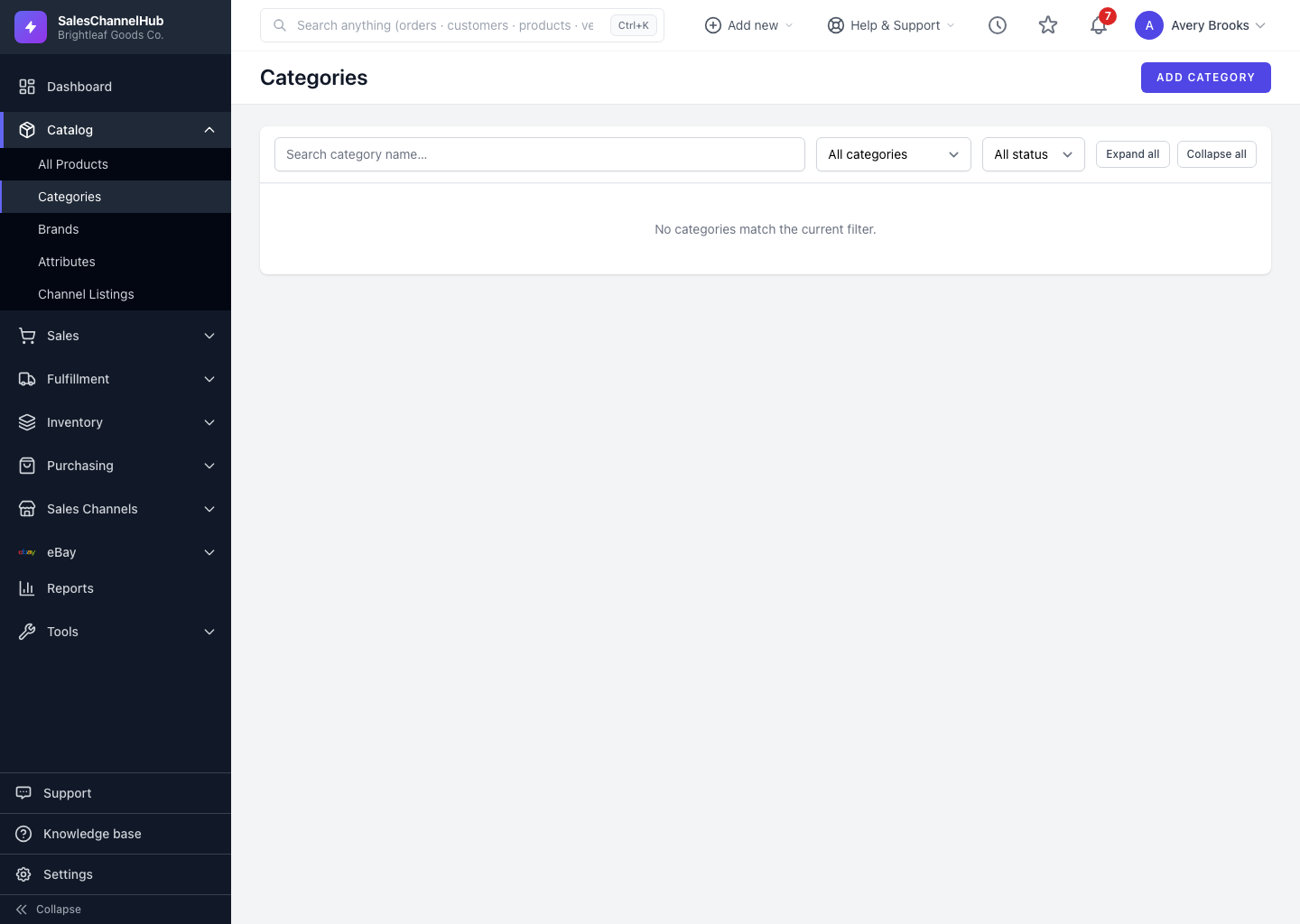
How do I delete one or several?
- For one, hover the row and click Delete, then confirm.
- For several in tree view, tick the checkboxes. Selecting a parent also selects everything beneath it.
- Click Delete selected, review the count in the confirmation, and confirm.
What happens to the products and sub-categories?
- Products in a deleted category are unassigned, not deleted.
- Deleting a single category that still has sub-categories or products is blocked. Clear or reassign those first.
- A bulk delete that includes a parent removes its descendants too, so check the count before you confirm.
Tip. To hide a category temporarily rather than remove it, untick Active instead of deleting.
Common questions
Will deleting a category delete its products?
No. The products stay in your catalog and simply lose their category assignment. Reassign them from each product's edit page.
Why is my delete blocked?
A single category with sub-categories or products attached can't be deleted directly. Move or clear those first, or use the cascade-aware bulk delete from the tree to remove a parent and its descendants together.
Was this article helpful?