Filter the rows in a report
Open the Filters section, set ALL (AND) or ANY (OR), then click + Condition. Use + Group to nest conditions with their own logic.
Filters keep a report focused on the rows that matter: paid orders only, one warehouse, items below a threshold. They live in the Filters section of the builder.
How do I add filters?
- Set the top selector to match ALL (AND) or ANY (OR) of your conditions.
- Click + Condition, pick a field, choose an operator and enter a value.
- Add more conditions as needed. For mixed logic, click + Group to nest a set of conditions with its own AND/OR rule.
- Check the Live preview to confirm the row count looks right.
How do I filter a rolling date window?
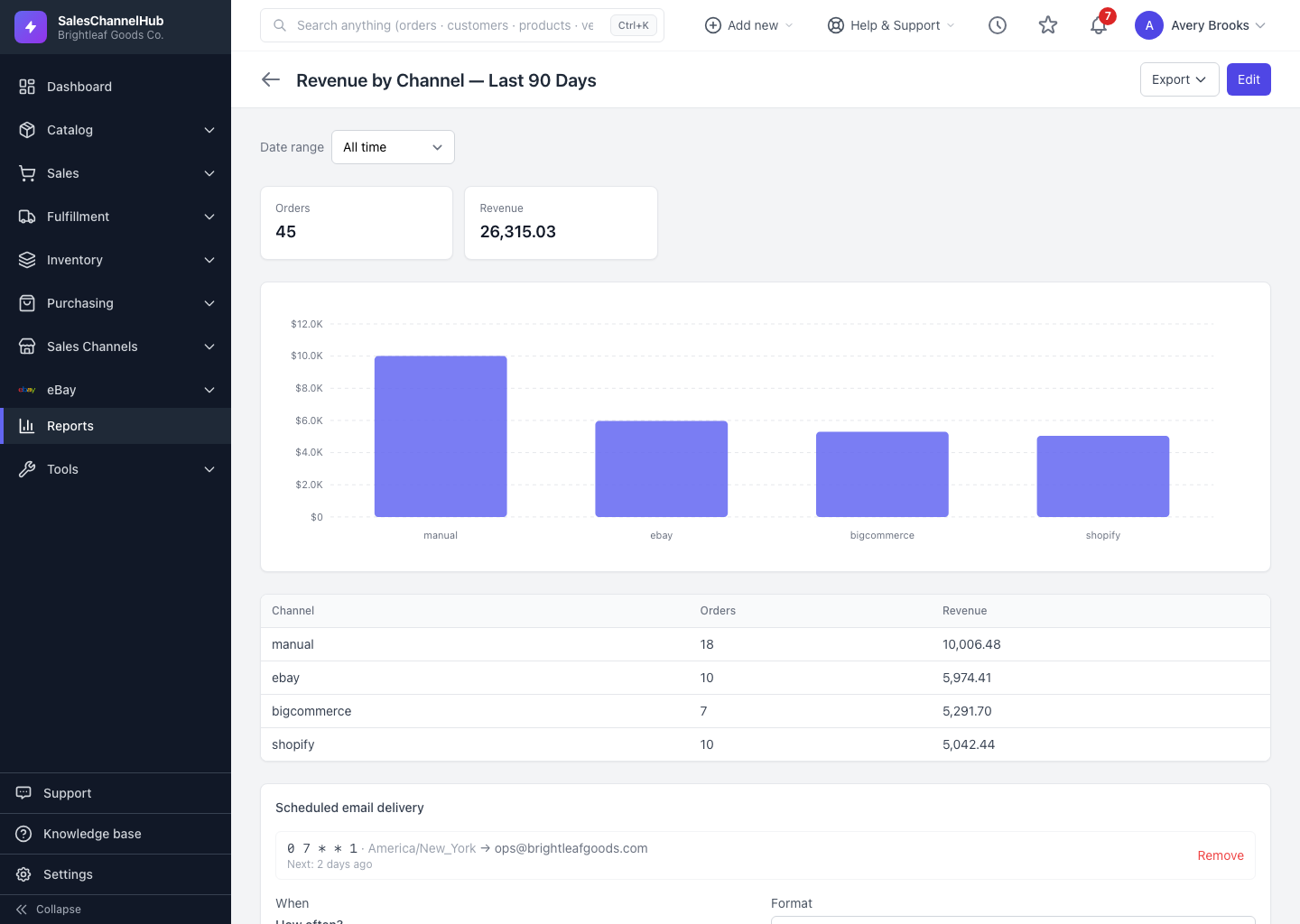
For date fields, filter by a relative window such as the last 30 days, so the report always shows a rolling period instead of fixed dates. Once you save and run it, a Date range selector also appears at the top of the results for quick changes there.
Tip. Mixed logic like "channel is eBay AND (status is paid OR status is shipped)" is what + Group is for. Nest the OR conditions in a group, and keep the AND at the top level.
Common questions
What's the difference between ALL and ANY?
ALL (AND) keeps rows that match every condition. ANY (OR) keeps rows that match at least one. The selector sits at the top of the Filters section.
How do I combine AND and OR in one report?
Use + Group to nest a set of conditions with its own logic inside the top-level set. For example, AND at the top with an OR group inside it.
Can the date range change when I run the report?
Yes. If the report has a date field, a Date range selector appears above the results. Switching it overrides the date window for that viewing without editing the saved report.