Export orders
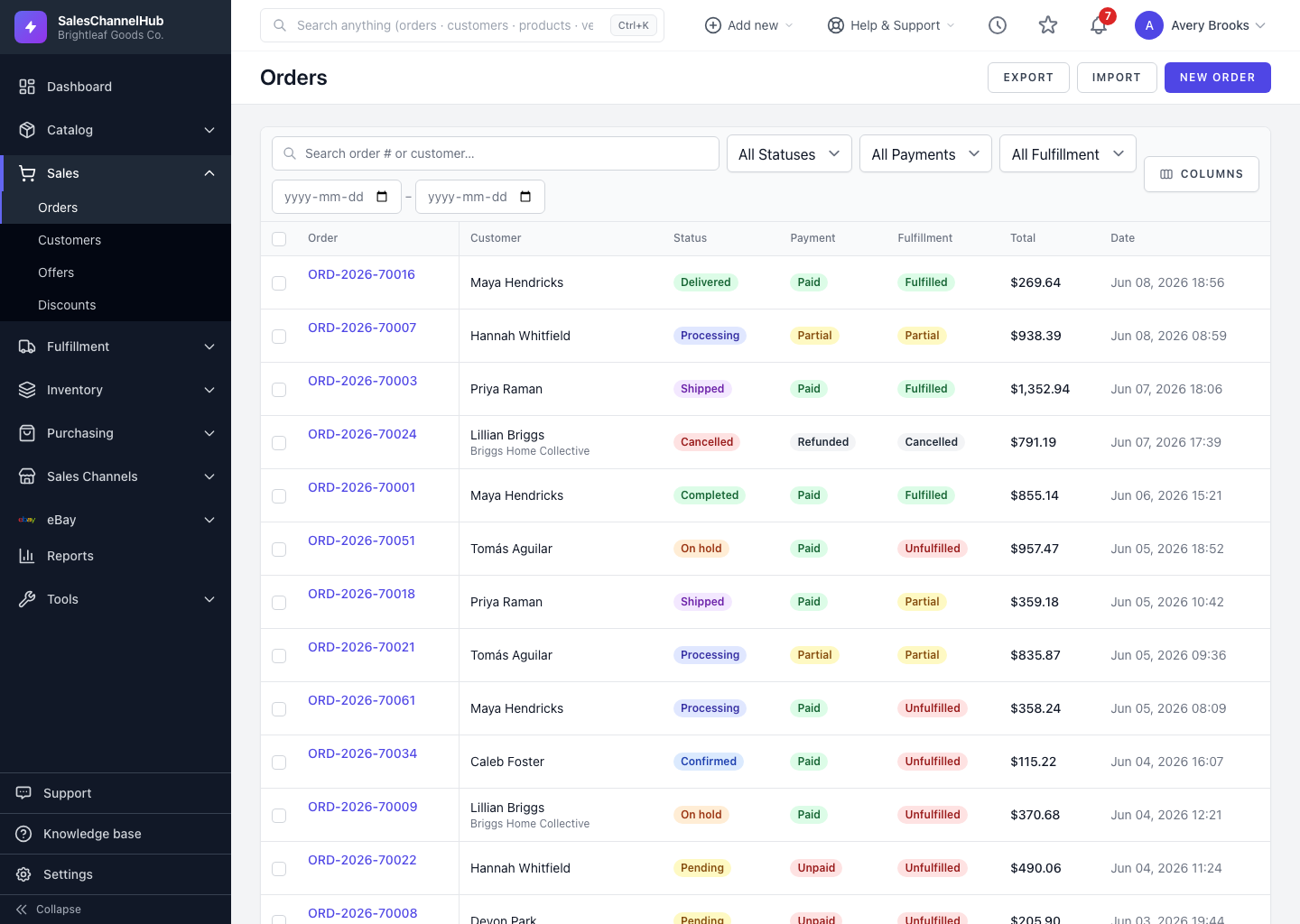
Filter the list, then click Export to download a CSV of those orders, including statuses, totals and the order date.
To download a spreadsheet of your orders for reporting, reconciliation or backup, click Export. The CSV respects the filters you have applied to the list.
How do I export orders?
- Filter the orders list to the set you want. The export honours your current Status, Payment, Fulfillment, search and date filters.
- Click Export at the top of the list.
- A CSV downloads with one row per order, including Order Number, Channel, Status, Payment Status, Fulfillment Status, Customer, the money totals and Ordered At.
Tip. Exported and imported CSVs share the same Order Number key, so you can export a set, tweak it in a spreadsheet, and re-import to round-trip changes.
Common questions
Does the export include every order?
It exports whatever the list currently shows. Apply your filters first, then export, to get exactly the set you want.
Does the export include order lines?
The export is one row per order, covering the header fields and money totals. To move line items, use the order import's separate Order Lines CSV.
Was this article helpful?