Export the activity log
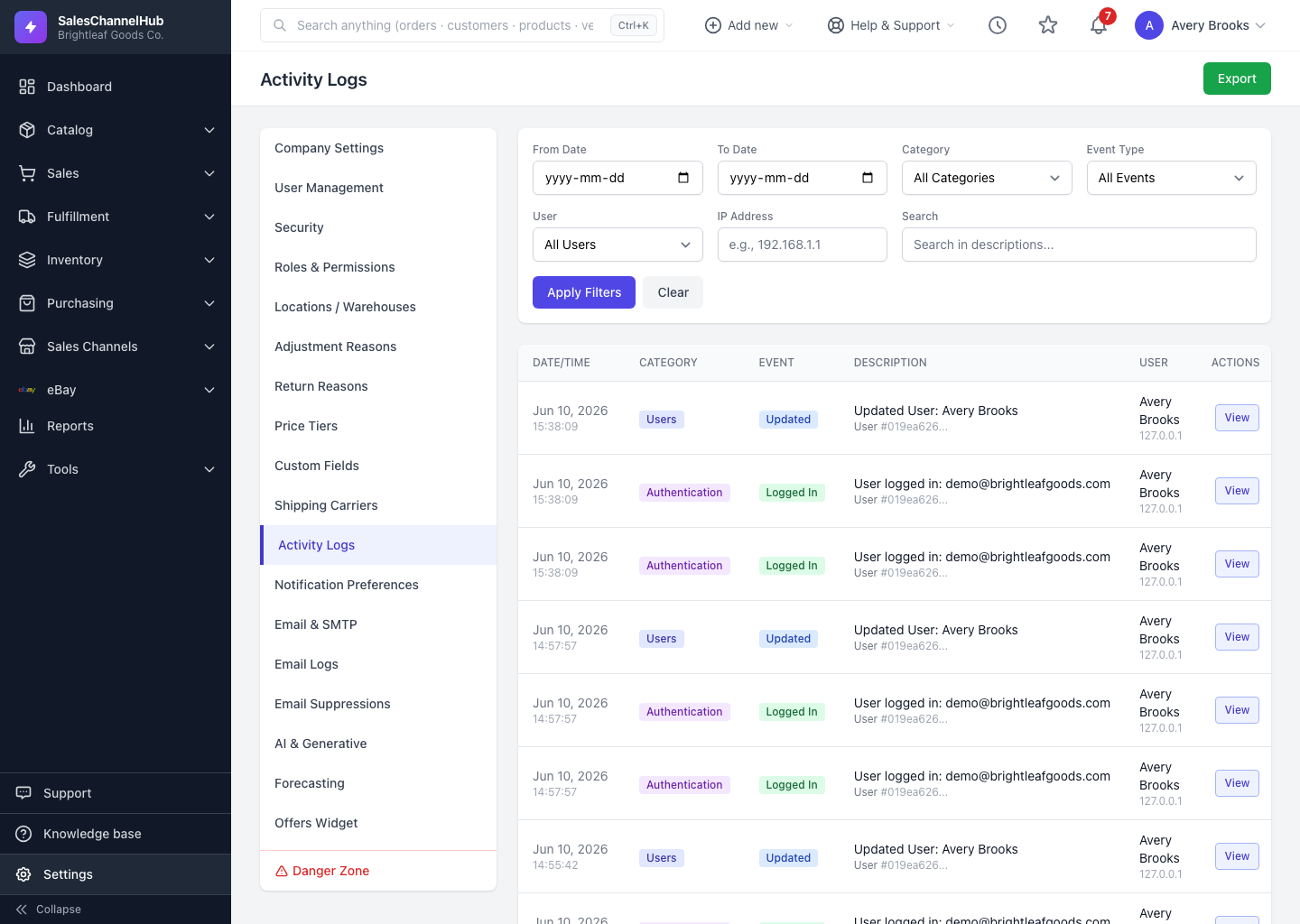
Set a From and To date, apply any filters, then click Export to download a CSV of the audit trail for your records.
When you need the audit trail outside the app, for an accountant or an annual review, export it to CSV. The export respects whatever filters you currently have applied.
How do I export the log?
- On the Activity Logs page, set any filters you want included: category, user, event and so on.
- Set a From Date and To Date. A date range is required for every export, which keeps file sizes sensible.
- Click the green Export button in the top-right corner.
- Your browser downloads a CSV of the matching entries, capped at a large maximum so very wide ranges stay manageable.
Tip. The export is itself recorded in the activity log, noting who downloaded what range and when, so the audit trail stays complete even for the act of exporting it.
Common questions
Why is the Export button asking for dates?
Every export needs a From Date and To Date. The range is required to keep the file a sensible size; set both before clicking Export.
Does exporting leave its own log entry?
Yes. The export is recorded as an Exports event noting who downloaded which range and when, so the audit trail covers the export too.
Was this article helpful?