Browse and filter customers
Open Customers, then use the search box and the Type, Status and Sales Rep filters to narrow the list to the accounts you want.
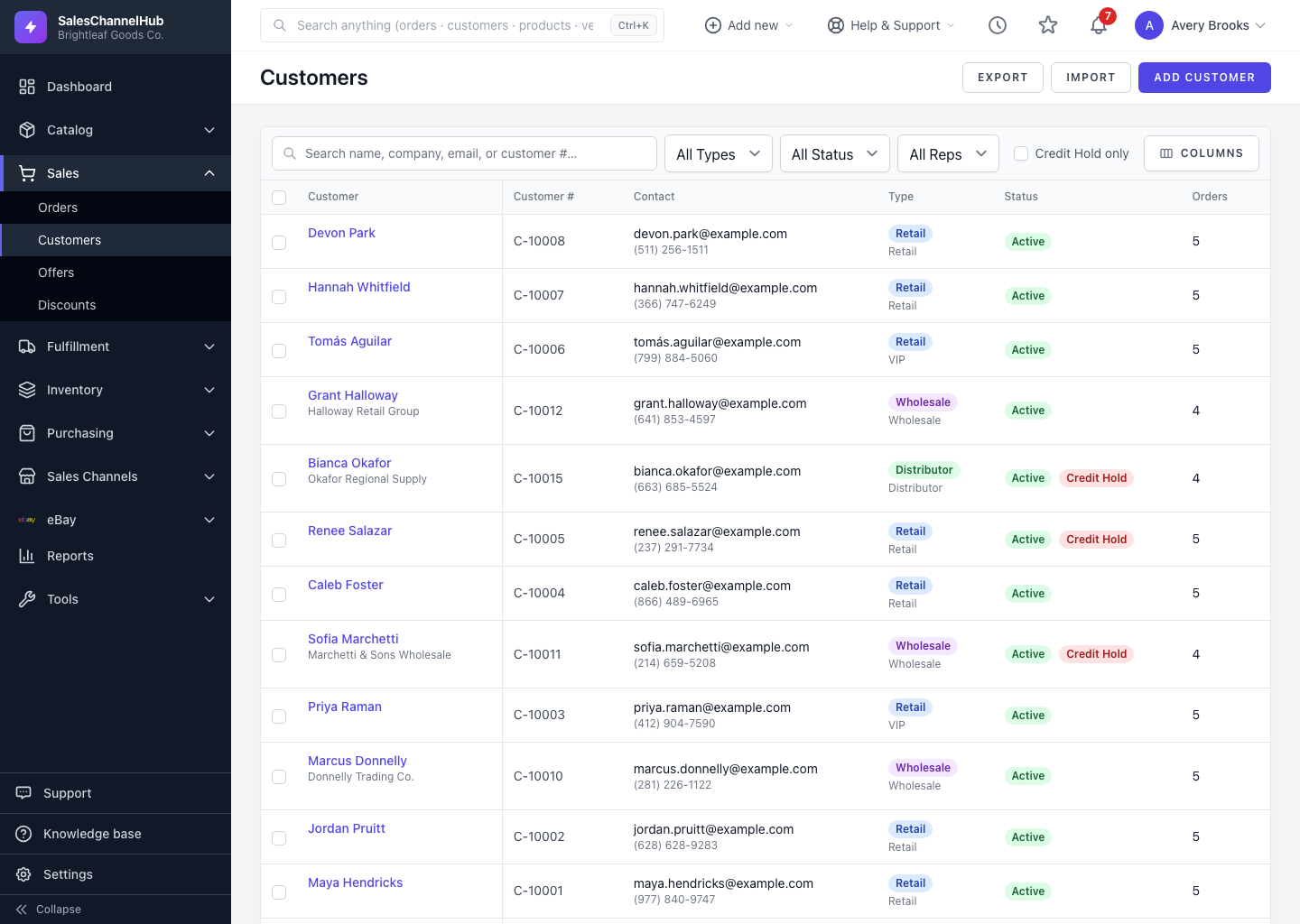
To find accounts at scale, open Customers and use the search box and filters at the top of the list. You can search, narrow by filter, sort columns and choose how many rows show per page.
How do I narrow the list?
- Open Customers from the Sales menu.
- Type in the search box to match on name, company, email or customer number.
- Set Type (Retail, Wholesale, Distributor), Status (Active or Inactive) or Sales Rep.
- Tick Credit Hold only to show just the accounts currently on hold.
- Click a column header to sort. Use Columns to show or hide fields such as Payment Terms, Credit Limit or Orders.
- Click a customer's name to open their record.
Does my filter carry through to export?
Yes. Whatever you've filtered down to is exactly what the Export button downloads, so you can pull a subset without editing the file afterwards.
Tip. Set the per-page count to 100 or 200 when you're scanning a large book of accounts, so you page through fewer screens.
Was this article helpful?