Create a return (RMA)
Open the original order, click Create Return, choose a reason and receive location, then set the quantity to return on each shipped line.
Returns always begin from the order being returned. From the order, you start the RMA, then pick which shipped items are coming back and why.
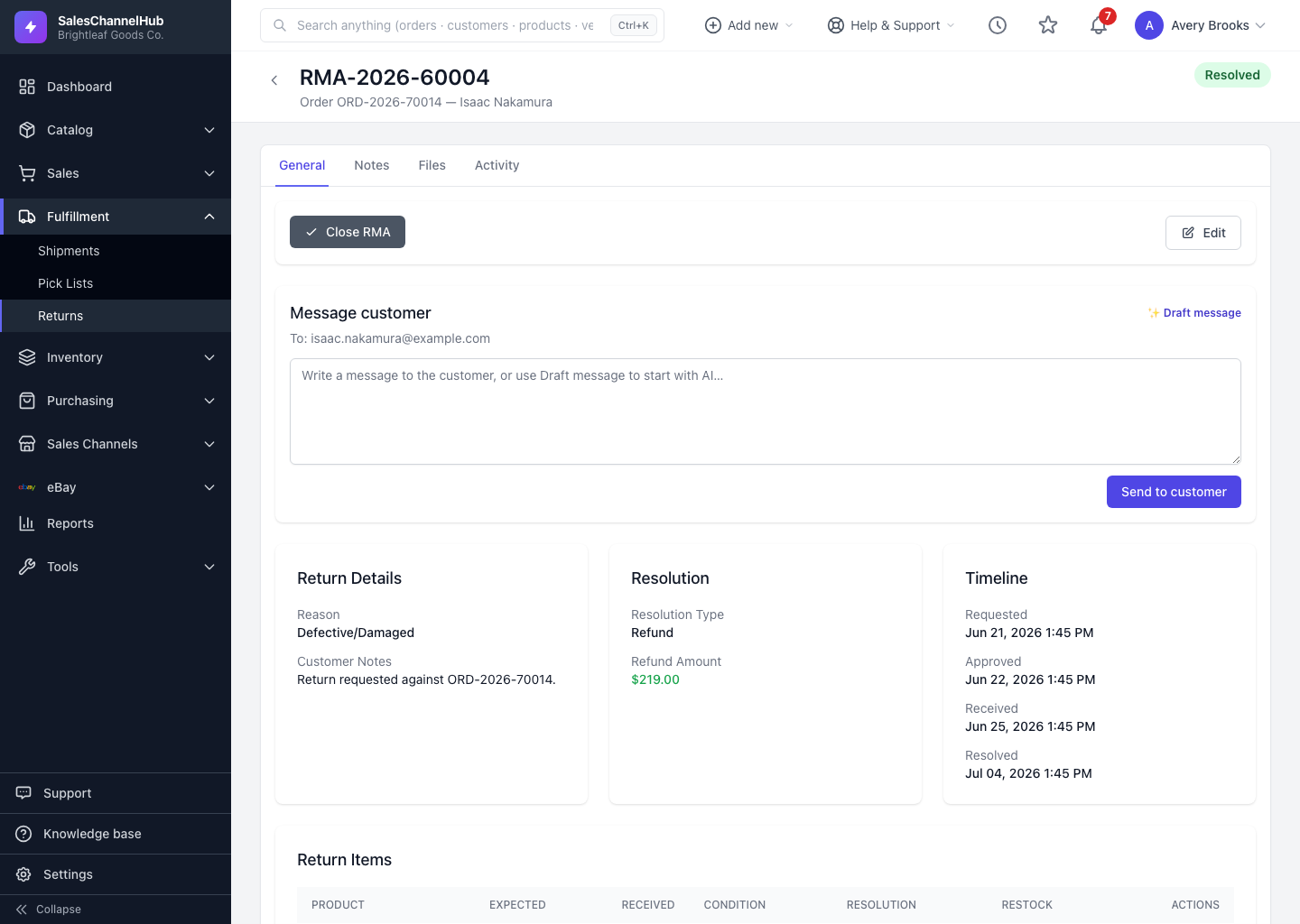
How do I create a return?
- Open the original order and, in its Returns (RMA) section, click Create Return.
- Choose a Return Reason and the Receive Location the goods should come back to.
- Add any Additional Reason Details or Notes.
- Set the quantity to return on each line. Only shipped items can be returned, and the quantity is capped at what shipped.
- Click Create RMA.
Tip. Use Return all shipped items on the create form to fill every line at once, then trim the ones the customer is keeping.
Common questions
Can I create a return without an order?
No. If you click New Return on the Returns screen, you're sent to the orders list to choose an order first. Every RMA is tied to a real order.
Why can't I return more than a certain quantity on a line?
The return quantity is capped at what was shipped on that line. You can only send back items the customer actually received.
Can I return items from a partially shipped order?
Yes. Only shipped lines are returnable, so the form shows the shipped quantity per line as the maximum you can return.