Set up a shipping carrier
Connect FedEx, UPS, USPS or DHL under Settings → Shipping Carriers by adding API credentials and setting your defaults.
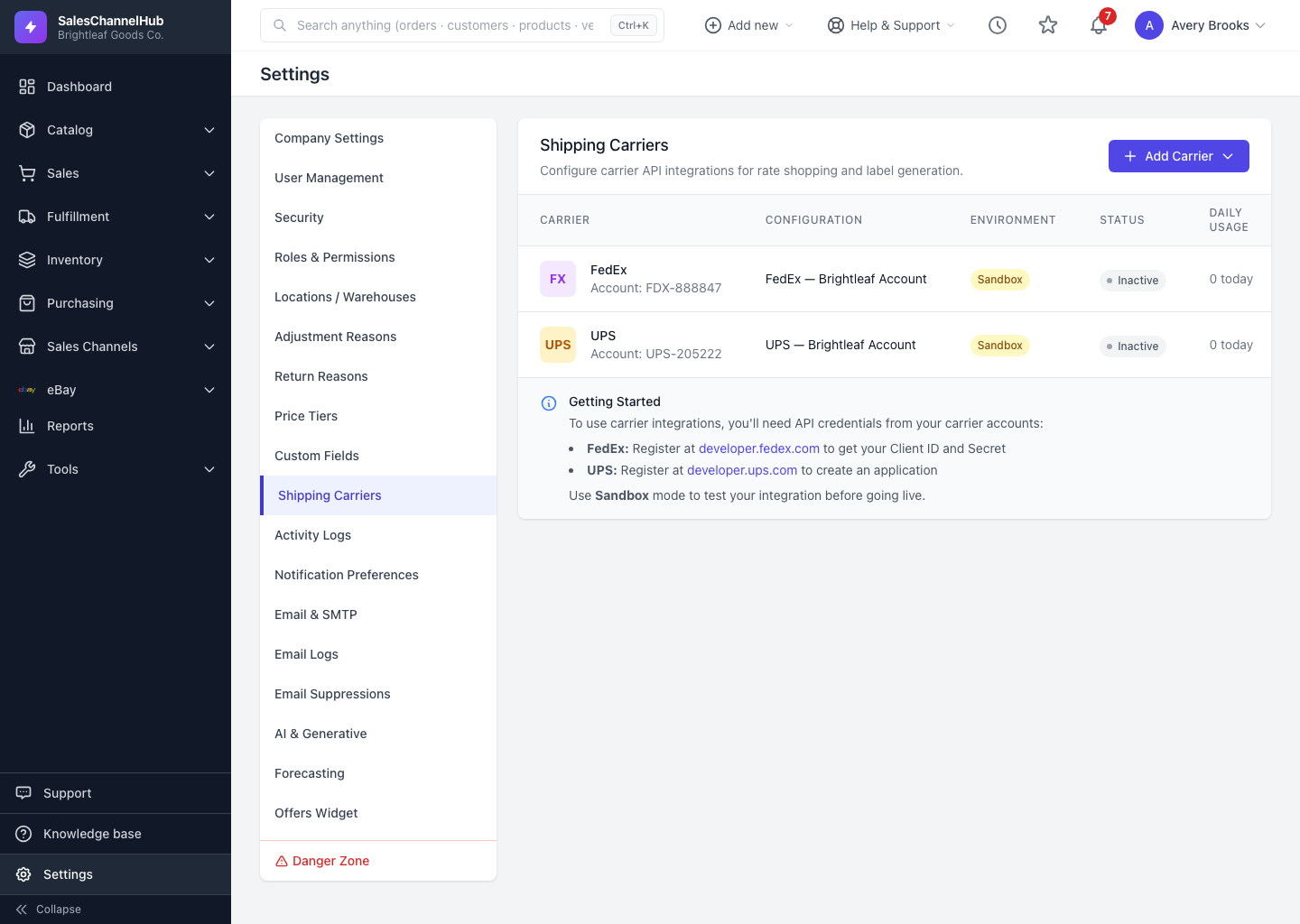
Before you can shop rates or buy real labels, connect at least one carrier. Carriers live under Settings → Shipping Carriers, where you add your account credentials and set defaults.
How do I add a carrier?
- Go to Settings → Shipping Carriers and click Add Carrier, then choose FedEx, UPS, USPS, DHL Express or DHL eCommerce.
- Give it a Configuration Name and enter the API Credentials from the carrier's developer portal. FedEx and UPS use a Client ID, Client Secret and account number; USPS uses a Client ID, Client Secret and your EPS Customer Registration ID (CRID).
- Under Default Settings, pick a Default Label Format and a Default Ship From Location.
- Choose Sandbox Mode while testing, keep Active ticked, and optionally Set as Default.
- Save the carrier.
What's the difference between DHL Express and DHL eCommerce?
They're separate carriers with separate DHL accounts. DHL Express uses the MyDHL API: enter your API Key, API Secret and DHL Account Number. DHL eCommerce uses OAuth: enter your Client ID, Client Secret, Pickup Account Number and Distribution Center code. Both sets of credentials come from the DHL Developer Portal at developer.dhl.com.
Tip. No real account yet? Add the built-in Test carrier. It needs no credentials and returns a mock tracking number, so you can rehearse rate shopping and labels end to end.
Common questions
Which carriers can I connect?
FedEx, UPS, USPS, DHL Express and DHL eCommerce, plus a built-in Test carrier for rehearsing the flow with no credentials. Add each as its own configuration under Settings → Shipping Carriers.
Do you support DHL?
Yes, as two separate carriers. Pick DHL Express for the MyDHL API or DHL eCommerce for DHL eCommerce Americas when you click Add Carrier — choose whichever matches your DHL account.
What credentials do I need?
FedEx and UPS need a Client ID, Client Secret and account number from their developer portals. USPS needs a Client ID, Client Secret and your EPS Customer Registration ID (CRID). DHL Express needs an API Key, API Secret and DHL account number; DHL eCommerce needs a Client ID, Client Secret, pickup account number and distribution center code.
What does Sandbox Mode do?
It points the carrier at its test environment so you can try rates and labels without live charges. Switch it off once you have approved production credentials.