Change an order's payment status
Tick orders on the list and click Mark Paid or Mark Unpaid; Partial and Refunded usually arrive from a channel.
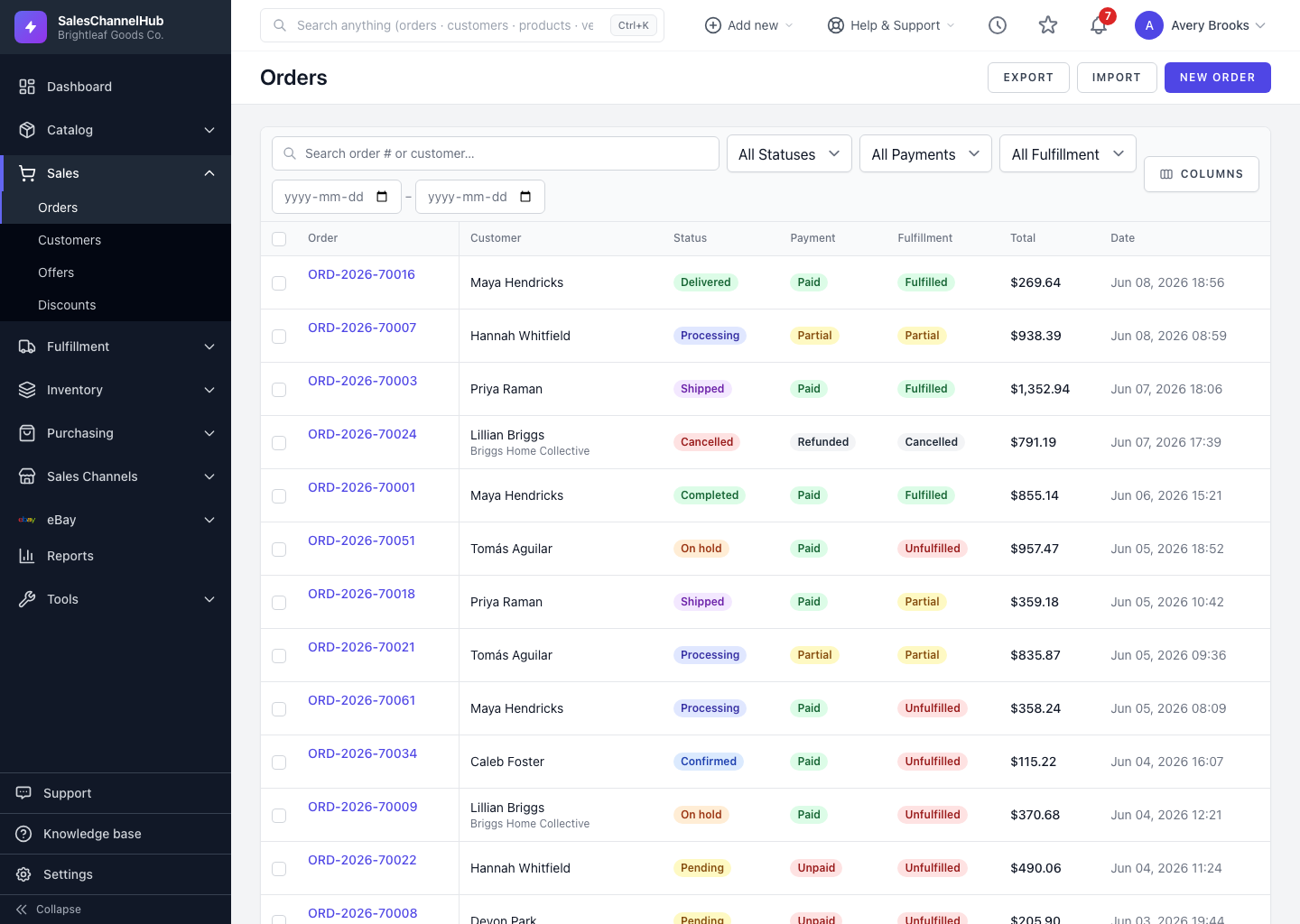
An order's Payment badge is separate from its status and shows whether the money is in: Unpaid, Partial, Paid or Refunded. You set Paid and Unpaid yourself from the orders list.
How do I mark an order paid or unpaid?
- On the orders list, tick the checkbox next to the order (or several orders).
- In the bulk action bar that appears, click Mark Paid to record payment, or Mark Unpaid to reverse it.
- Confirm the prompt. The Payment badge updates and the change is logged.
You can also set the opening payment state (Unpaid, Partial or Paid) when you first create an order.
Where do Partial and Refunded come from?
A Partial or Refunded state usually arrives automatically from a connected channel's payment and refund records. Manual marking covers Paid and Unpaid.
Tip. Filter to Payment: Unpaid first, then select the orders, so you only ever flip the ones that genuinely need it.
Common questions
Can I set an order to Partial by hand?
Manual marking covers Paid and Unpaid. Partial and Refunded states come from a connected channel's transaction and refund records.
Is marking an order paid reversible?
Yes. Select it again and click Mark Unpaid. Both directions are logged against the order.