Import orders from CSV
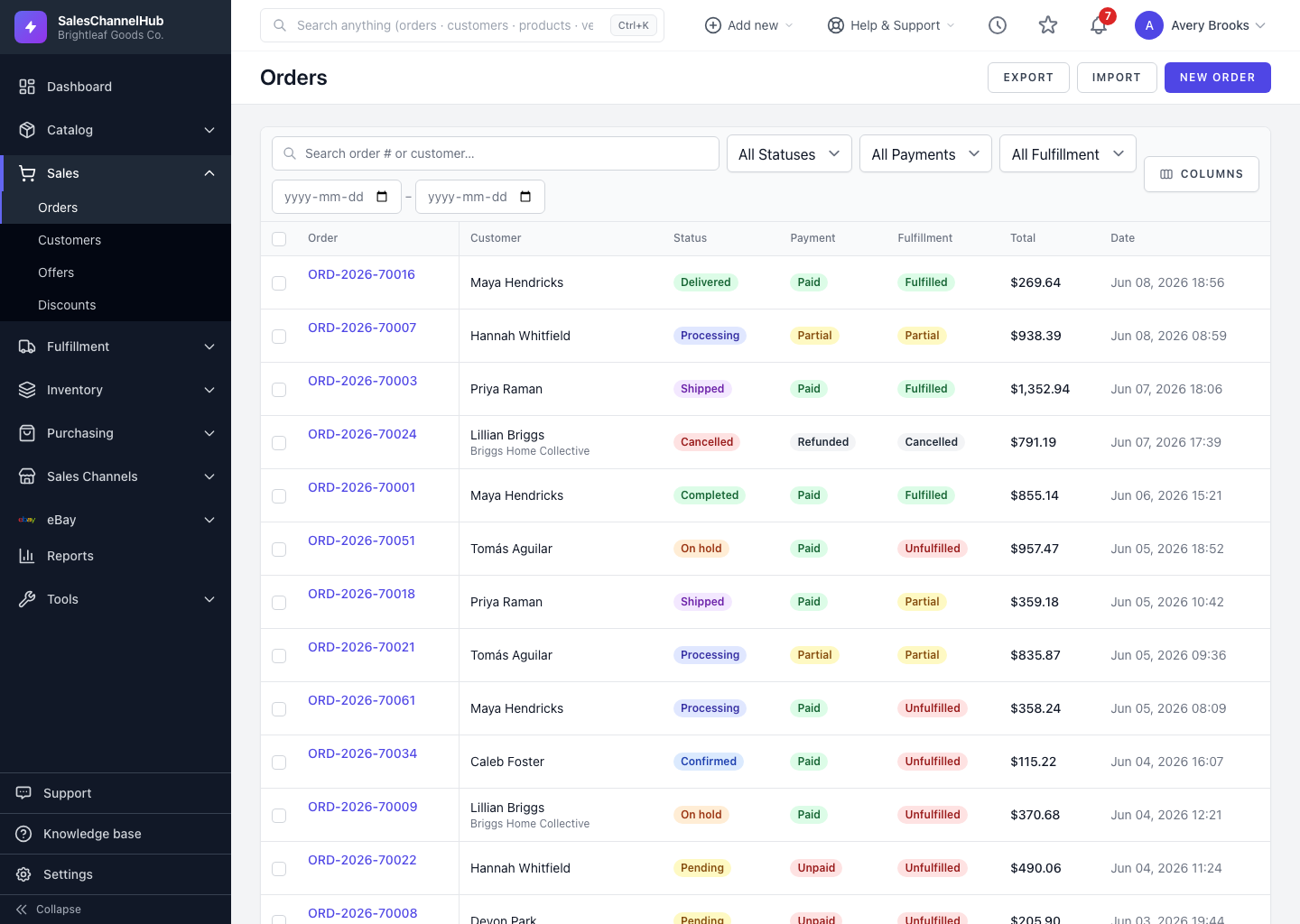
Click Import, fill the Orders CSV (and an optional Order Lines CSV), then upload. Lines reference their order by number.
Order import uses two CSV files: a required Orders CSV for the headers and an optional Order Lines CSV for the items. Lines reference their parent order by Order Number. This is how you migrate history or load a batch.
How do I import orders?
- On the orders list, click Import.
- Use Download blank Orders CSV template and Download blank Order Lines CSV template to get the correct columns.
- Fill in your data. Order Number is required and must be unique; each line needs a matching Order Number, a SKU Code in your catalog and a Quantity of at least 1.
- Upload your Orders CSV (required) and, if you have them, the Order Lines CSV (optional).
- Leave Skip rows with errors ticked to import the good rows and report the rest, then click Import Orders.
Tip. Money columns are in dollars, like 19.99. Lines only attach to orders in the same import batch, so to add lines to an existing order, edit it on its detail page instead.
Common questions
Can I import only order headers, without lines?
Yes. The Order Lines CSV is optional. Upload just the Orders CSV for status or migration loads.
Why were some rows rejected?
Order Number must be unique, and line rows need a matching Order Number, a real SKU Code and a quantity of at least 1. Keep Skip rows with errors ticked to import the valid rows and see exactly which failed.
How are customers matched on import?
By Customer Number first, then Customer Email. Leave both empty to import the order as a guest order.