Make a stock adjustment
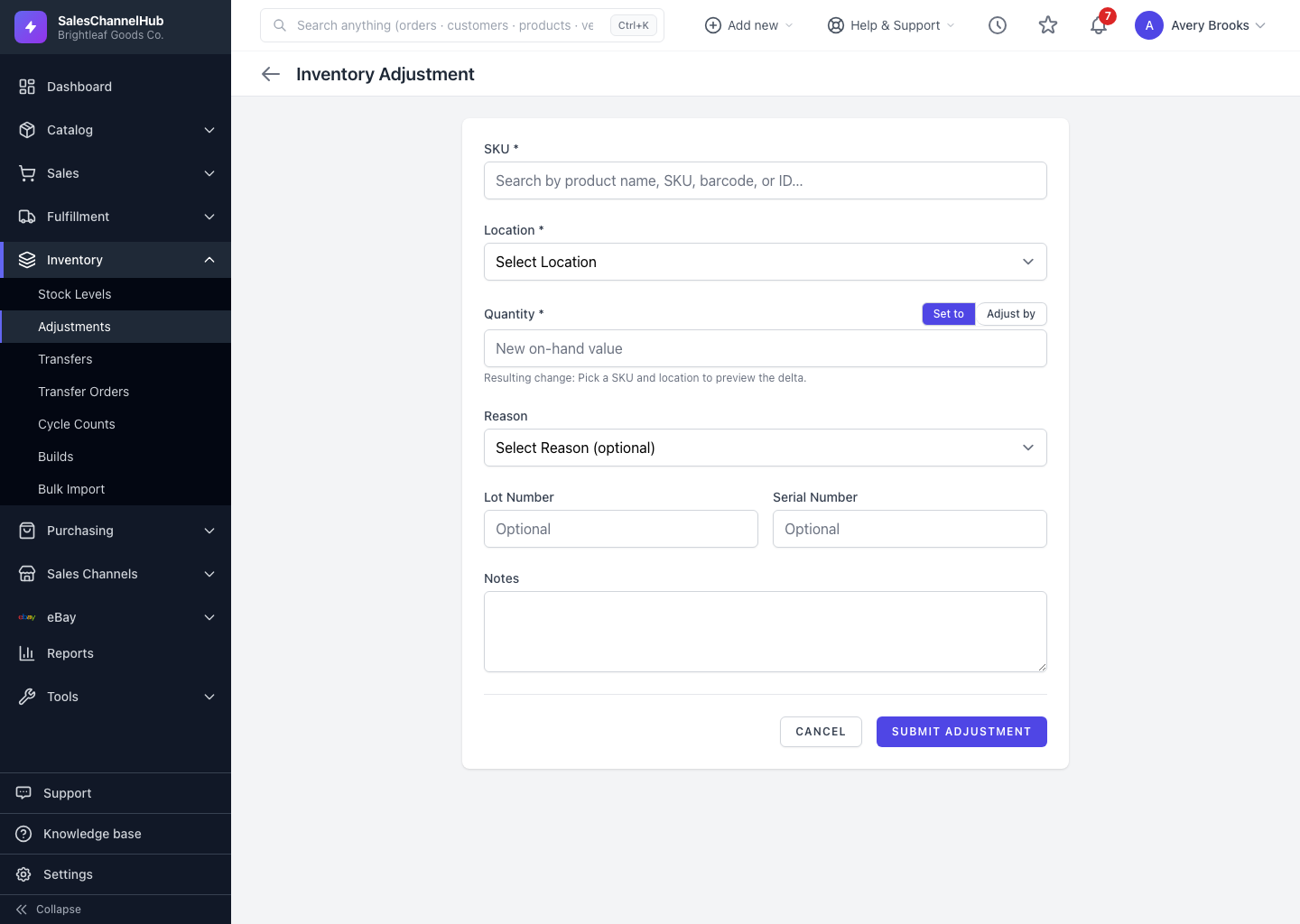
To correct one SKU's count, open Adjustments, pick the SKU and location, enter a quantity, then Submit Adjustment.
To correct a single SKU's on-hand count, use a stock adjustment. It's the tool for fixing a shelf count, logging breakage, or recording stock the system didn't know about. Every adjustment is recorded, so nothing changes silently.
How do I adjust a SKU's count?
- Open Adjustments from the Inventory group, or click Adjust Stock on the Stock Levels screen. Clicking a SKU code in the list pre-selects it for you.
- Search the SKU field by product name, SKU, barcode or ID and pick the item.
- Choose a Location. With a single warehouse it's selected for you.
- Check the Current on hand readout, then enter a Quantity.
- Optionally pick a Reason and add Notes, then click Submit Adjustment.
Do I have to fill in Lot and Serial Number?
No. The Lot Number and Serial Number fields are optional. Leave them blank unless you track stock at that level.
Tip. The form shows the resulting change before you submit, so you can confirm the new on-hand lands where you expect.
Common questions
Is a reason required on every adjustment?
No, the Reason dropdown is optional. Choosing one consistently makes your shrinkage and damage reporting far more useful, though.
Can I undo an adjustment?
There's no one-click undo. Make a second adjustment that reverses it, with a note explaining why. Both stay in the record.
Why was nothing recorded after I submitted?
In Set to mode, if your number already matches the current on-hand there's nothing to change, and you'll see a "No change" notice. That's expected.