Orphan listings (no matching product)
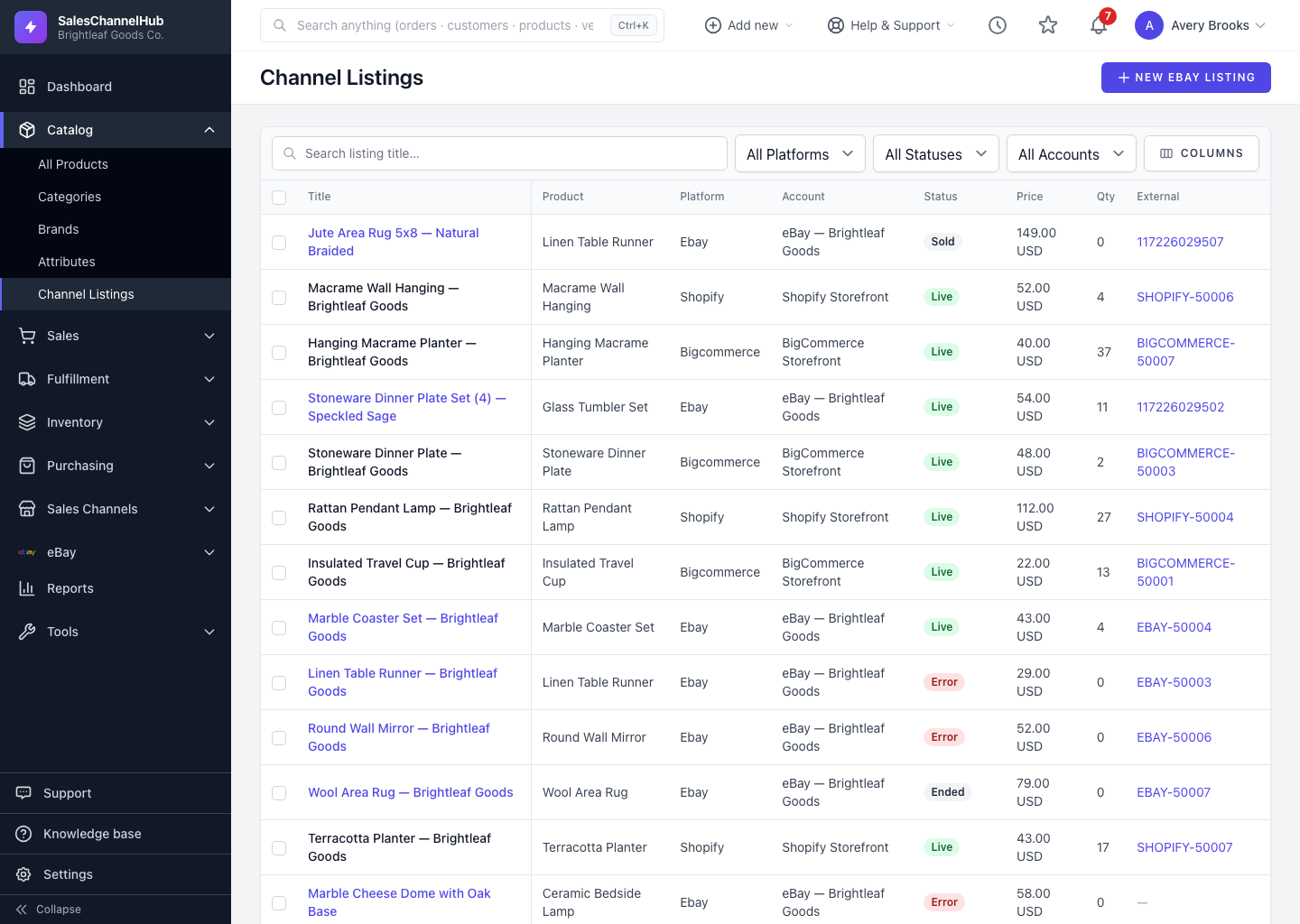
A dash in the Product column means a listing isn't linked to anything in your catalog. Match its SKU to a product to reconnect it.
Sometimes a listing pulled from a platform has no matching product in your catalog. These are "orphan" listings: real, live listings that aren't linked to anything in your Products list. You'll spot them by a dash (—) in the Product column.
Why does it happen?
- The listing was created on the platform before you connected it here, so there was nothing local to match.
- The listing's SKU doesn't match any SKU in your catalog, so it couldn't link automatically.
- The product it used to point to was removed.
How do I reconnect one?
- Open the listing to review its title, SKU and details.
- If you stock the item, create or update the matching product so its SKU lines up with the listing's SKU. That lets the listing link to it.
- If it's something you no longer sell, leave it or end the listing on the platform.
Tip. Orphan listings still count toward what's live on a channel, but they don't share stock with your catalog. Reconnecting them keeps quantities accurate across channels.
Common questions
How do I link an orphan listing to a product?
Match the SKUs. Create or edit the product so its SKU equals the listing's SKU, and the listing links to it. There's no manual "attach" button; the SKU is the link.
Do orphan listings affect my stock?
No. With no linked product they don't draw down or share catalog stock. That's why their quantities can drift from the rest of your inventory until you reconnect them.