Adjust columns and date range while viewing
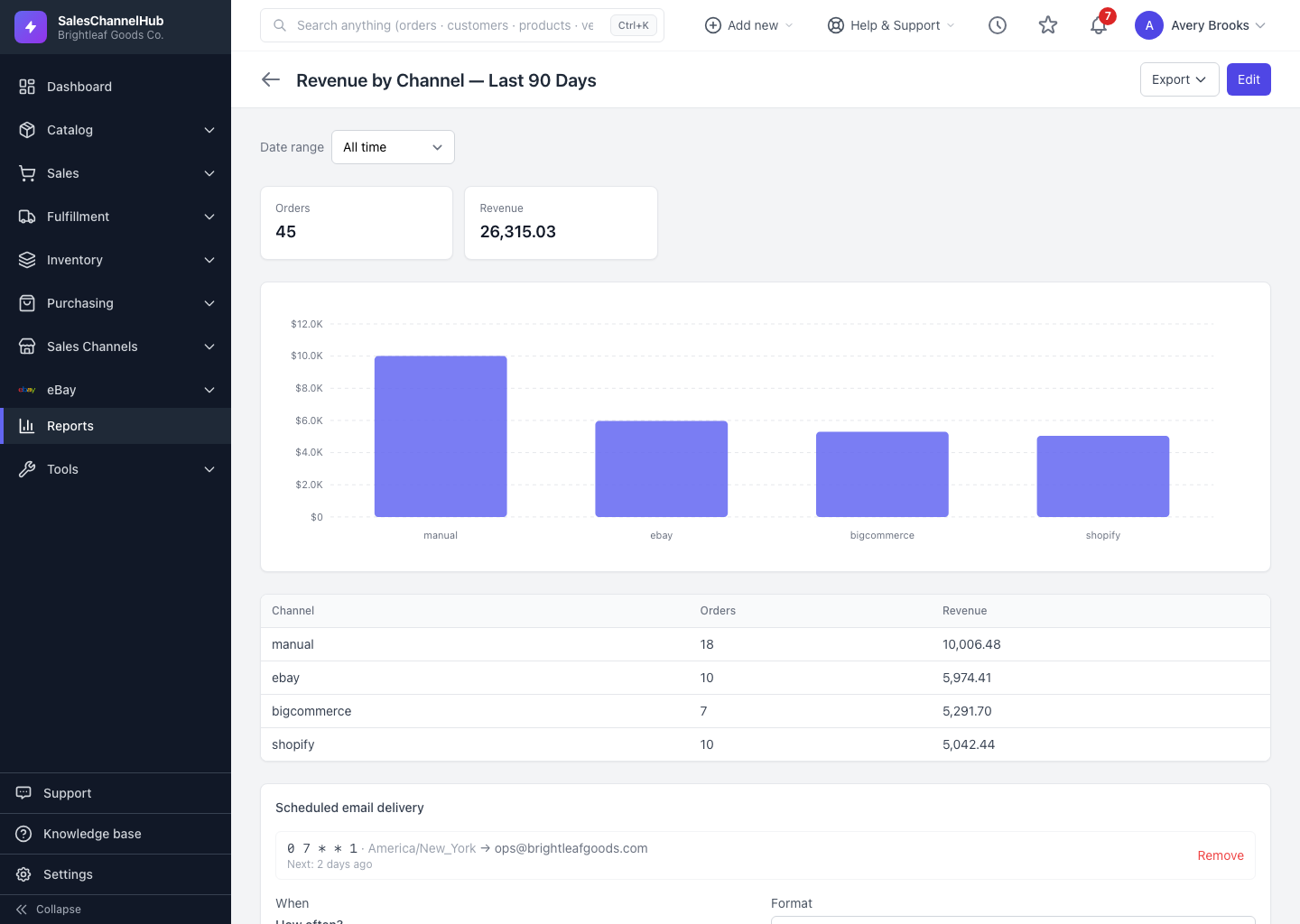
On a results page you can switch the Date range and hide columns from the Columns menu, just for yourself, without editing the saved report.
You can tweak how a saved report looks while you're viewing it, without changing the saved definition or affecting anyone else.
What can I change on the fly?
- Date range — if the report has a date field, a Date range selector appears at the top. Switch between All time, Last 7 / 30 / 90 days, This month, This quarter, This year or Year to date, and the results refresh.
- Columns — on a flat (table) report, open the Columns menu above the table and untick any columns you'd rather hide. Your choice is remembered for you next time.
Does hiding a column affect anyone else?
No. Hiding a column is personal to your view and persists per report. It won't remove the column for other people or change exports of the full definition. To change the report for everyone, edit it instead.
Tip. The Columns menu only shows on flat reports. A summary's columns come from its dimensions and measures, so adjust those in the builder rather than hiding them here.
Common questions
Will hiding a column change it for my team?
No. Hidden columns are personal to your view and saved per report for you alone. Other people still see the full column set, and exports use the full definition.
Why is there no Date range selector on my report?
The report has no date field to filter on. The selector only appears when the record type and columns include a date the report can range over.