Download ticket attachments
Open a ticket, find the message carrying the file, and click the attachment link to download it.
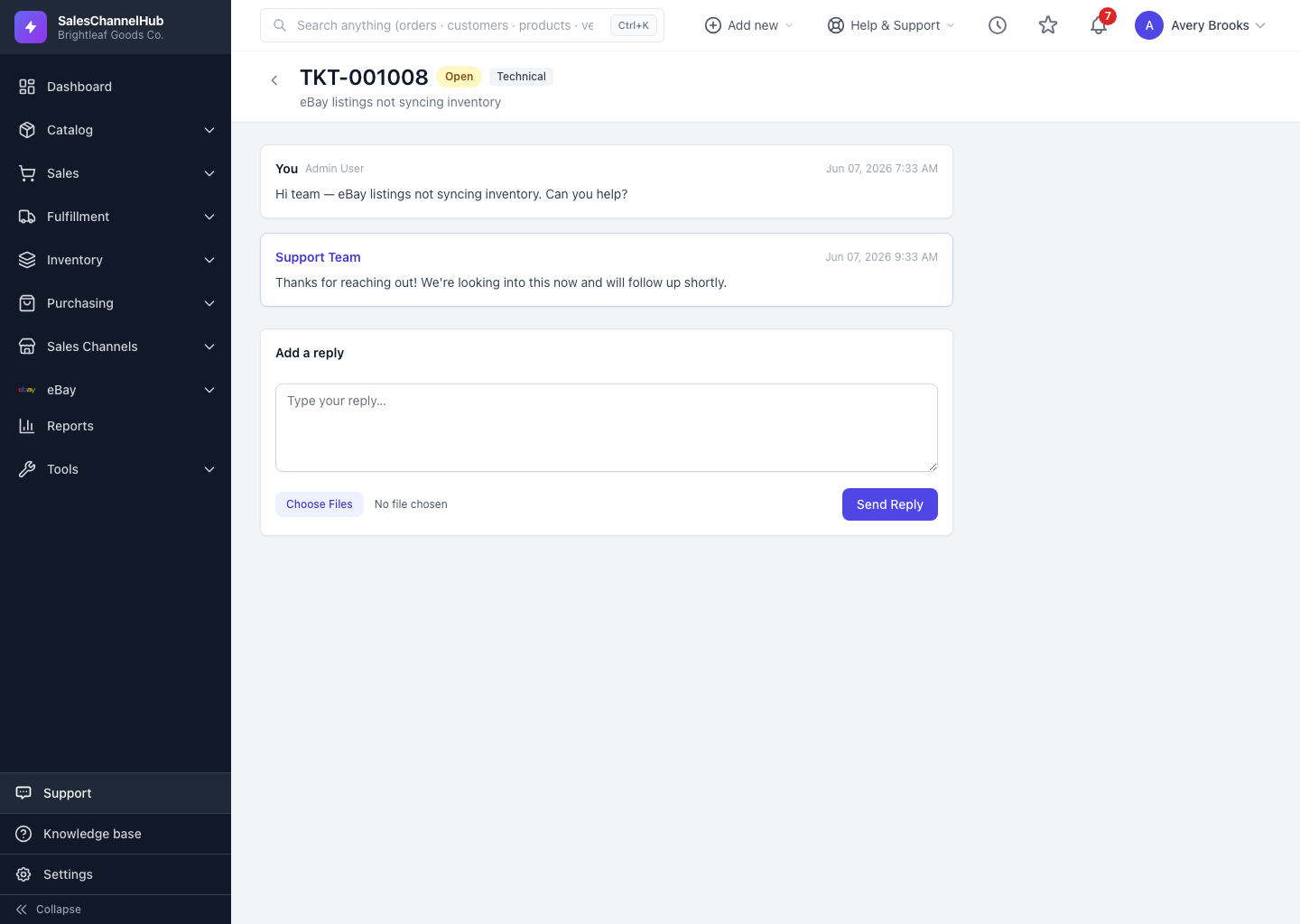
To save a file our team sent, open the ticket and click the attachment link inside the thread. A corrected export, a screenshot, or a document appears right on the message it came with.
How do I download a file?
- Open the ticket from the Support list.
- Find the message that carries the file. Attachments show as a small link beneath the message text, with the filename and its size.
- Click the attachment to download it to your computer.
Tip. Attachments stay on the ticket permanently, so you can re-download a file any time. There's no need to keep your own copy of everything we send.
Was this article helpful?