QC pass or fail on receipt lines
On a goods receipt that isn't completed, set each line's QC Status to Not Required, Pending, Passed or Failed. A failed line blocks completion.
Quality control lets you check incoming goods line by line. A failed line blocks the receipt from completing until it's resolved, so bad stock doesn't quietly land in inventory.
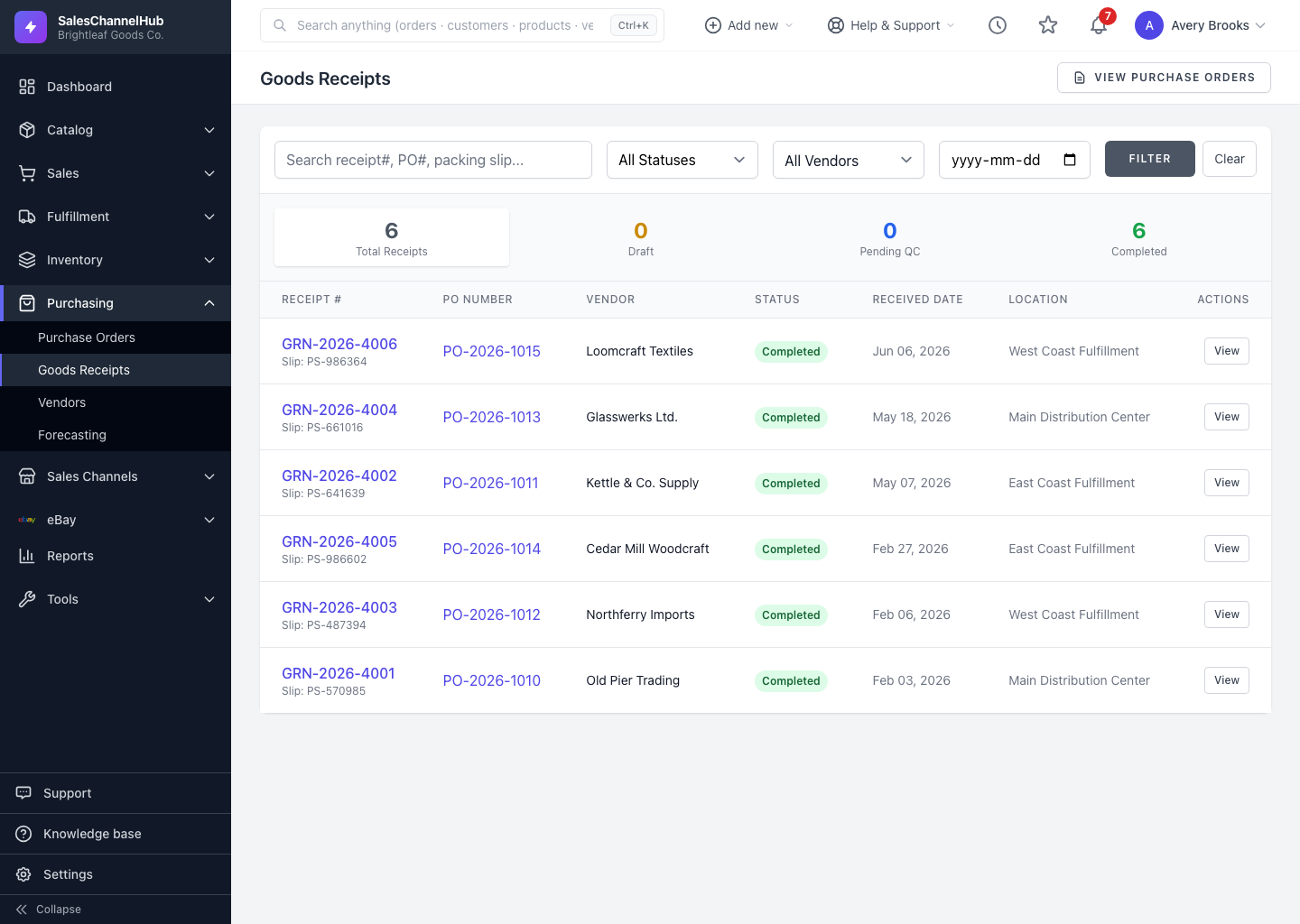
How do I set a QC status?
- Open a goods receipt that isn't yet completed.
- In the Received Items table, each line has a QC Status dropdown.
- Choose Not Required, Pending, Passed or Failed. The change saves as soon as you pick it.
What does each QC status mean?
- Passed — the line cleared inspection.
- Failed — there's a problem; this prevents the receipt being completed.
- Pending — awaiting review; the sidebar counts how many are outstanding.
- Not Required — no inspection needed for this line.
Tip. Lines where the received quantity doesn't match what was expected are highlighted as discrepancies, a good prompt to inspect them before passing QC.
Common questions
Does setting a QC status need a save button?
No. The QC Status dropdown saves the moment you choose a value, so there's nothing else to click.
What's a discrepancy on a receipt line?
It's when the quantity received doesn't match what was expected. Those lines are highlighted so you can inspect them before passing QC.
Can I still change QC after a receipt is completed?
No. Once a receipt is completed, the QC status on each line is fixed and shown as a read-only badge.