Customize your dashboard widgets
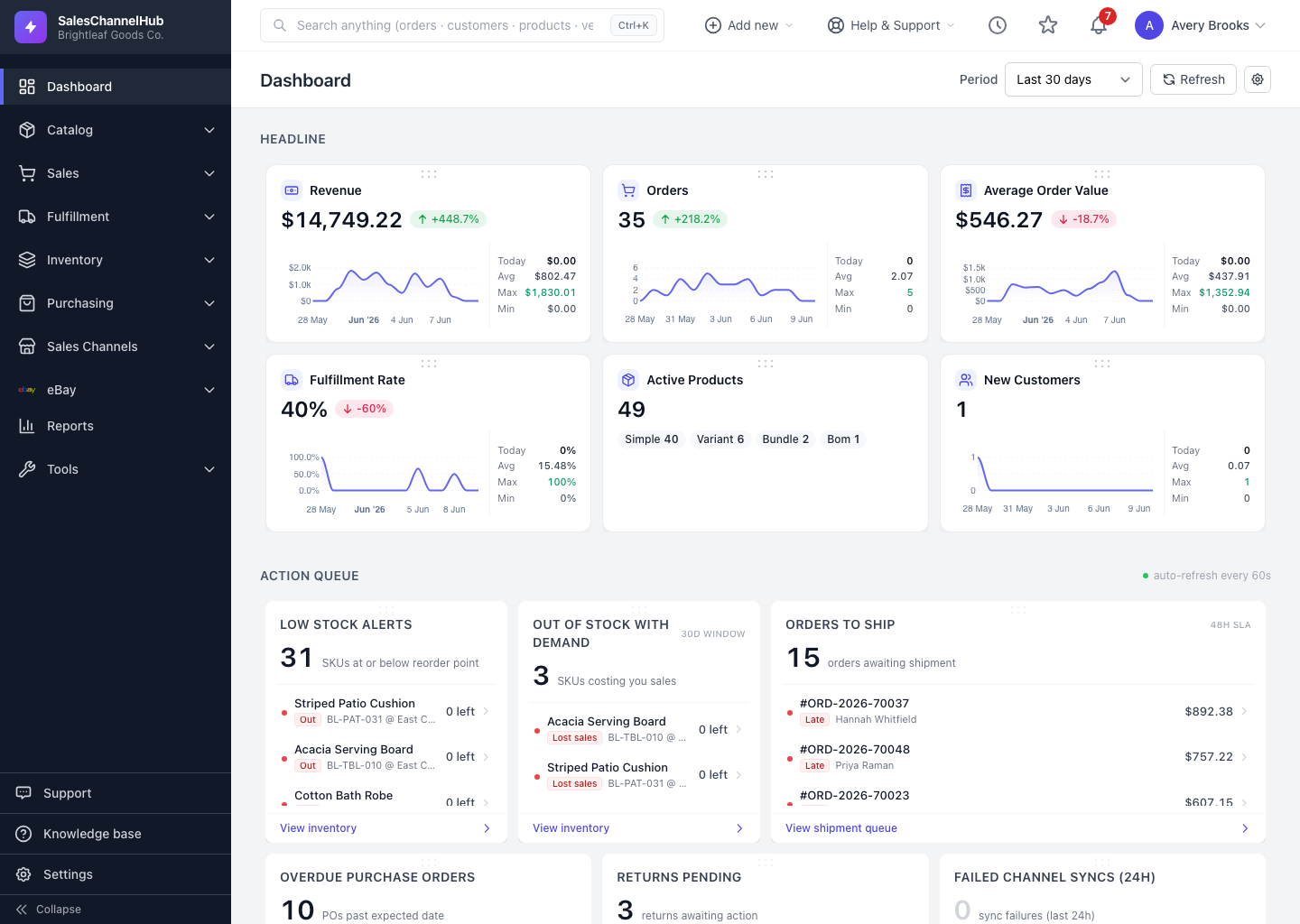
Rearrange, hide or show dashboard widgets and set a default period from the gear icon. It changes only your own view.
Your dashboard layout is yours alone. Rearrange the cards, hide ones you don't use, and set how it behaves by default, and none of it affects anyone else.
How do I customize it?
- Rearrange: hover a widget, grab the dotted grip at its top, then drag to move it or pull an edge to resize. Layout is saved per section.
- Configure: click the gear icon at the top right to open Dashboard settings.
- Set your Default period and an Auto-refresh action queues interval.
- Under Visible widgets, untick any widget to hide it and re-tick to bring it back. Hiding never deletes anything.
- Click Save, or Reset to defaults to undo every change.
Tip. If your widget list looks shorter than a colleague's, your role may hide some. The settings panel notes how many extra widgets your role hides.
Was this article helpful?