Browse and filter pick lists
Open Fulfillment → Pick Lists, then filter by status, type, warehouse or assignee and click a row to see its detail.
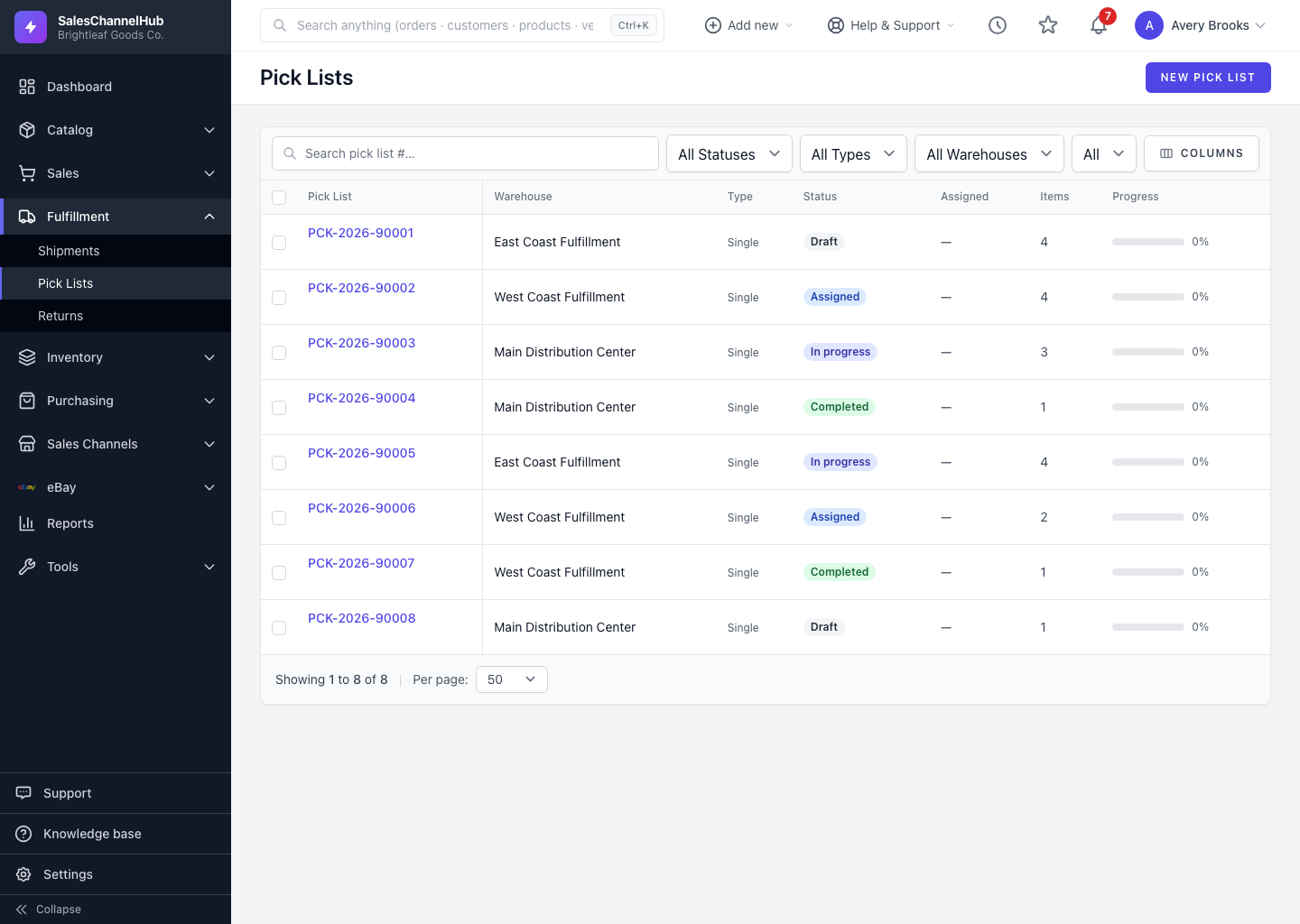
To track what's outstanding on the floor, open Fulfillment → Pick Lists. The list shows each pick list with its number, warehouse, type, status, assignee, item count and progress.
How do I filter the list?
- Go to Fulfillment → Pick Lists.
- Use the All Statuses, All Types and All Warehouses dropdowns, or the assigned-worker filter, to narrow it.
- Search by pick list number, sort a column, and set the rows per page.
- Click a row to open the pick list and see its items and progress.
Tip. Use Columns in the filter bar to show or hide fields, so the list focuses on what your team cares about most.
Was this article helpful?