Understand roles and permissions
A role is a bundle of permissions you assign to users, so you set access once per role instead of per person.
A role is a bundle of permissions. You assign each user a role, and the role carries what they can see and do, so you set access once per role instead of person by person.
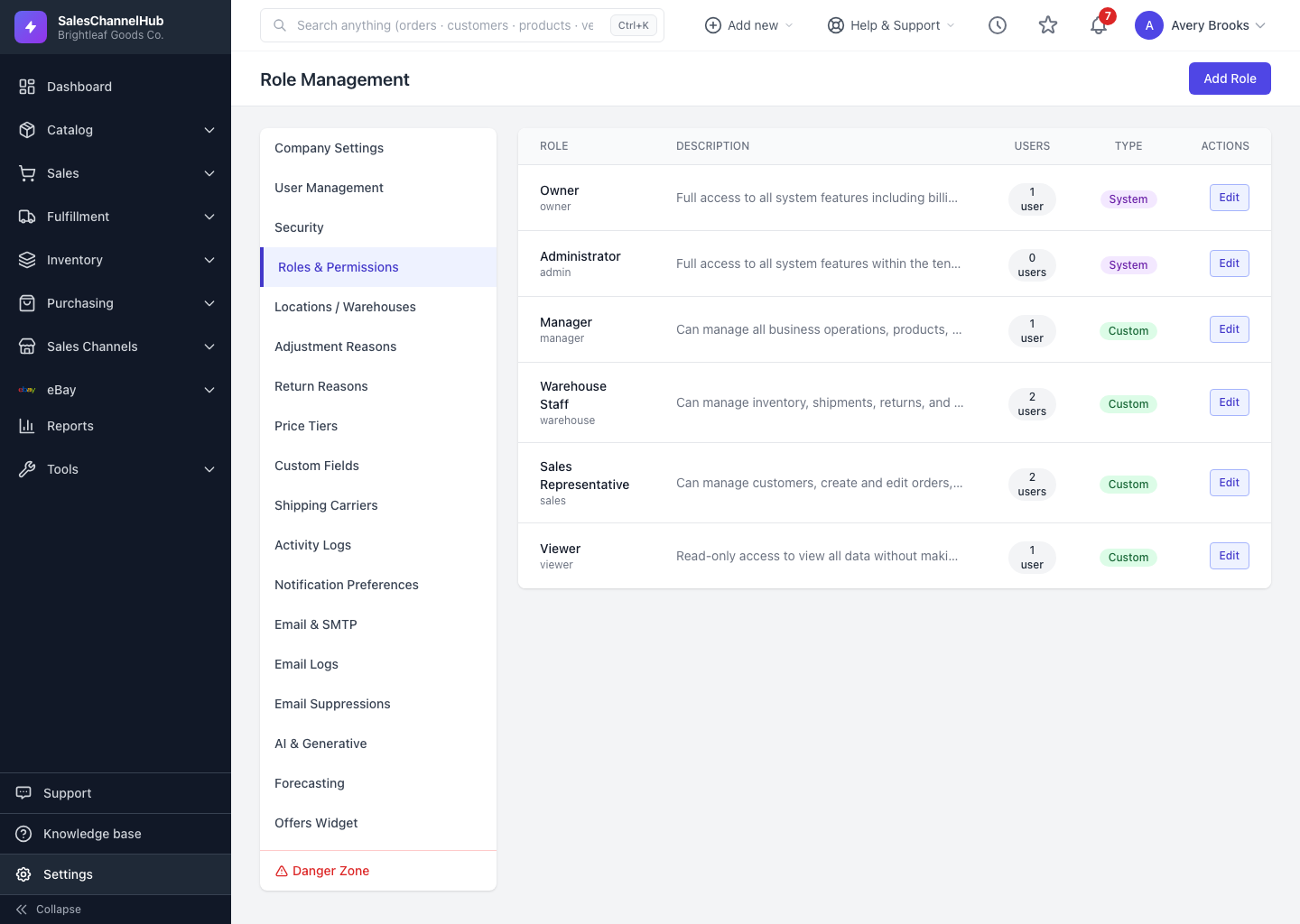
How do roles work?
- System roles ship with the app. Owner and Administrator always hold every permission and can't be deleted.
- Custom roles are ones you create for your own team, such as Manager, Sales Representative, Warehouse Staff or Viewer.
- Role Management shows each role's name, description, how many users have it, and whether it's System or Custom.
How do I build a custom role?
- Go to Settings → Roles & Permissions and click Add Role, or Edit an existing custom role.
- Give it a name and description.
- Tick the permissions it should have. Use Select All on a group to grant a whole area at once.
- Save. Anyone with that role picks up the change immediately.
Tip. Start from the access a job actually needs, not from Owner. It's easier to add a permission later than to discover someone had too much.
Common questions
Can I delete a role that's in use?
No. A role with users assigned can't be deleted. Reassign its users to another role first, then remove it.
What's the difference between Owner and Administrator?
Both are system roles with every permission. Owner is the top-level account holder; Administrator is for trusted staff who need full access. Neither can be deleted.
Was this article helpful?