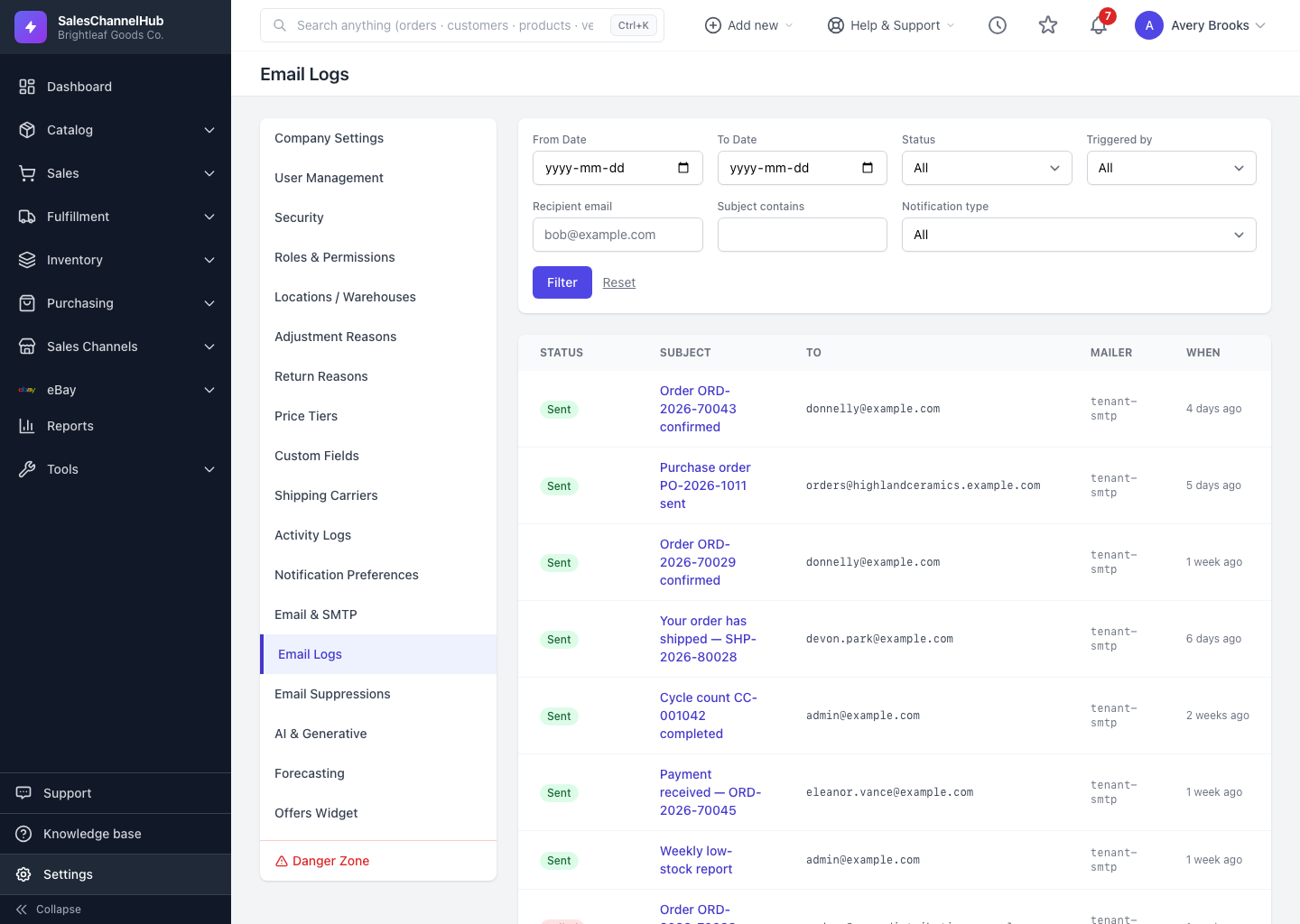
View an email and resend it
Click a subject to open the Email Detail view, read the exact message and delivery events, and resend it if your role allows.
Click any subject in the email log to open the full Email Detail view. It shows everything captured about that send, including the actual message the recipient received, and lets you send it again if your role allows.
What's on the detail page?
- The header shows the status, who it was From and To, the mailer used, and timestamps for when it was created, sent or failed. A failed message also shows its error.
- The Body section renders the email exactly as it was sent, so you can read the real content.
- When tracking is available, Recipient interactions lists opens and link clicks, and Bounce & complaint events flags delivery problems.
- To send it again, click Resend and confirm. The system queues a fresh send through your current mailer and creates a new linked row, so refresh the log in a moment to see it.
I don't see a Resend button. Why?
Resend appears only for users whose role includes resend permission. If it's absent, ask an administrator, or have someone with the permission resend for you.
Tip. A resent message links back to the original, so you can always trace the chain from one send to the next.
Common questions
When should I resend an email?
After you've fixed a delivery issue, such as correcting an address or sorting out a mail-server rejection, or when a recipient simply lost the original. Resend queues a fresh copy through your current mailer.
Can I read the exact email the customer received?
Yes. The Body section on the detail page renders the message exactly as it was sent, so you see the real content rather than a template.