Schedule a discount
Set Starts and Ends dates under Conditions & limits so a promotion turns on and off on its own.
Give a discount a start and end date so it runs only during a promotion window: a weekend sale, a seasonal range, or a clearance push.
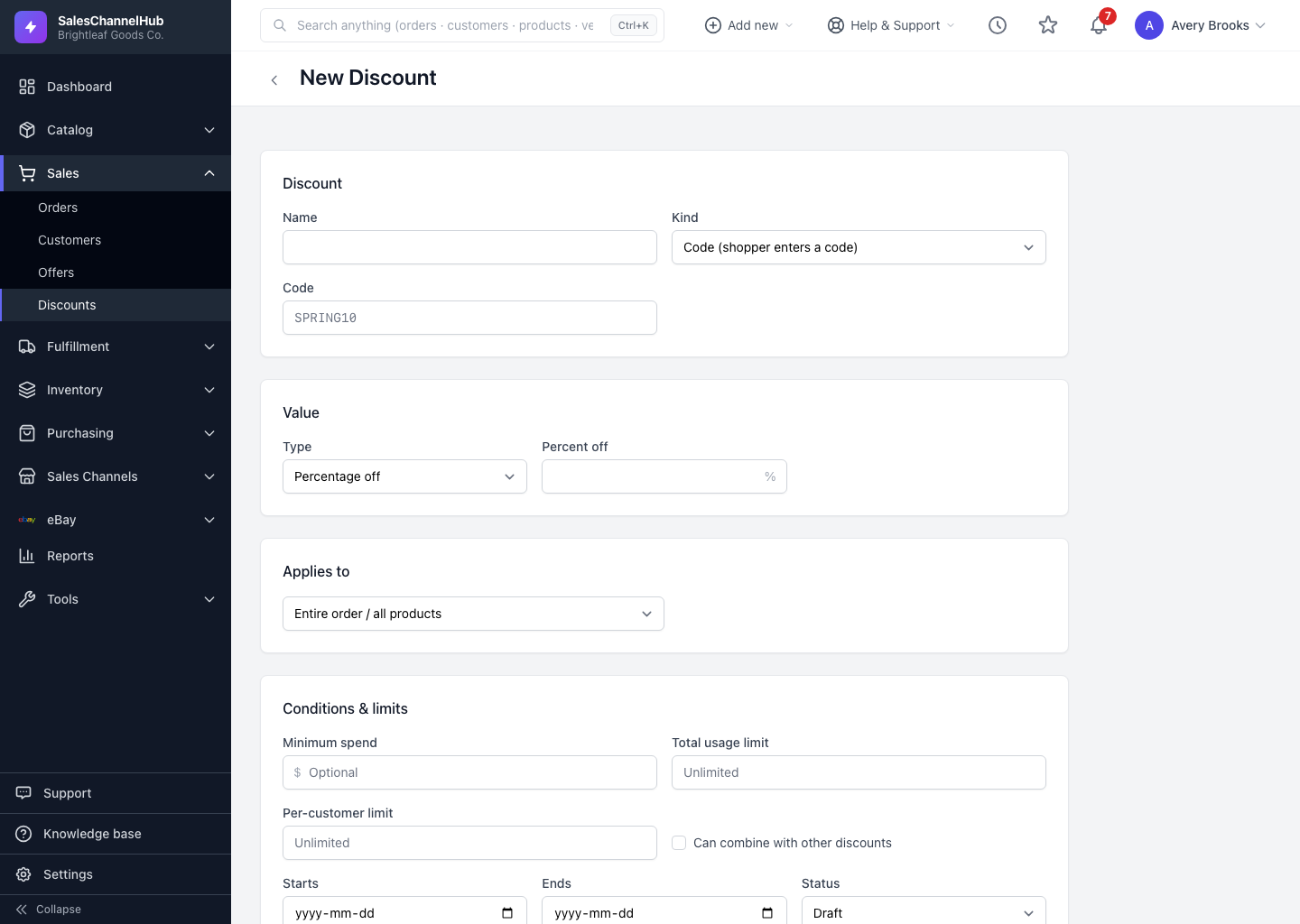
How do I schedule a discount?
- In Conditions & limits, set the Starts date for when it should become live.
- Set the Ends date for when it should stop. Leave it blank for no expiry.
- Set the Status to Scheduled if it shouldn't be active yet.
On the detail page, Starts reads "Immediately" when there's no start date, and Ends reads "No expiry" when there's no end date.
Tip. The end date is the last day the discount is valid. If a promo must stop the moment a weekend closes, check the end date against the channel's time zone.
Common questions
What's the difference between Scheduled and Active?
Scheduled is set up and waiting for its start date. Active is live and redeemable now. A scheduled discount goes live on its own once its start date arrives.
What happens when a discount reaches its end date?
It moves to Expired automatically and stops redeeming. You can't set Expired by hand; it's applied when the end date passes.