Edit an order
Open an order and click Edit Order to change the customer, lines or notes, while stock hasn't been allocated or shipped.
To revise an order, open it and click Edit Order. Editing is allowed while the order is early in its life; once stock has been allocated or shipped, the order locks to protect the record.
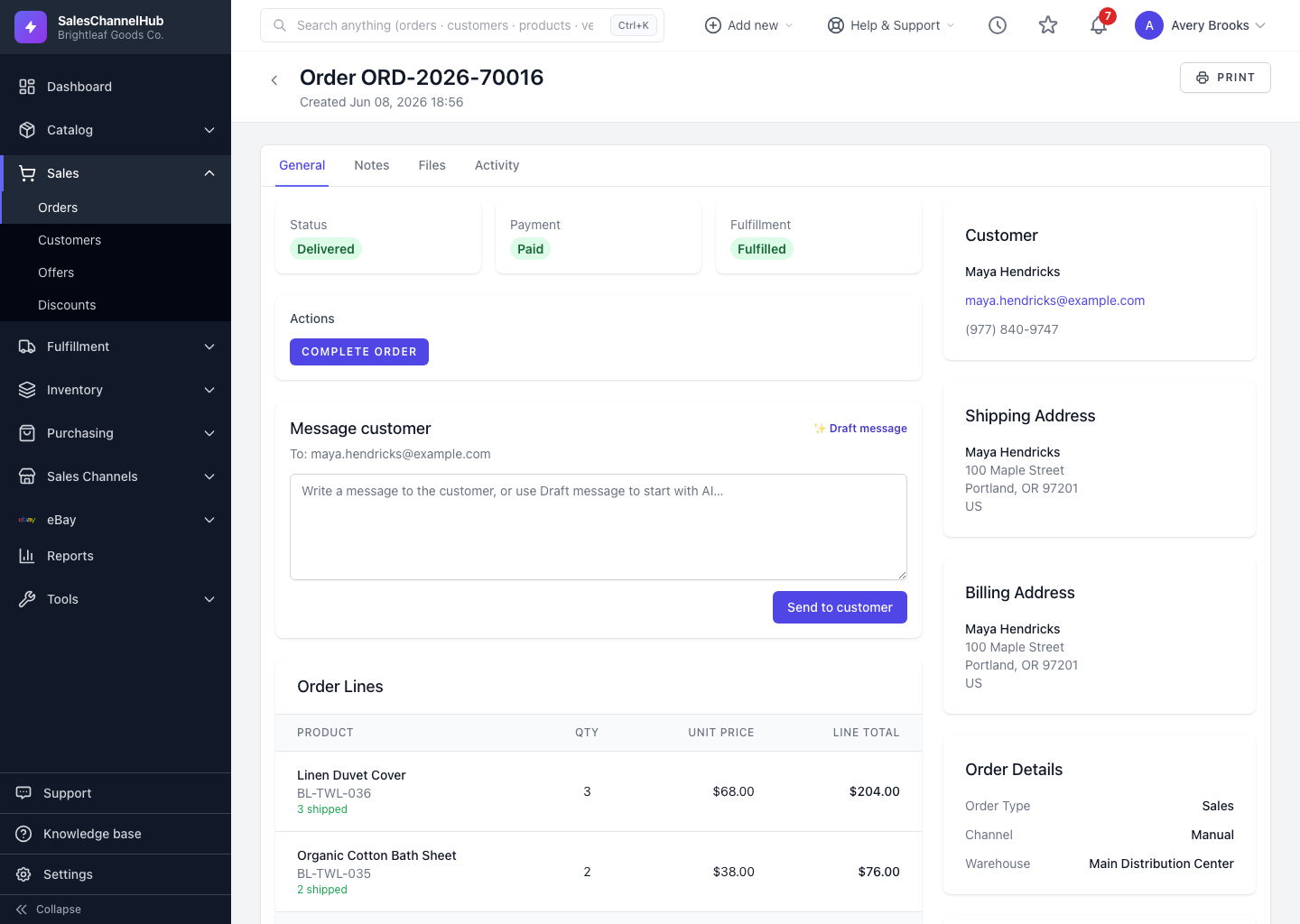
How do I edit an order?
- Open the order and click Edit Order (also available from the order's row actions on the list).
- Under Order Information, change the Customer, Warehouse, Shipping Method or Requested Ship Date.
- Add, remove or adjust Order Lines: SKU, quantity, unit price and discount.
- Update Internal Notes or Customer Notes as needed.
- Save. The order's totals recalculate from the lines.
Why is the Edit Order button missing?
The order has progressed too far. Once it has allocated or shipped items it can't be edited. Raise a return or an adjustment instead.
Tip. Editing replaces the order's lines, so re-add every line you still want, not just the ones you changed.
Common questions
Can I edit an order after it ships?
No. Once items are allocated or shipped the order locks and the Edit Order button disappears. Use a return or an adjustment instead of editing.
Does editing change the totals?
Yes. Saving recalculates the subtotal and total from the current lines, plus any order-wide discount, shipping and tax.