Print an order, packing slip or invoice
Click Print on an order to open a packing slip in a new tab, or download a PDF built from a print template.
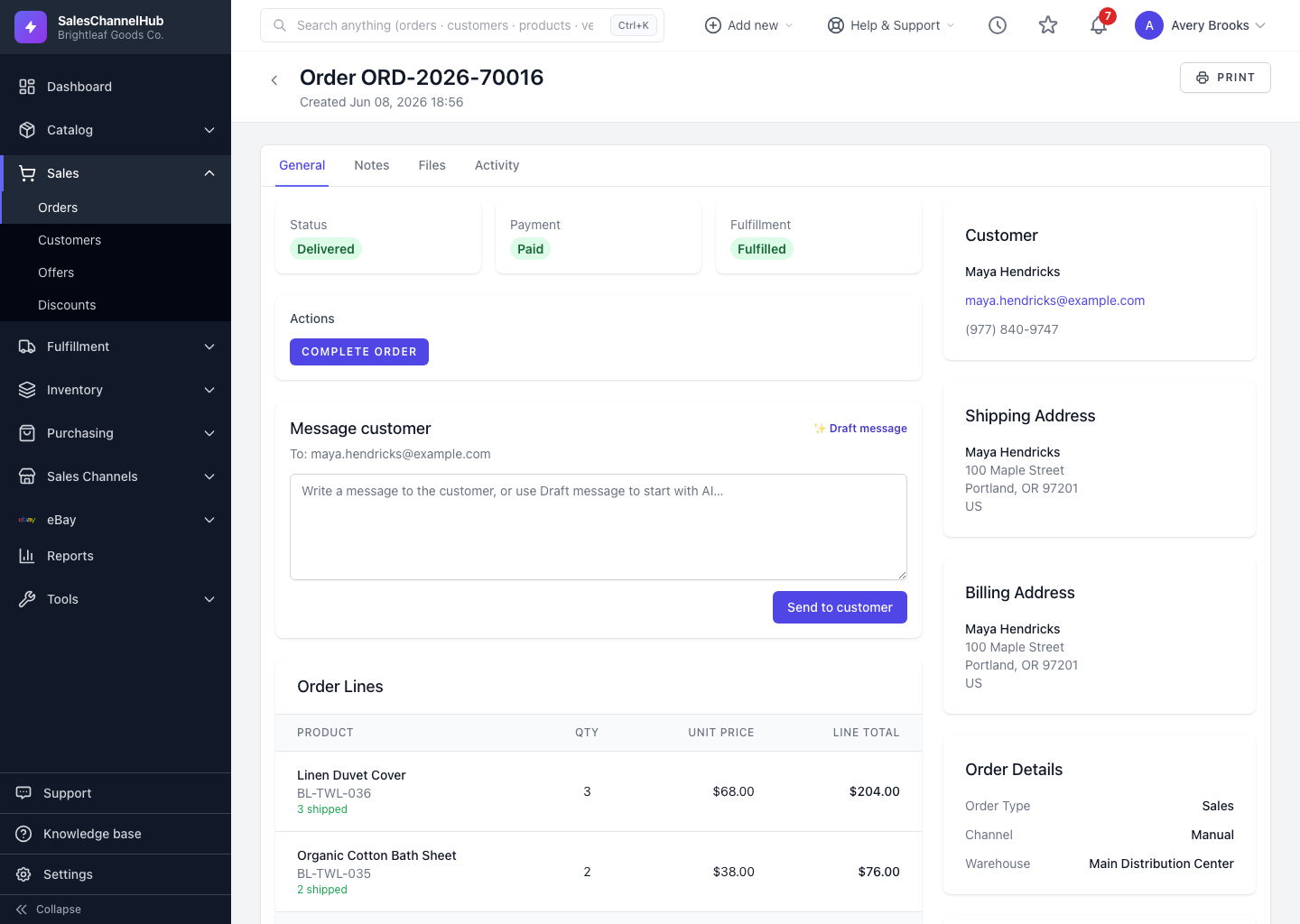
To produce a paper document for an order, click Print at the top right. You get a packing slip for the box, or a templated PDF such as a branded invoice.
How do I print a packing slip?
- Open the order and click Print at the top right.
- A printable Packing Slip opens in a new tab, showing the Ship To and Bill To addresses, the order lines with quantities and prices, and the totals.
- Your browser's print dialog appears. Print it, or save it as PDF.
How do I produce an invoice?
Where print templates are set up, the order can be downloaded as a PDF rendered through that template. Use a print template for a money-facing document like an invoice.
Tip. The packing slip shows quantities ordered, which is ideal for picking. For an invoice, use a print template instead.
Common questions
What's the difference between the packing slip and a PDF invoice?
The packing slip is a quick picking document with quantities and addresses. A PDF invoice is rendered through a print template, so it can carry branding and a money-facing layout.
Can I save the packing slip as a file?
Yes. When the print dialog opens, choose Save as PDF instead of a printer.