Set to vs Adjust by
Set to makes your number the new on-hand total; Adjust by treats it as the change to apply. Pick the one that matches what you know.
Set to makes the number you type the new on-hand total. Adjust by treats it as the change to apply. The two-button toggle sits next to the Quantity field, and choosing the right mode means the count lands where you expect.
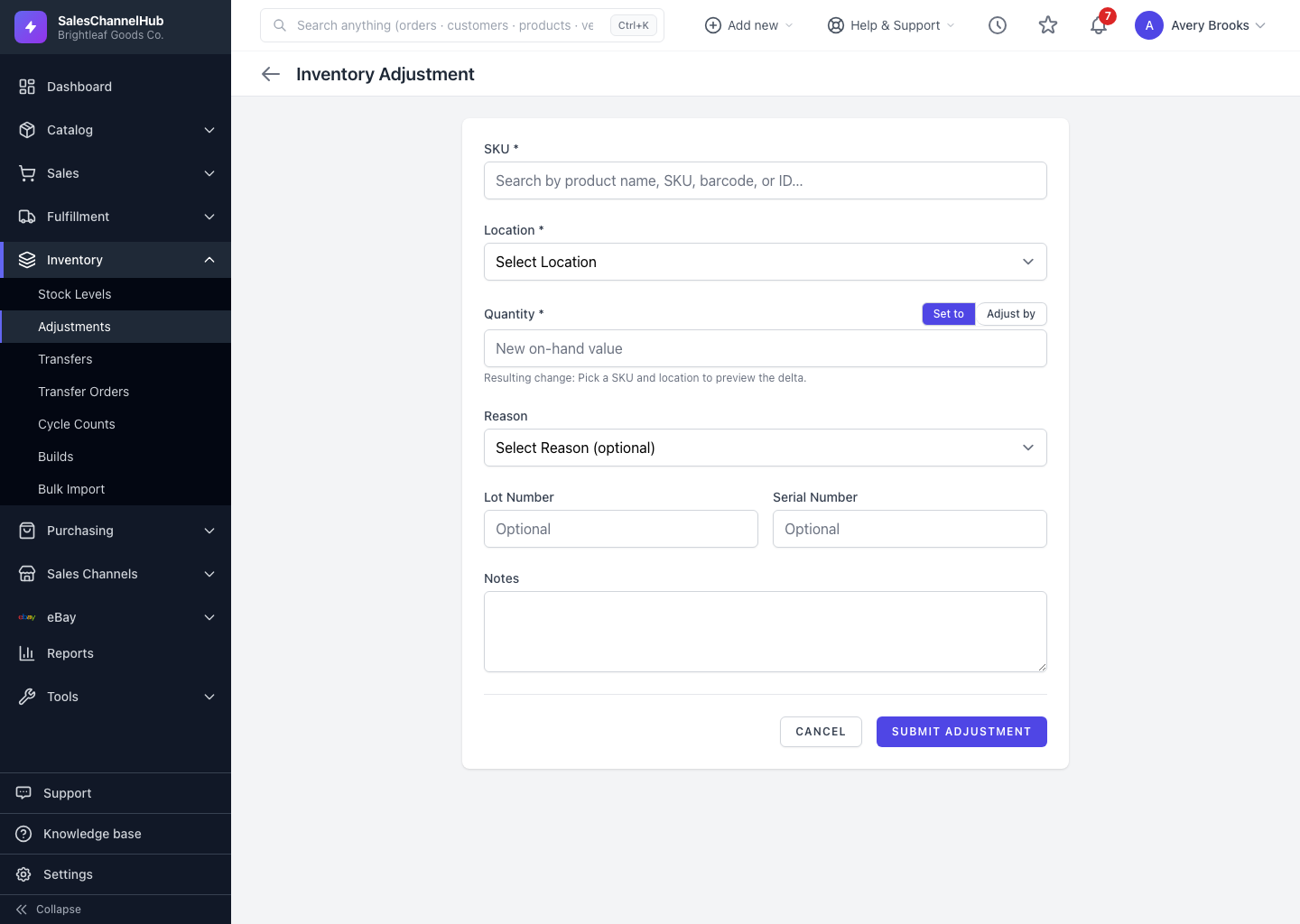
What does each mode do?
- Set to — your number becomes the new on-hand total. Use it after a physical count, when you know the true figure. The form previews the result, such as "+5, new on-hand 40".
- Adjust by — your number is the change. Type
5to add five units or-3to remove three. Use it when you know what moved but not the running total.
Which one fits my situation?
- Counted the shelf and got 40? Choose Set to and enter 40.
- Broke 3 planters? Choose Adjust by and enter -3.
Tip. In Set to mode, if your number already matches the current on-hand, nothing is recorded and you'll see a "No change" notice. That's expected.
Common questions
I bulk-imported and the counts overshot. What happened?
You likely ran the import in Adjust mode (values added as deltas) when you meant Set (values as targets). Re-upload in the correct mode.
Can I enter a negative number in Set to mode?
Set to expects the absolute on-hand you want. To remove stock, either set the lower total directly or switch to Adjust by and enter a negative.