Connect Shopify
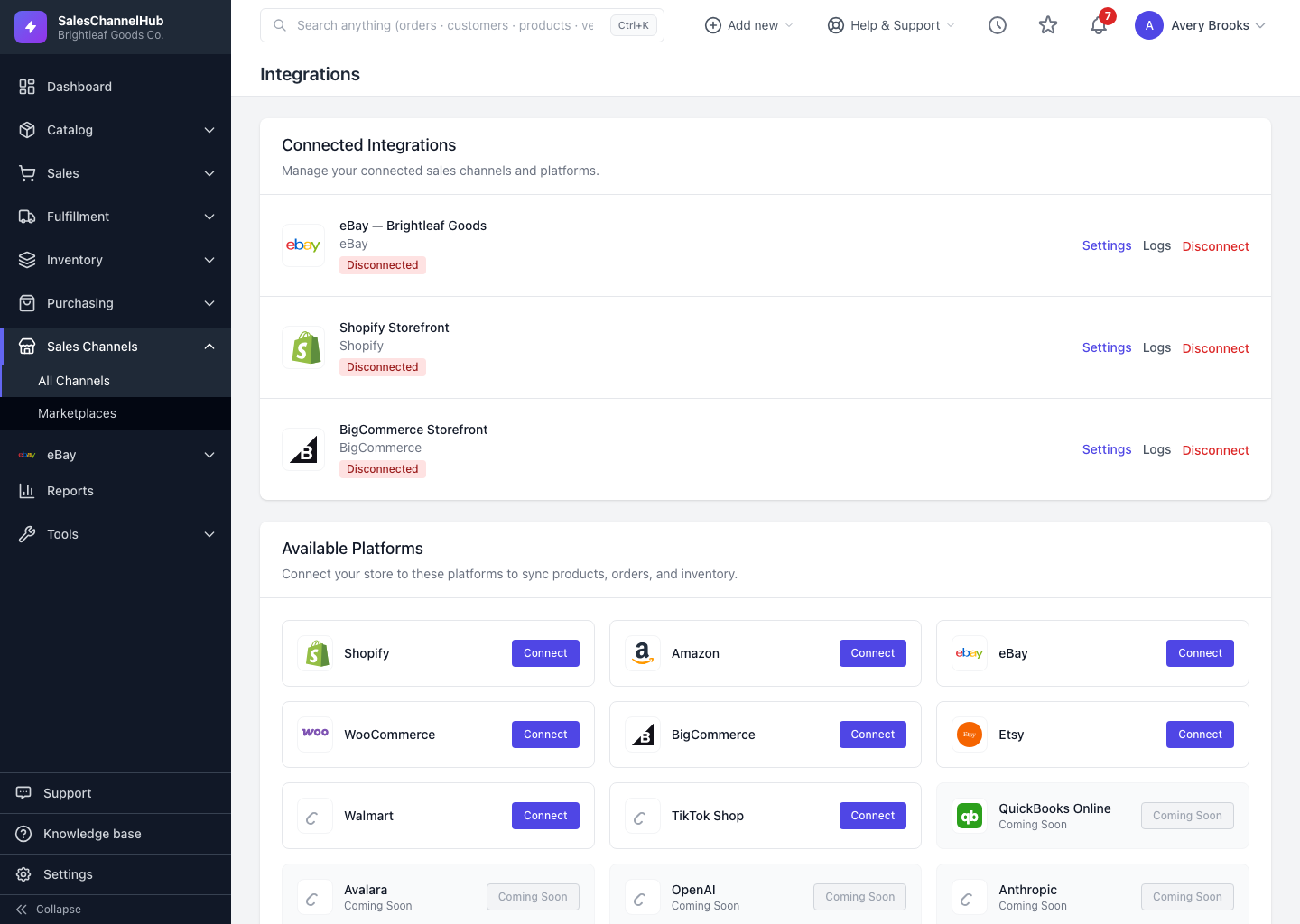
On the integrations page, click Connect on Shopify, enter your store name, and approve the app in your Shopify admin.
To connect Shopify, click Connect on Shopify and approve the app in your own Shopify admin. Shopify uses a secure authorise flow, so no passwords are stored here. Once connected, you can pull orders, push inventory and sync products.
How do I connect Shopify?
- Open Sales Channels → All Channels, find Shopify under Available Platforms, and click Connect.
- Enter your Shopify Store URL — just the store name (for example
brightleaf-goods). The.myshopify.compart is added for you. - Add an optional Display Name so the connection is easy to spot in your list.
- Leave API Key and API Secret blank unless your account team gave you a custom app for your store.
- Click Connect to Shopify, sign in at Shopify, review the permissions, and click Install app.
When you return, you land on the connection's settings page with a success message.
Tip. Pasted the full
https://...myshopify.com/address by mistake? It's cleaned up for you, but entering just the store name avoids any confusion.
Common questions
Do I need API keys to connect Shopify?
No. Leave API Key and API Secret blank. You only fill them in if your account team issued a custom Shopify app for your store.
Are my Shopify login details stored here?
No. You sign in and approve the app inside your own Shopify admin. SalesChannelHub never sees your password, and you can revoke access from Shopify at any time.
What syncs once Shopify is connected?
Orders, inventory, products and customers, in whichever direction you enable on the connection's Settings page. Nothing imports until you choose what to sync and run it.