Edit a customer
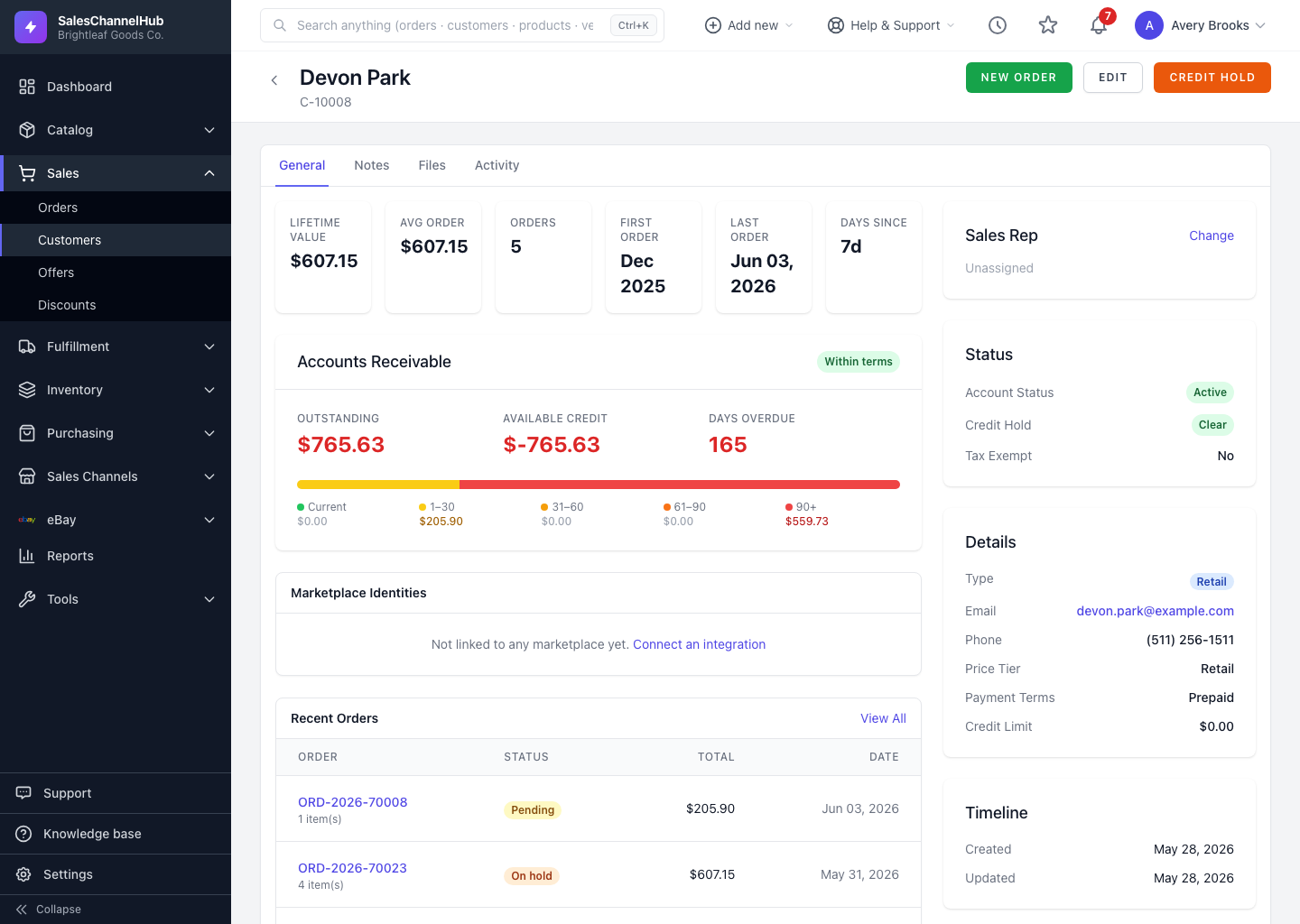
Open the customer, click Edit, change contact, pricing, credit or status fields, then click Update Customer.
To change a customer's details, open the record and click Edit. The edit form mirrors the create form, so you update contact, pricing, credit and status fields, then save.
How do I update a customer?
- Open the customer and click Edit.
- In Customer Information, change contact fields, Customer Type, Price Tier or Sales Rep.
- Under Billing & Credit, adjust Payment Terms, Credit Limit, the Credit Hold flag and tax-exempt details.
- In Status & Notes, toggle Active (can place orders) and edit internal notes.
- Click Update Customer.
Should I delete a customer I've stopped trading with?
Untick Active instead. That keeps their order history intact while blocking new orders. You can't delete a customer who already has orders anyway.
Tip. Changing tax-exempt status reveals the certificate number and expiry fields. Fill the expiry in so an out-of-date certificate flags itself on the record.
Was this article helpful?