Connect Gmail or Outlook for sending
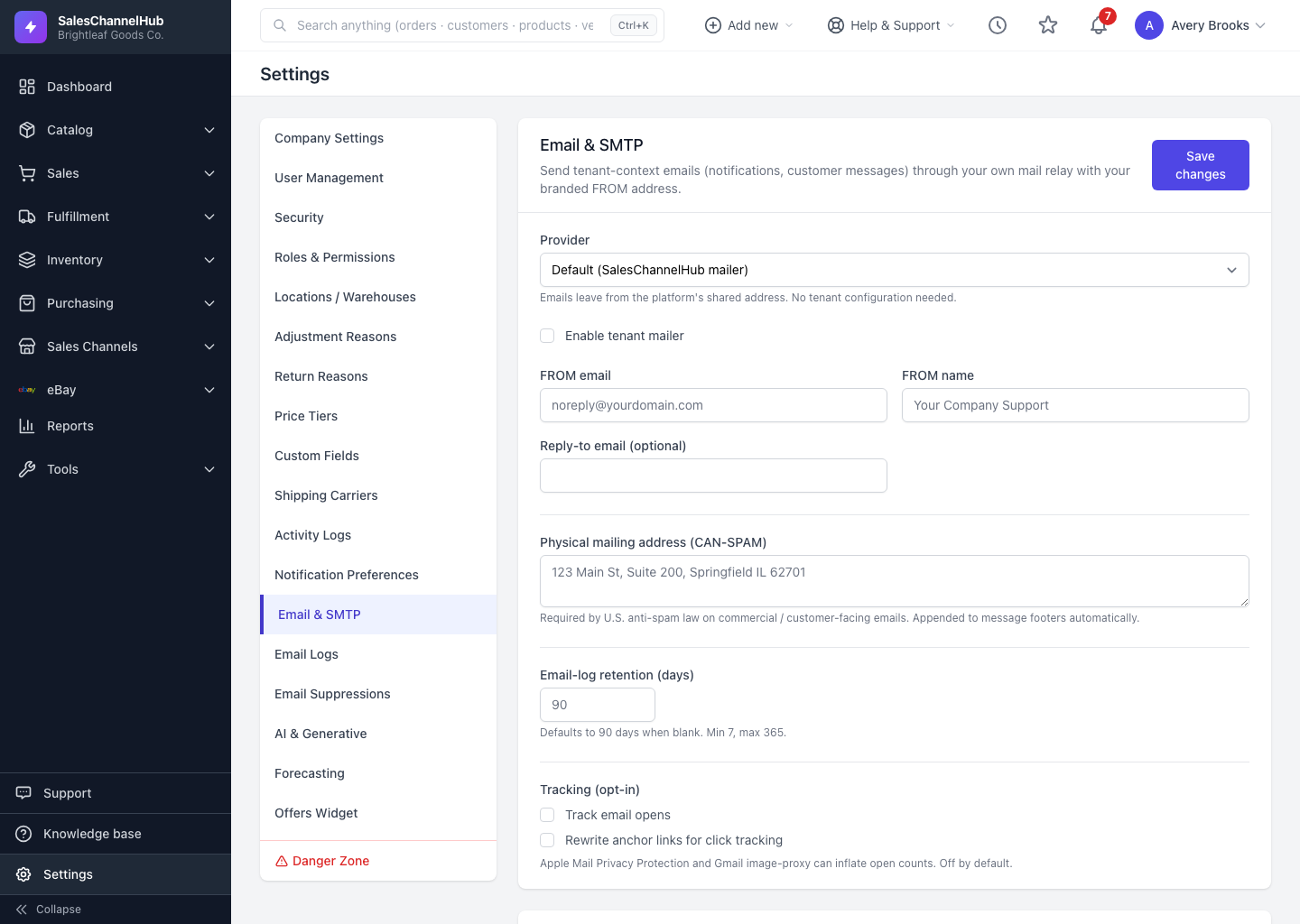
On the Email page, connect a Gmail/Google Workspace or Microsoft 365 mailbox via OAuth. The app gets a send-only token, never your password.
Instead of SMTP credentials you can connect a Gmail or Microsoft 365 mailbox with OAuth. The app never sees your password, only a send-only token that's encrypted and revocable.
How do I connect a mailbox?
- On Settings → Email & SMTP, scroll to Connect a mailbox via OAuth.
- Click Connect Gmail / Google Workspace or Connect Microsoft 365 / Outlook.
- Sign in at the provider and approve the send-only permission.
- You return showing Connected as your address. The access token refreshes automatically.
- To unlink, click Disconnect.
Tip. Only send permission is requested (Gmail's send scope, Microsoft's Mail.Send), so the app can't read your inbox. You can revoke access any time from your provider's connected-apps page.
Common questions
Can the app read my inbox once connected?
No. It requests only send permission (Gmail's send scope, Microsoft's Mail.Send). It can't read, search or delete your mail.
How do I revoke access?
Click Disconnect on the Email page, or remove the app from your provider's connected-apps page. Either revokes the send-only token.