Import products from CSV
Go to Products → Import, upload a CSV with Name and SKU columns, and the app creates new products and updates matches by SKU.
To add or update many products at once, go to Products → Import and upload a CSV. The app creates new products and, when you allow it, updates ones it recognises by SKU.
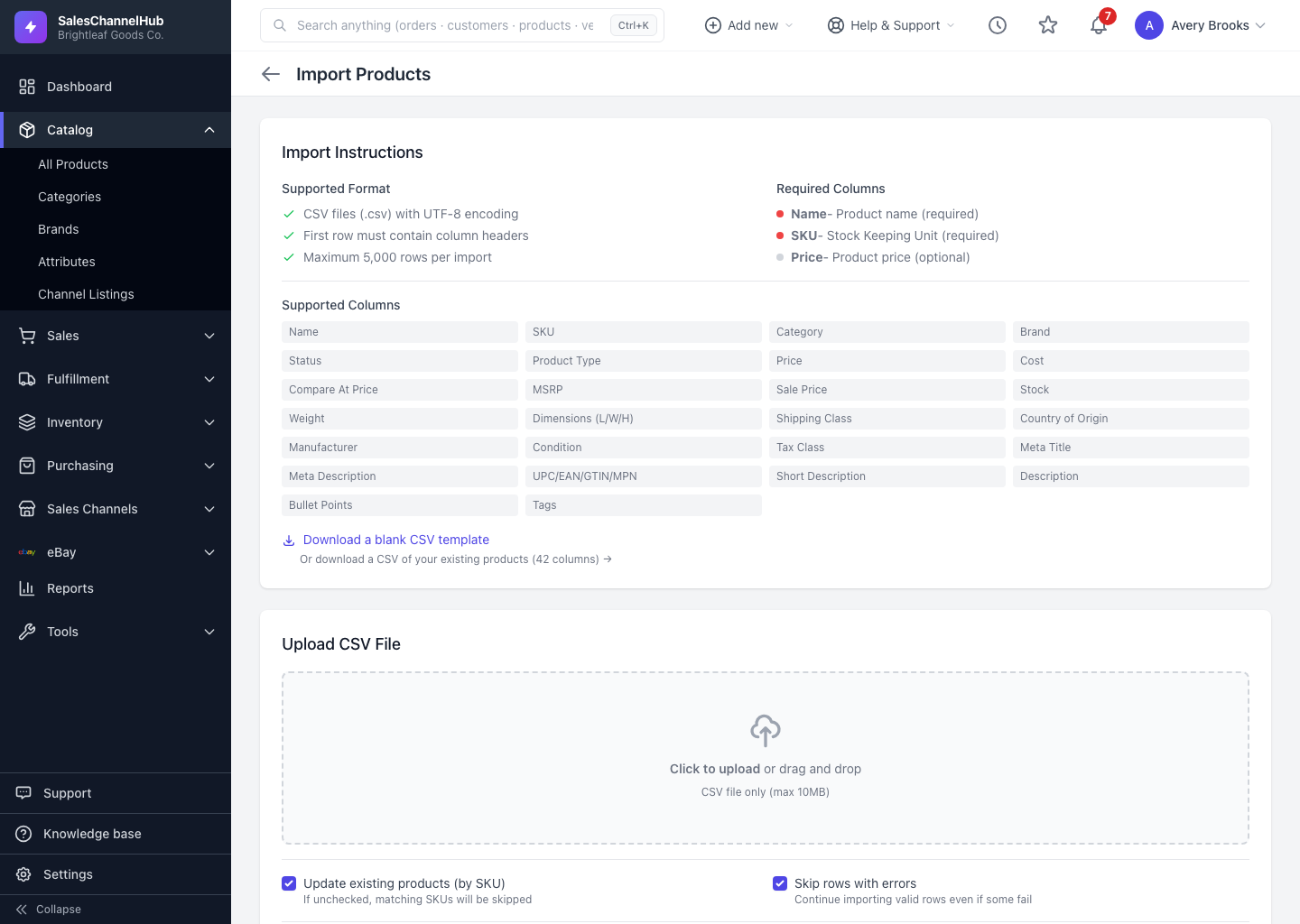
How do I import products?
- Go to Products → Import.
- Click Download a blank CSV template and fill it in. Name and SKU are required; Price and the other columns are optional.
- Back on the import screen, upload your file under Upload CSV File.
- Choose whether to Update existing products (by SKU) and to Skip rows with errors, then run the import.
- Read the result summary showing how many products were created, updated or skipped.
Tip. The first row must be column headers, files must be UTF-8, and you can import up to 5,000 rows at a time.
Common questions
Which columns does the import require?
Name and SKU are required. Price is optional, and so is everything else. Use the blank template so the headers match.
How does the import know whether to create or update?
It matches on SKU. A new SKU creates a product; an existing SKU updates that product, but only if you tick Update existing products (by SKU). Untick it and matching SKUs are skipped.
How many rows can I import at once?
Up to 5,000 rows per import. The file must be a UTF-8 CSV under 10MB with column headers in the first row.
What happens if a row has an error?
With Skip rows with errors on, the valid rows still import and the bad ones are skipped and reported in the summary. With it off, the import stops at the first failure.