Fill in custom product fields
Custom fields capture extra attributes your business tracks. They're defined once in settings, then appear on the product's Custom Fields tab.
Custom fields record details that aren't part of the standard product form, anything from a supplier code to a regulatory note. You define them once in settings, and they then appear on every product.
How do I fill in custom fields?
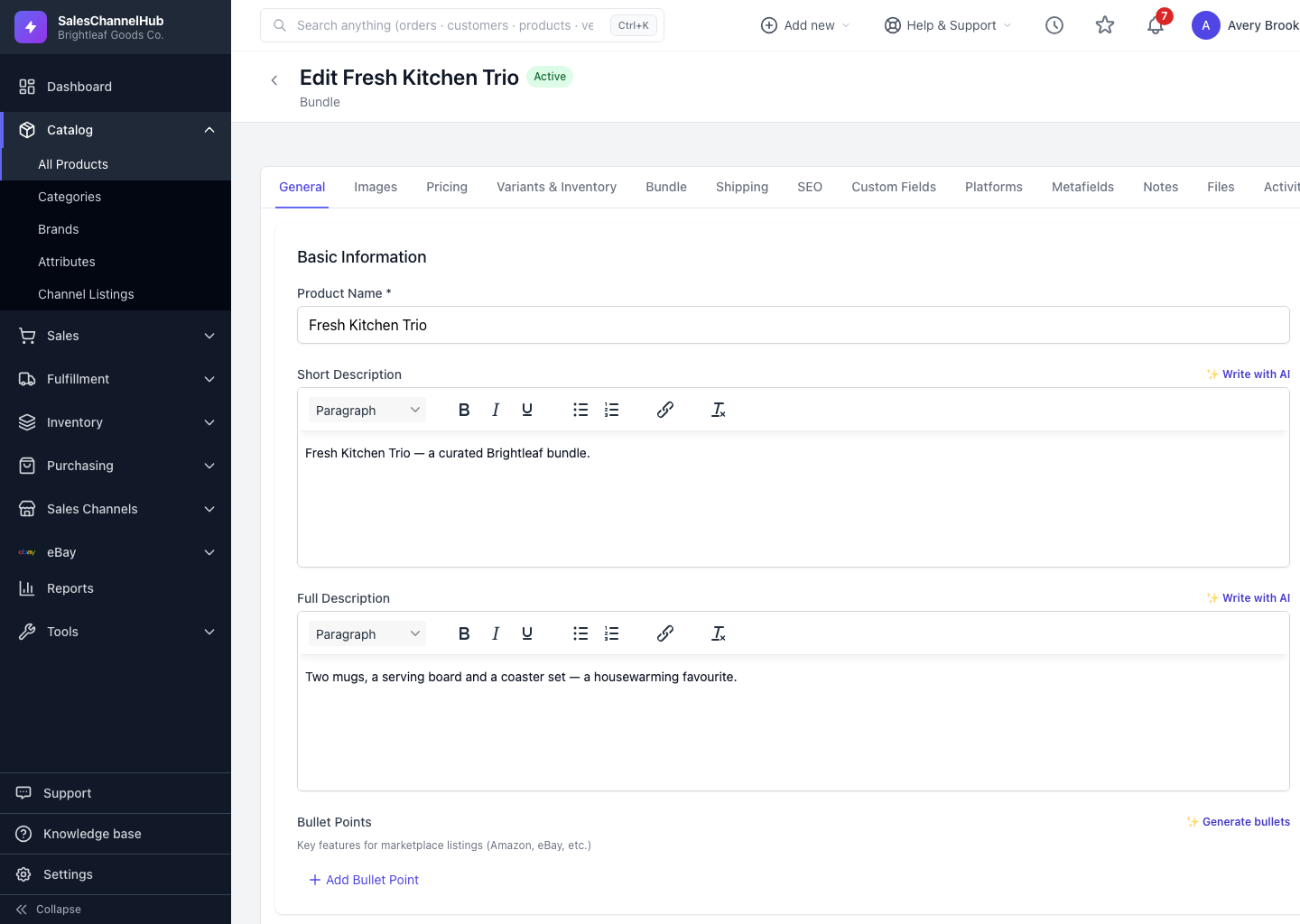
- Open a product and click the Custom Fields tab. It only appears once at least one custom field has been defined.
- Fill in the fields, which are grouped by their group name. Required fields are marked with a red asterisk.
- Click Update Product to save the values.
How do I add or change the fields themselves?
Use the Manage Custom Fields link on the tab, which takes you to Settings to add, rename or remove field definitions.
Tip. No Custom Fields tab on your products? None have been defined yet. Add one in Settings and the tab appears.
Was this article helpful?