Tune forecasting settings
On Settings → Forecasting, adjust the lookback window, lead times, the reorder-point formula and per-ABC-class safety buffers.
Forecasting settings control how the app predicts demand and works out reorder points. The defaults are sensible; adjust them as you learn how your stock moves.
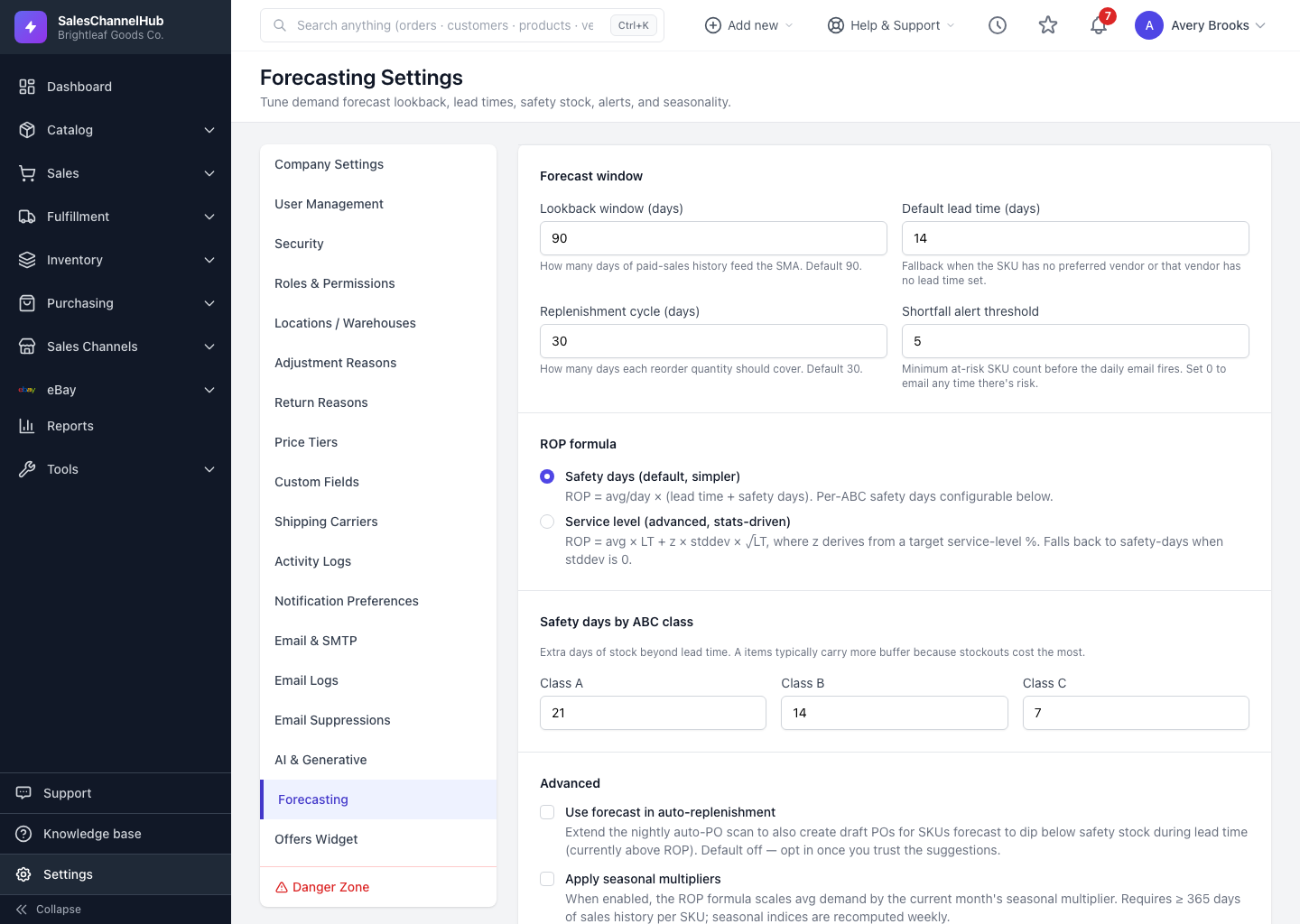
What can I tune?
- Forecast window — the Lookback window of sales history, a Default lead time, the Replenishment cycle, and a Shortfall alert threshold.
- ROP formula — choose Safety days (simpler) or Service level (statistics-driven), then set values per ABC class.
- Advanced — let the forecast feed auto-replenishment, and apply seasonal multipliers once you have enough history.
How do I save changes?
- Go to Settings → Forecasting.
- Adjust the values, choosing a formula and per-class buffers.
- Click Save forecasting settings.
Tip. Give your A-class items more safety buffer than C-class. Running out of your best sellers costs the most.
Common questions
Should I use Safety days or Service level?
Safety days is simpler: it buffers a fixed number of days of demand. Service level is statistics-driven and sizes the buffer to a target availability per ABC class. Start with Safety days and move to Service level once you trust the data.
What is the lookback window?
How much sales history the forecast reads when projecting demand. A longer window smooths out noise; a shorter one reacts faster to recent trends.