Set up AI and choose how to power it
Open Settings → AI & Generative, pick how AI runs, set your brand voice, and save.
AI works out of the box on the free credits included with your plan, so there's usually nothing to switch on. The settings page is where you confirm how AI is powered and shape its writing style.
How do I set it up?
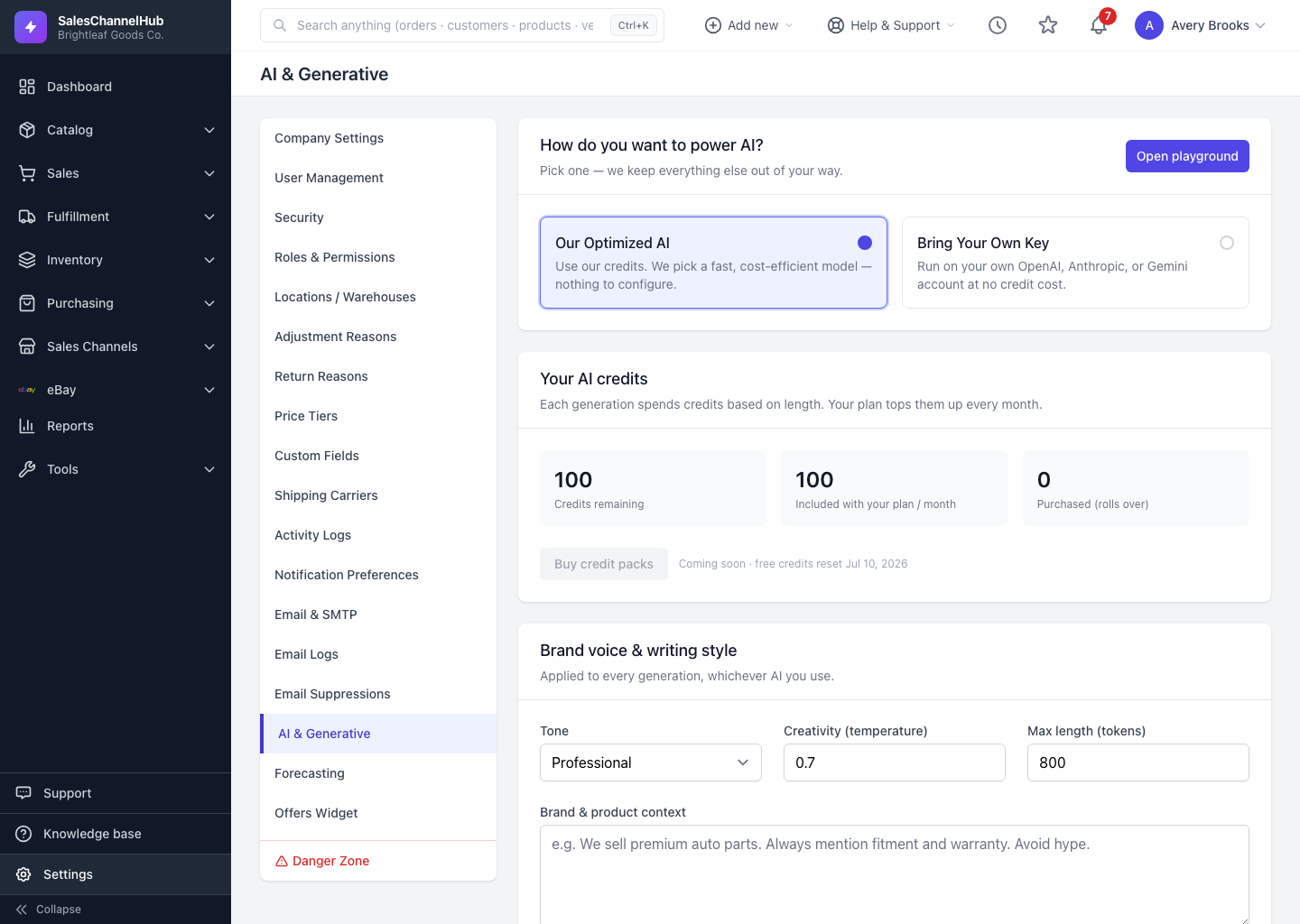
- Go to Settings, then open AI & Generative in the settings menu.
- Under How do you want to power AI? choose Our Optimized AI to use the included credits, or Bring Your Own Key to run on your own provider account.
- Set your Brand voice & writing style: a Tone, the Creativity (temperature), a Max length (tokens), and any Brand & product context.
- Click Save settings.
What does Brand & product context do?
It's added to every generation across the app. A line like "We sell homeware; keep it warm and practical, avoid hype" steers all your drafts at once. It holds up to 4000 characters.
Tip. Brand & product context is the highest-leverage setting here. Spend a minute on it before you generate anything and every draft improves.
Common questions
Do I have to turn AI on before I can use it?
No. AI runs on the free credits included with your plan from day one. The settings page just lets you change how it's powered and how it writes.
Will changing the Tone or context affect drafts I already saved?
No. Settings only apply to generations you run afterwards. Saved text stays exactly as it is until you regenerate or edit it.
Who can change the AI settings?
Anyone whose role has the AI manage permission. Users with only the view permission can use the AI buttons but can't edit the settings page.