Browse the email log
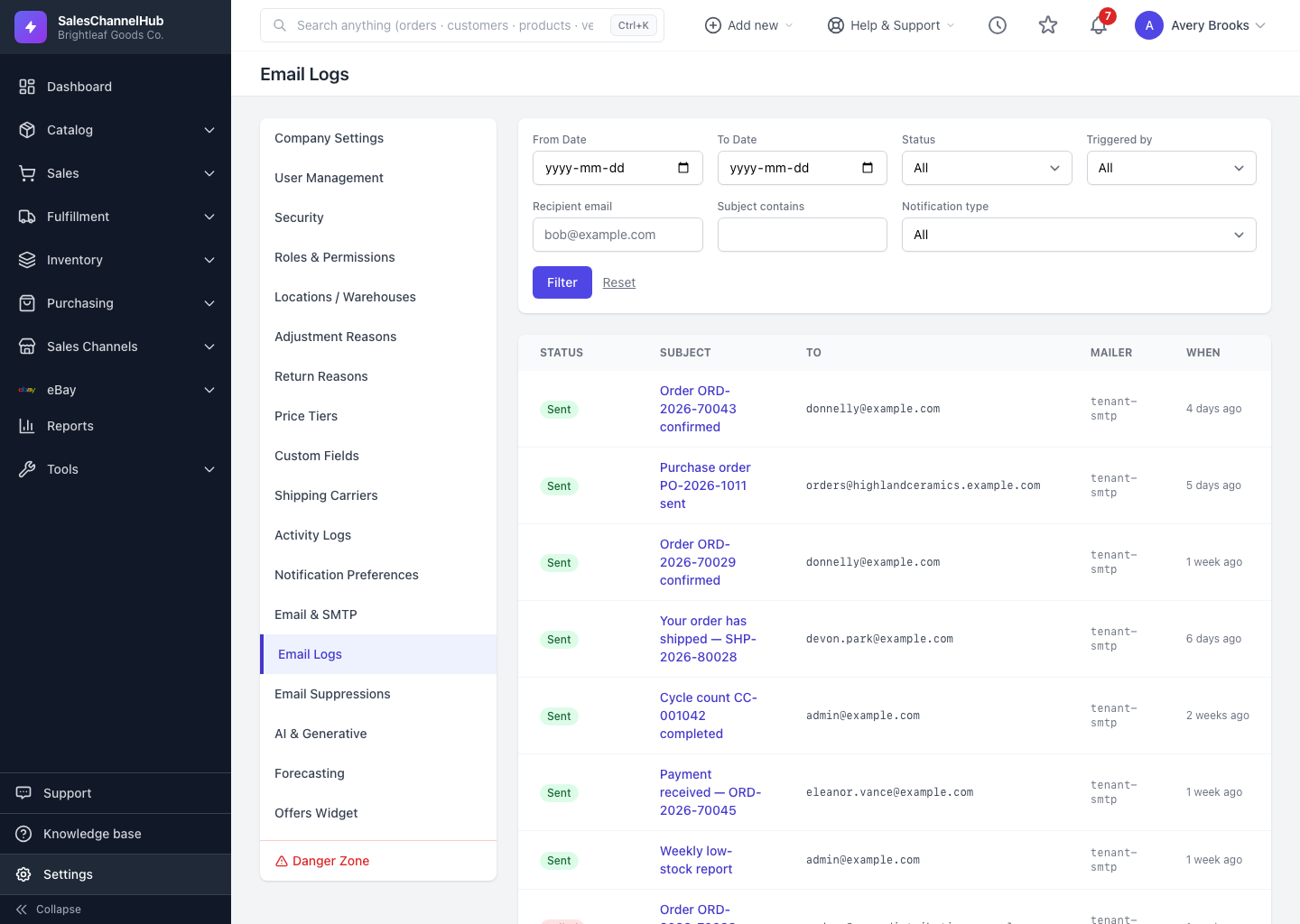
Settings → Email Logs shows every outbound email the system tried to send, with its status, recipients, mailer and how long ago it ran.
The email log records every message the system attempted to send on your behalf: order confirmations, alerts, invites and more. It's where you confirm an email went out, or find out why it didn't. Open it from Settings > Email Logs.
What does the list show?
- Status: a colour-coded badge (Sent, Sending, Queued, Failed or Suppressed) telling you how each message ended up.
- Subject: the subject line, with its notification type underneath. Click it to open the full detail.
- To: the recipients, with a "+N more" indicator when there are several.
- Mailer and When: which sending route was used, and how long ago it happened.
Why can't I see Email Logs?
The log is permission-gated and shows messages for your account only. If it's missing under Settings, your role doesn't include email-log access. Ask an administrator.
Tip. Sort out a missing email fastest by checking the Status column first. It usually tells you the answer at a glance.
Was this article helpful?