Read the stock-levels list
Each row is one SKU at one location, so a SKU stored in two warehouses appears twice. Here's how to read and filter it.
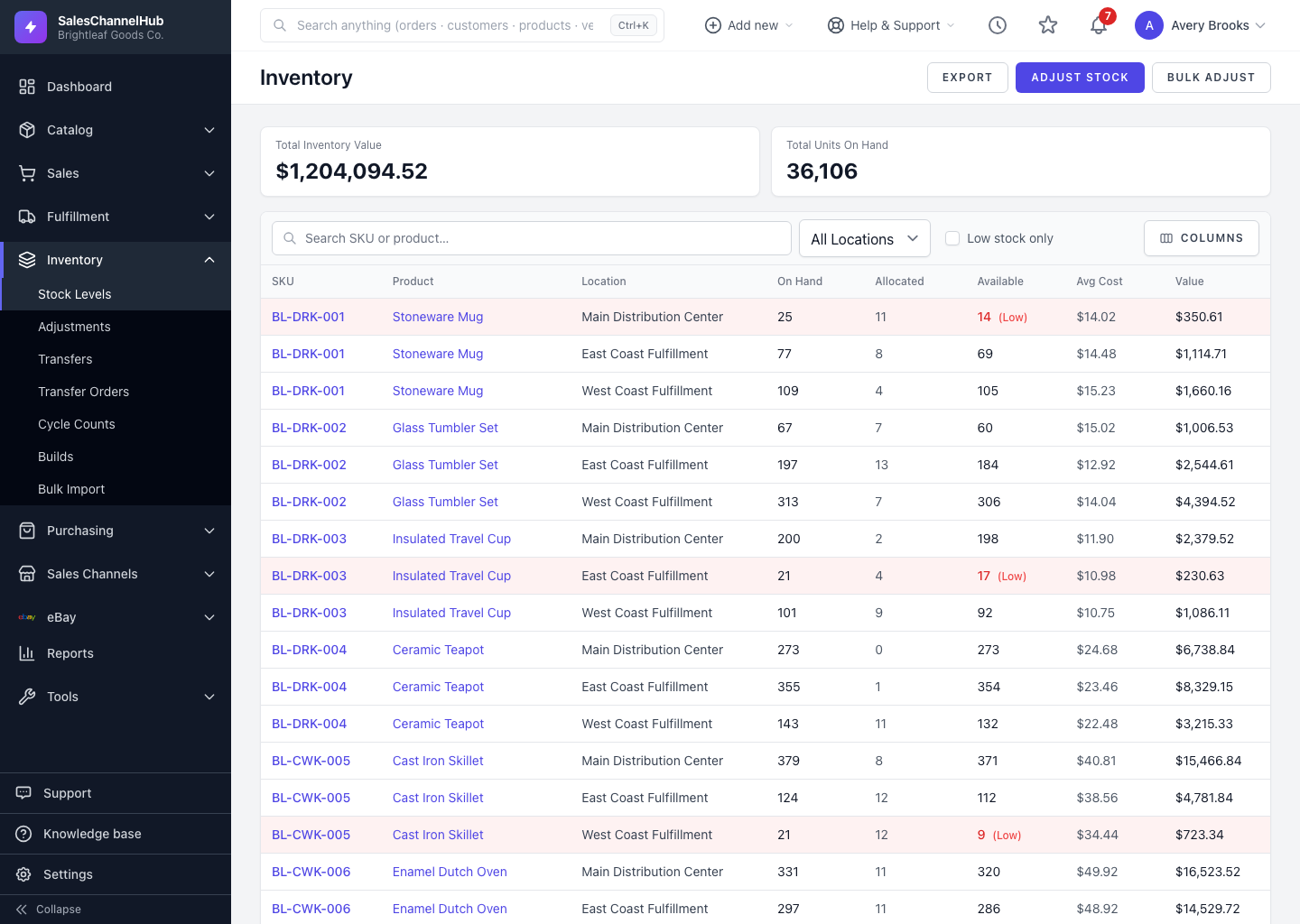
Each row on the Stock Levels list is one SKU at one location, so a SKU stored in two warehouses appears twice. That's the key to reading everything else on the screen.
What do the columns mean?
- SKU and Product identify what you're looking at. Click a SKU to jump straight to adjusting it.
- On Hand is the physical count, Allocated is reserved for open orders, and Available is what's left to sell.
- Avg Cost is the weighted-average unit cost, and Value is the on-hand value.
How do I filter and sort?
- Type in Search SKU or product to find an item by code or name.
- Pick a warehouse in the Location dropdown to see only that site.
- Tick Low stock only to surface items at or below their reorder point.
- Click the On Hand, Allocated, Available or Avg Cost headers to sort.
Tip. Use the column picker in the filter bar to hide columns you don't need, then export. The export follows your current filters.
Common questions
Why does the same SKU show twice?
It's stocked in more than one location. Each SKU-and-location pair is its own row, with its own on-hand, allocated and reorder point.
Can I click into a stock row for more detail?
The rows aren't a detail page, but clicking the SKU code opens the adjustment form with that item pre-selected.
Was this article helpful?