Use the help center and article suggestions
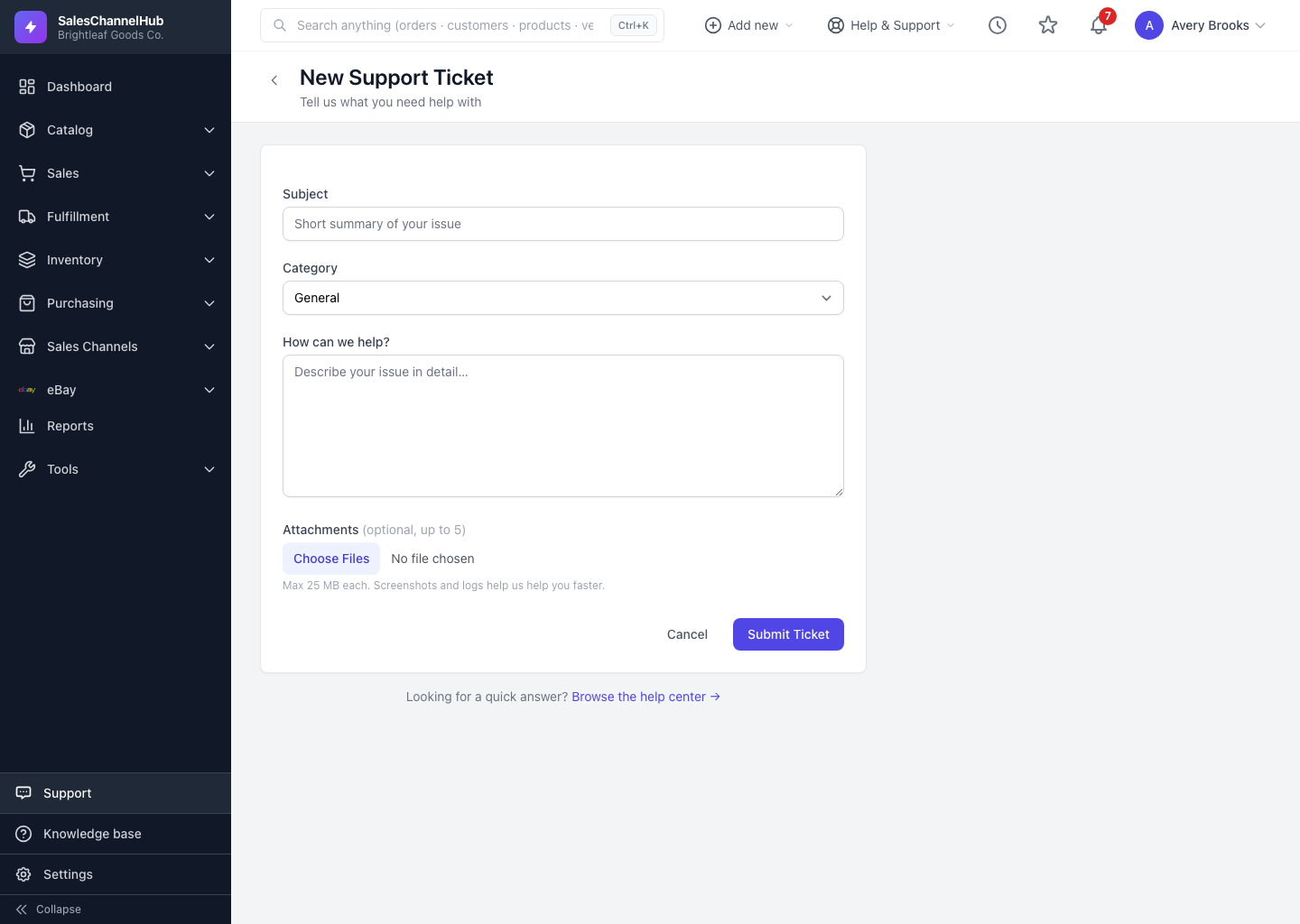
Type a subject on the ticket form to see matching articles, or open the help center link to search the full knowledge base.
Most questions already have a written answer. The ticket form checks the help center for you as you type, and you can also search the full knowledge base directly.
Where do answers come from?
- Suggestions on the ticket form. As you fill in the Subject, matching articles appear under a note that reads “These articles might help — you may not need a ticket”. Click one to open it in a new tab; your draft stays put.
- The full help center. The Browse the help center link at the bottom of the ticket form opens the knowledge base, where you can search by keyword and read articles by topic.
How do I get better suggestions?
- Write a specific subject. “eBay listing won't publish” matches better than “problem”.
- If an article solves it, you're done. No ticket needed.
- If it doesn't, finish the form and click Submit Ticket.
Tip. Suggestions start once you've typed three characters, with a short pause after you stop typing. Give it a moment for the best matches.
Common questions
Why don't I see any article suggestions?
Suggestions appear once your subject is at least three characters. Pause briefly after typing, and try more specific words that match what the article would be titled.
Does opening a suggested article lose my draft?
No. Suggested articles open in a new tab, so your ticket draft stays exactly where you left it.
Was this article helpful?