Bulk-adjust CSV columns and modes explained
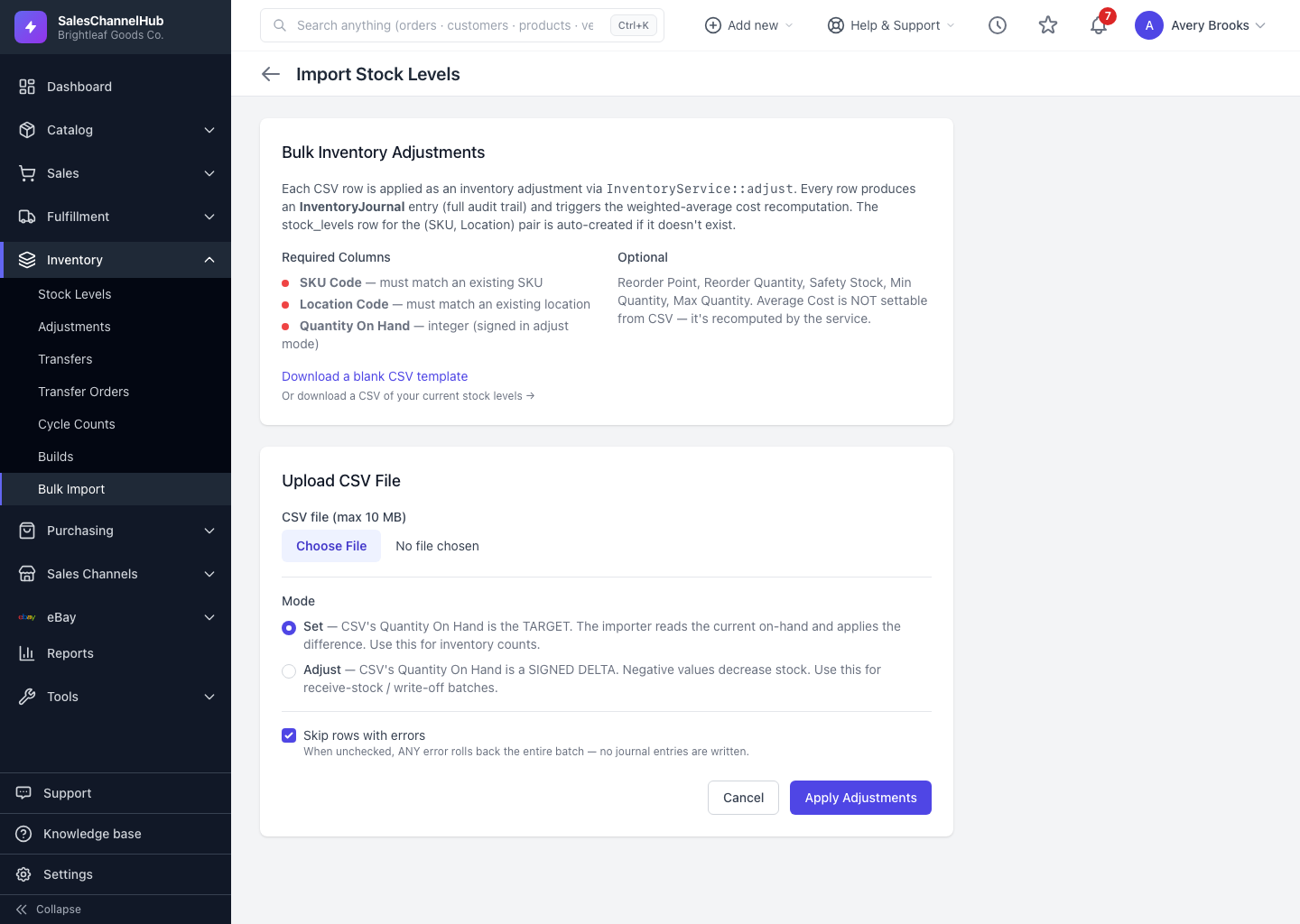
The importer reads SKU Code, Location Code and Quantity On Hand as required, plus optional thresholds. Average Cost can't be set from CSV.
Getting the CSV right is most of the work in a bulk adjustment. The importer needs three columns and reads several optional ones.
Which columns are required?
- SKU Code — must match an existing SKU.
- Location Code — must match an existing location.
- Quantity On Hand — a whole number, signed when you're in Adjust mode.
Which columns are optional?
- Reorder Point, Reorder Quantity, Safety Stock, Min Quantity and Max Quantity update those thresholds on the matching stock-level row.
- Average Cost is not settable from CSV. It's recalculated automatically from your recorded movements.
How are rows matched to stock?
- The importer pairs each row to a stock level by SKU Code plus Location Code.
- If no stock-level row exists for that pair yet, it's created.
Tip. An exported stock file already has the right headers. Edit it and re-upload rather than building a CSV from scratch.
Was this article helpful?