Create a pick list from orders
Click New Pick List, pick a warehouse and pick type, then tick the confirmed orders with items still waiting to ship.
Pick lists are built from orders, not typed by hand. The create form lists confirmed and processing orders that still have unshipped lines, and turns the items you select into pick lines.
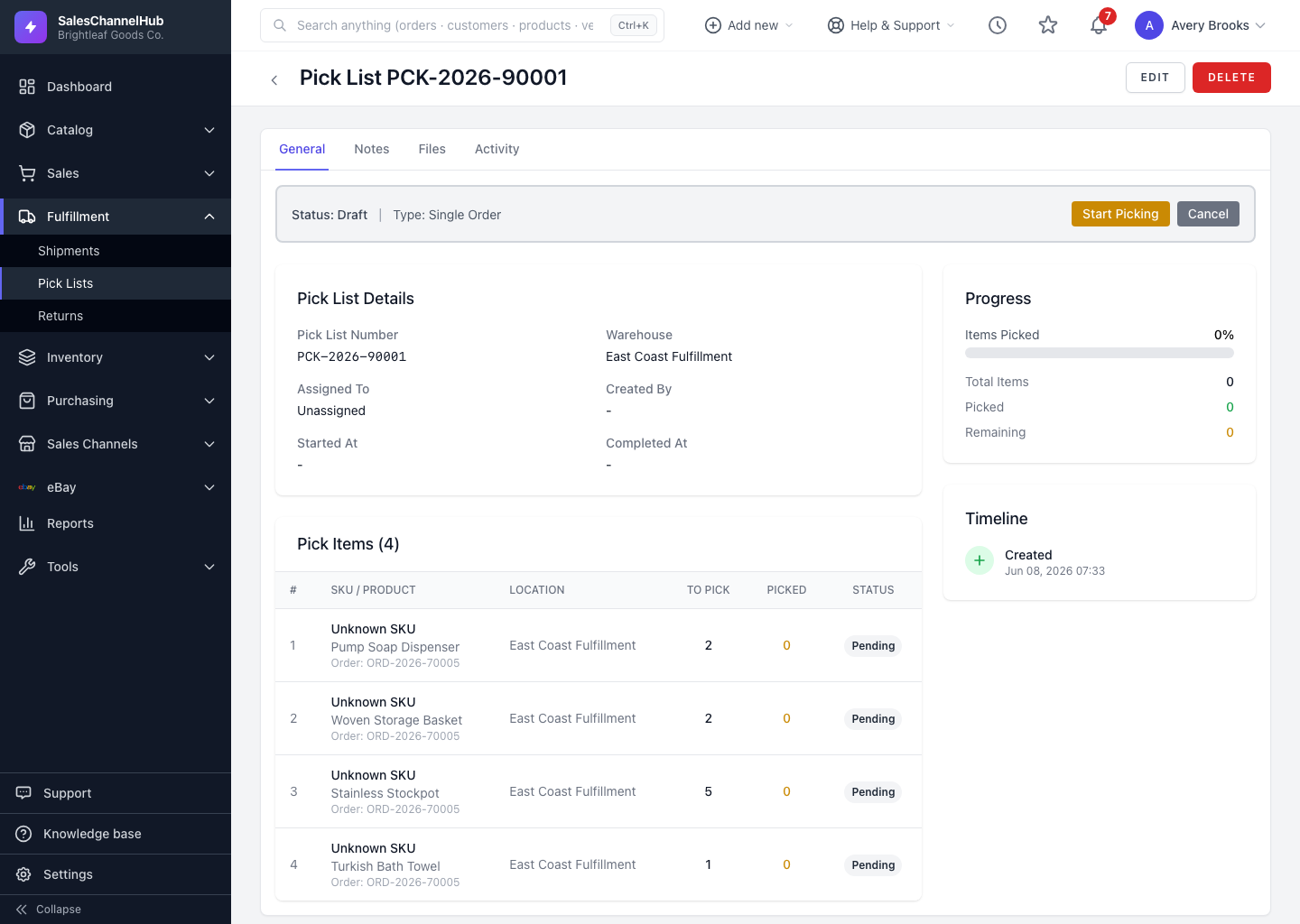
How do I create one?
- On the Pick Lists screen, click New Pick List.
- Choose the Warehouse the picker works from.
- Set the Pick Type: Single Order, Batch, Wave or Zone.
- Optionally choose an Assign To worker, which moves the list straight to Assigned.
- Under Select Orders to Pick, tick the orders to include.
- Click Create Pick List. The system adds a pick line for each unshipped item.
Tip. The system chooses the best stock location for each line automatically, skipping quarantine, staging and other non-pickable bins.
Common questions
Why don't any orders show on the create form?
Only confirmed or processing orders with unshipped, allocated lines appear. If the list is empty, there may be nothing left to pick, or the orders haven't had inventory allocated yet.
Do I have to assign a picker when I create the list?
No. Leave Assign To as Unassigned and the list stays in Draft. Pick a worker and it moves straight to Assigned.
Can one pick list cover several orders?
Yes. Tick multiple orders and choose a Batch, Wave or Zone type to group them. Single Order is for picking one order at a time.