Export categories to CSV
Download a CSV of every category from the Import Categories page to back it up or bulk-edit it off-platform.
To get a spreadsheet of every category, use the export link on the Import Categories page. It's useful as a backup, for review, or to bulk-edit and re-import.
How do I download the file?
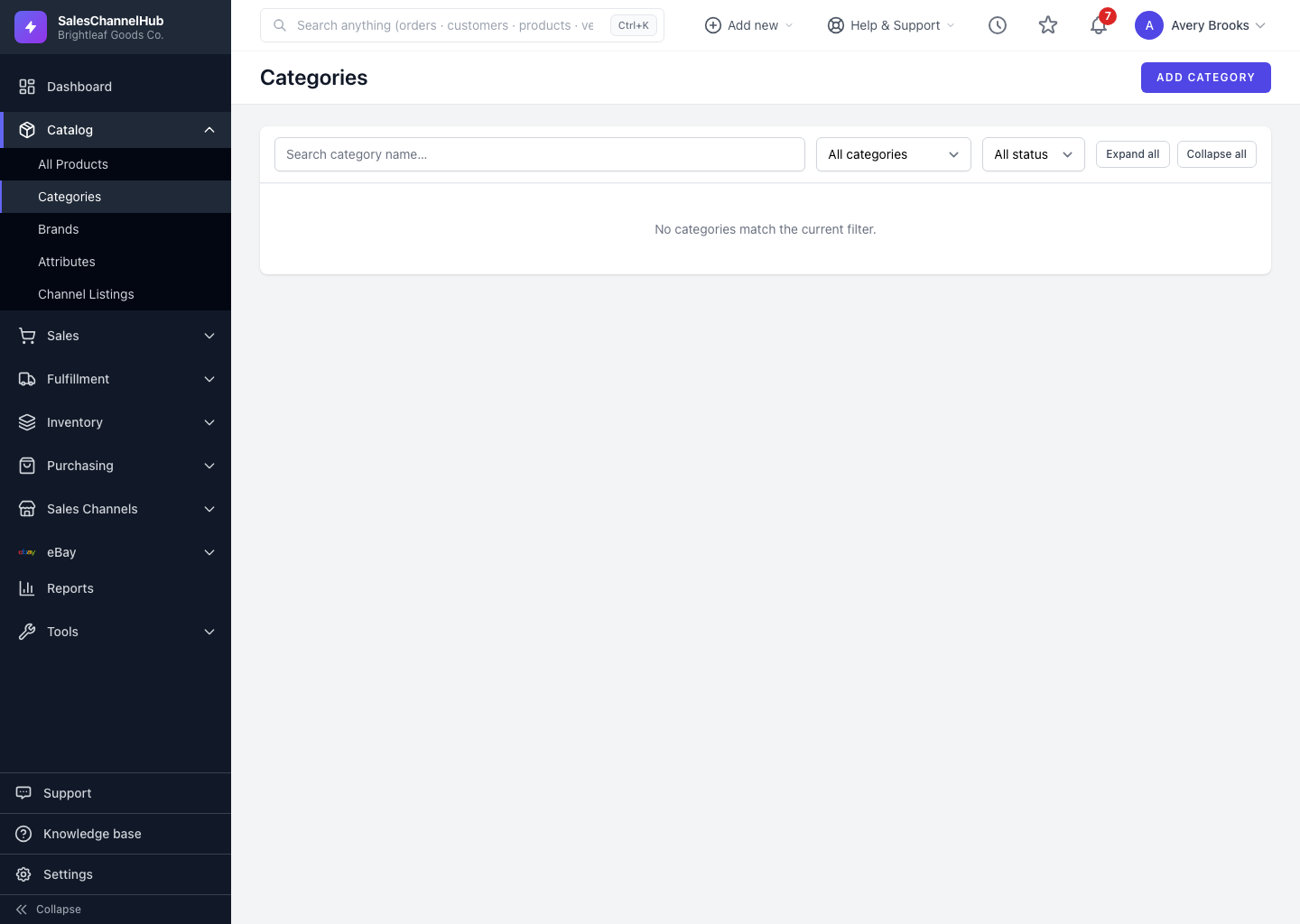
- Go to Catalog > Categories and open the Import page.
- Under Import Instructions, click Or download a CSV of your existing categories.
- Your browser downloads a file with one row per category.
What's in the file?
- Name and Parent Name describe the hierarchy.
- Slug, Description, Sort Order and Active carry the rest of each category's settings.
- Path and Level are informational only. The importer recalculates them from each category's parent.
Tip. Edit the exported file and feed it straight back through Import to apply changes in bulk. Categories are matched by name.
Was this article helpful?